> ## Documentation Index
> Fetch the complete documentation index at: https://documentation.onesignal.com/llms.txt
> Use this file to discover all available pages before exploring further.
# Design in-app messages with drag-and-drop
> Use OneSignal's visual composer to build high-converting in-app messages with blocks, layouts, carousels, and personalization.
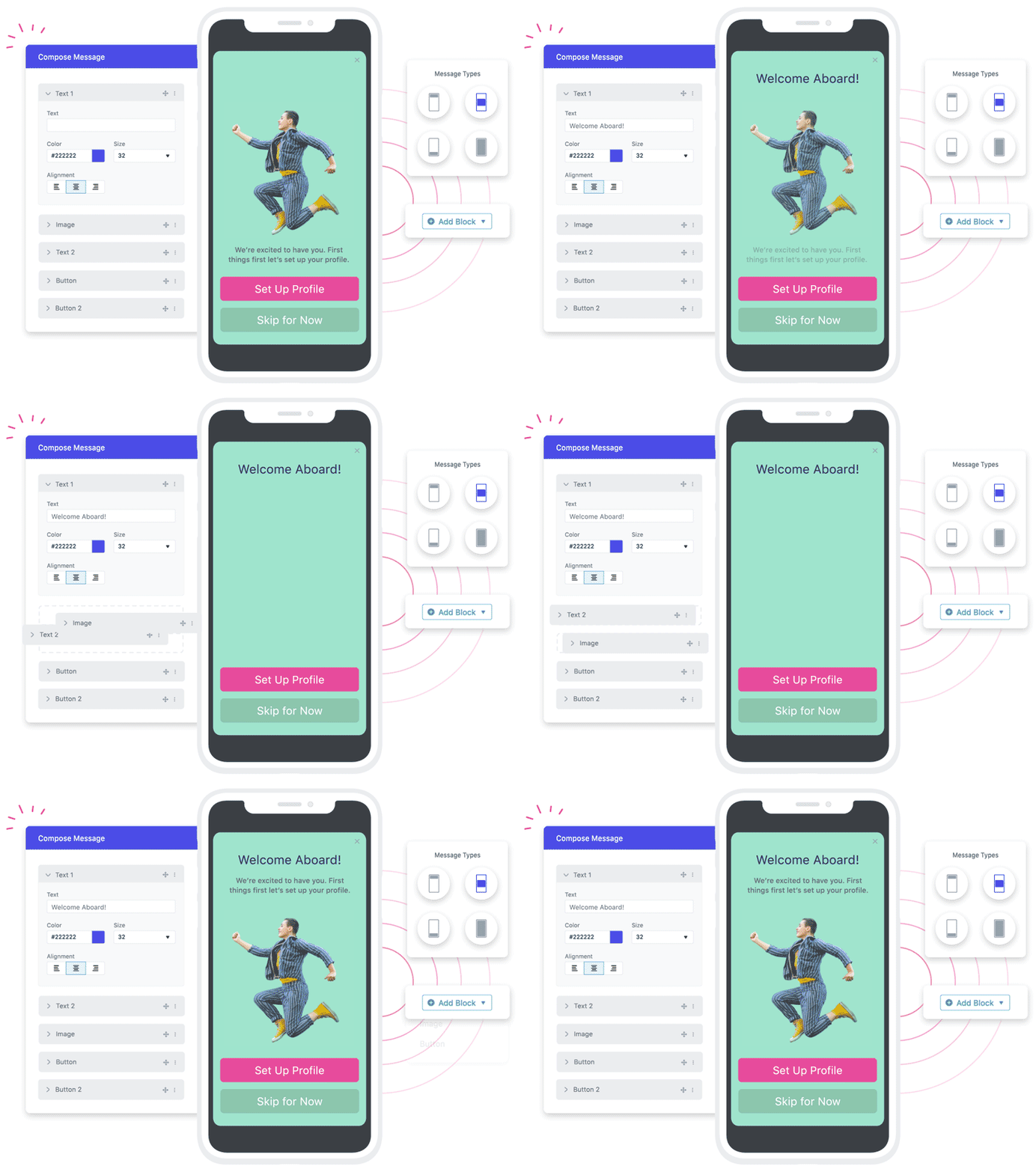
OneSignal's drag-and-drop editor lets you build in-app messages using modular blocks—no coding required. If you prefer markup, see [Design In-App Messages with HTML](./design-your-in-app-message-with-html).
 ## Prerequisites
* You installed and initialized the OneSignal SDK in your app.
* You're on recommended SDKs for the latest editor features:
* iOS 5.1.5+
* Android 5.1.9+
* If not uploading images to OneSignal, then your images should be hosted on a fast, publicly accessible URL (CDN recommended) and sized appropriately for mobile screens.
Make sure to use the latest version of the OneSignal SDK in your app.
Older versions may still display the message, but with fallback styling (for example, default margins or default overlays). Use **Preview** and **device testing** to confirm behavior on your minimum supported SDK versions.
***
## Start from a pre-built template
Pre-built templates help you launch quickly with layouts that are designed for conversion (including permission prompts). Choose a template, then update the copy, colors, and actions to match your brand.
**Device testing:** Pre-built designs have been tested on Pixel 6+, iPhone (iOS 14+), Huawei Nova 9, Huawei P50 Foldable, and iPad (10th gen+). These templates are optimized for portrait orientation and may not display as intended in landscape mode.
***
## Choose a message layout
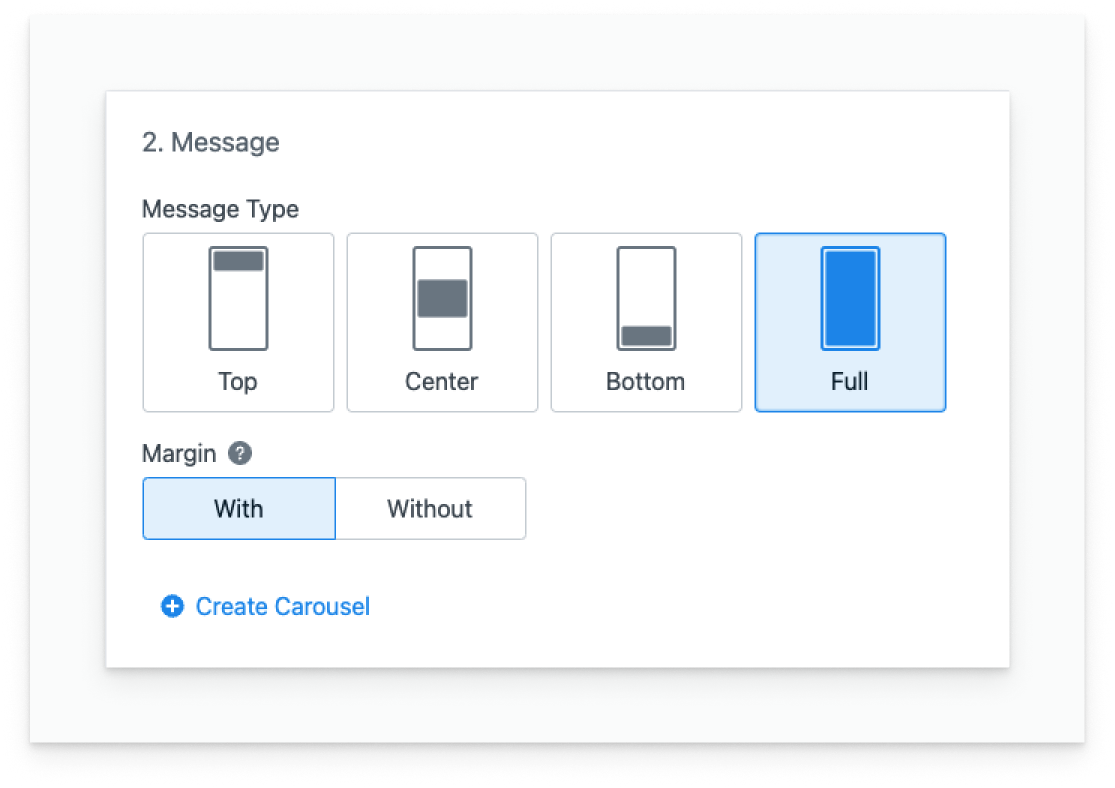
Message layout controls how the in-app appears on screen.
| Message type | Best for | How it behaves |
| ------------ | ---------------------------------------------- | ------------------------------------------------------ |
| **Top** | Slim announcements and confirmations | Slides down from the top |
| **Center** | Most marketing and product prompts | Expands from the center and partially fills the screen |
| **Bottom** | Snackbars, consent prompts | Slides up from the bottom |
| **Full** | Onboarding flows, multi-step offers, carousels | Expands to fill the screen (with optional margins) |
## Prerequisites
* You installed and initialized the OneSignal SDK in your app.
* You're on recommended SDKs for the latest editor features:
* iOS 5.1.5+
* Android 5.1.9+
* If not uploading images to OneSignal, then your images should be hosted on a fast, publicly accessible URL (CDN recommended) and sized appropriately for mobile screens.
Make sure to use the latest version of the OneSignal SDK in your app.
Older versions may still display the message, but with fallback styling (for example, default margins or default overlays). Use **Preview** and **device testing** to confirm behavior on your minimum supported SDK versions.
***
## Start from a pre-built template
Pre-built templates help you launch quickly with layouts that are designed for conversion (including permission prompts). Choose a template, then update the copy, colors, and actions to match your brand.
**Device testing:** Pre-built designs have been tested on Pixel 6+, iPhone (iOS 14+), Huawei Nova 9, Huawei P50 Foldable, and iPad (10th gen+). These templates are optimized for portrait orientation and may not display as intended in landscape mode.
***
## Choose a message layout
Message layout controls how the in-app appears on screen.
| Message type | Best for | How it behaves |
| ------------ | ---------------------------------------------- | ------------------------------------------------------ |
| **Top** | Slim announcements and confirmations | Slides down from the top |
| **Center** | Most marketing and product prompts | Expands from the center and partially fills the screen |
| **Bottom** | Snackbars, consent prompts | Slides up from the bottom |
| **Full** | Onboarding flows, multi-step offers, carousels | Expands to fill the screen (with optional margins) |
 ### Build multi-screen flows with carousels
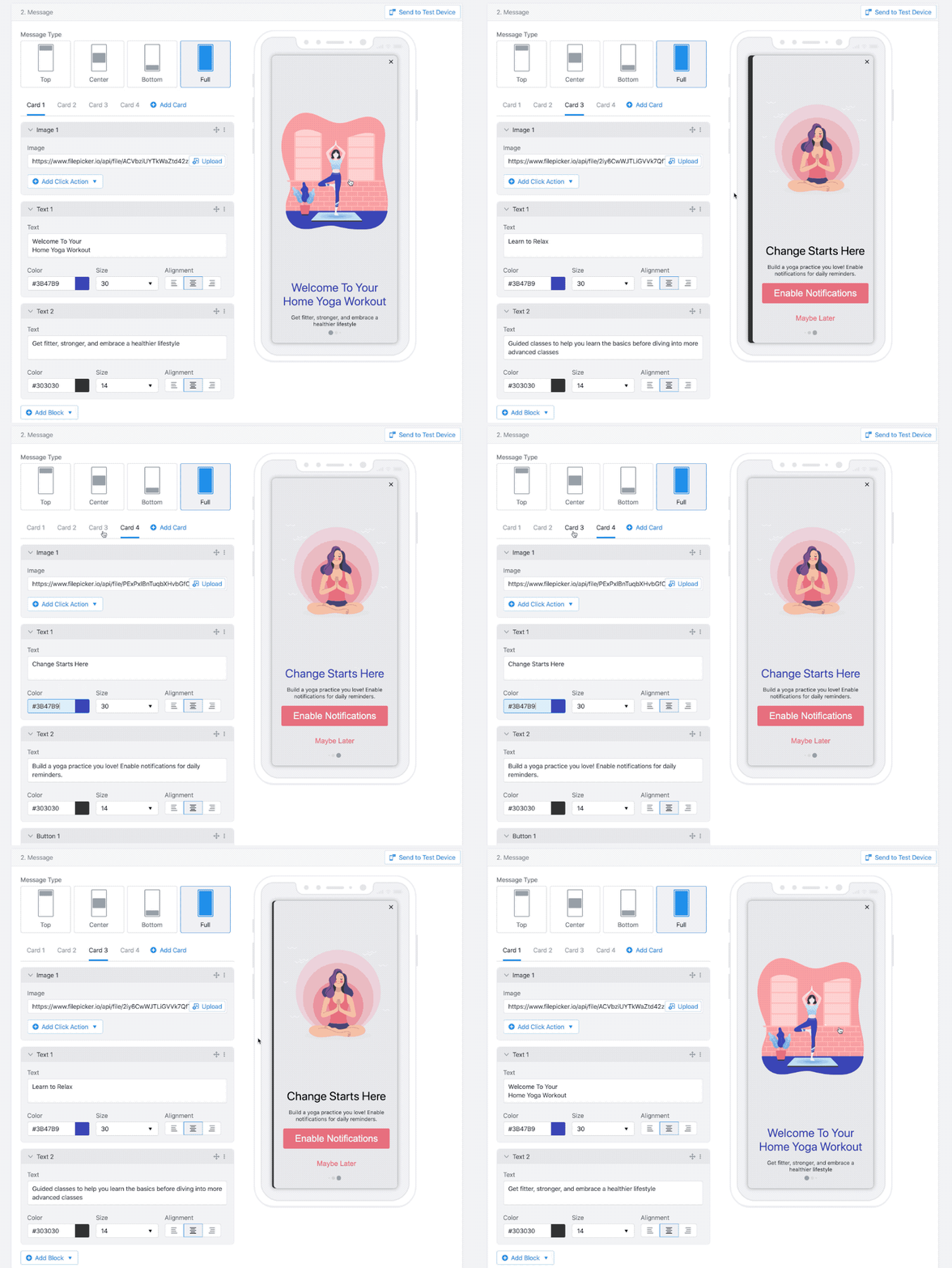
Carousels let you create multi-screen in-app experiences like onboarding, feature tours, or multi-step offers.
1. Select the **Full** message type.
2. Click **Create Carousel**.
3. Add up to 10 cards (screens).
4. Customize each card with any combination of blocks.
### Build multi-screen flows with carousels
Carousels let you create multi-screen in-app experiences like onboarding, feature tours, or multi-step offers.
1. Select the **Full** message type.
2. Click **Create Carousel**.
3. Add up to 10 cards (screens).
4. Customize each card with any combination of blocks.
 ### Orientation support
In-app messages support portrait and landscape, but layouts (especially templates) may need adjustments to look great in both.
### Orientation support
In-app messages support portrait and landscape, but layouts (especially templates) may need adjustments to look great in both.
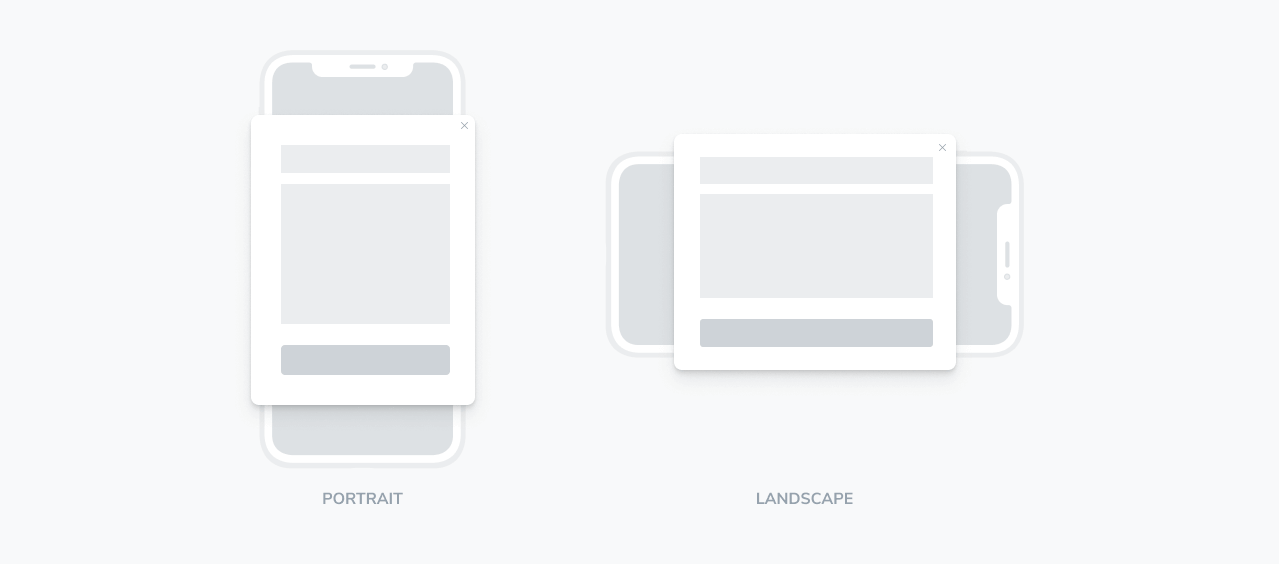 If you expect frequent landscape usage (tablets, games, video apps), test your message in landscape before publishing. Wide layouts often need smaller text sizes, tighter spacing, or fewer stacked blocks.
***
## Use blocks and spacing for clean layouts
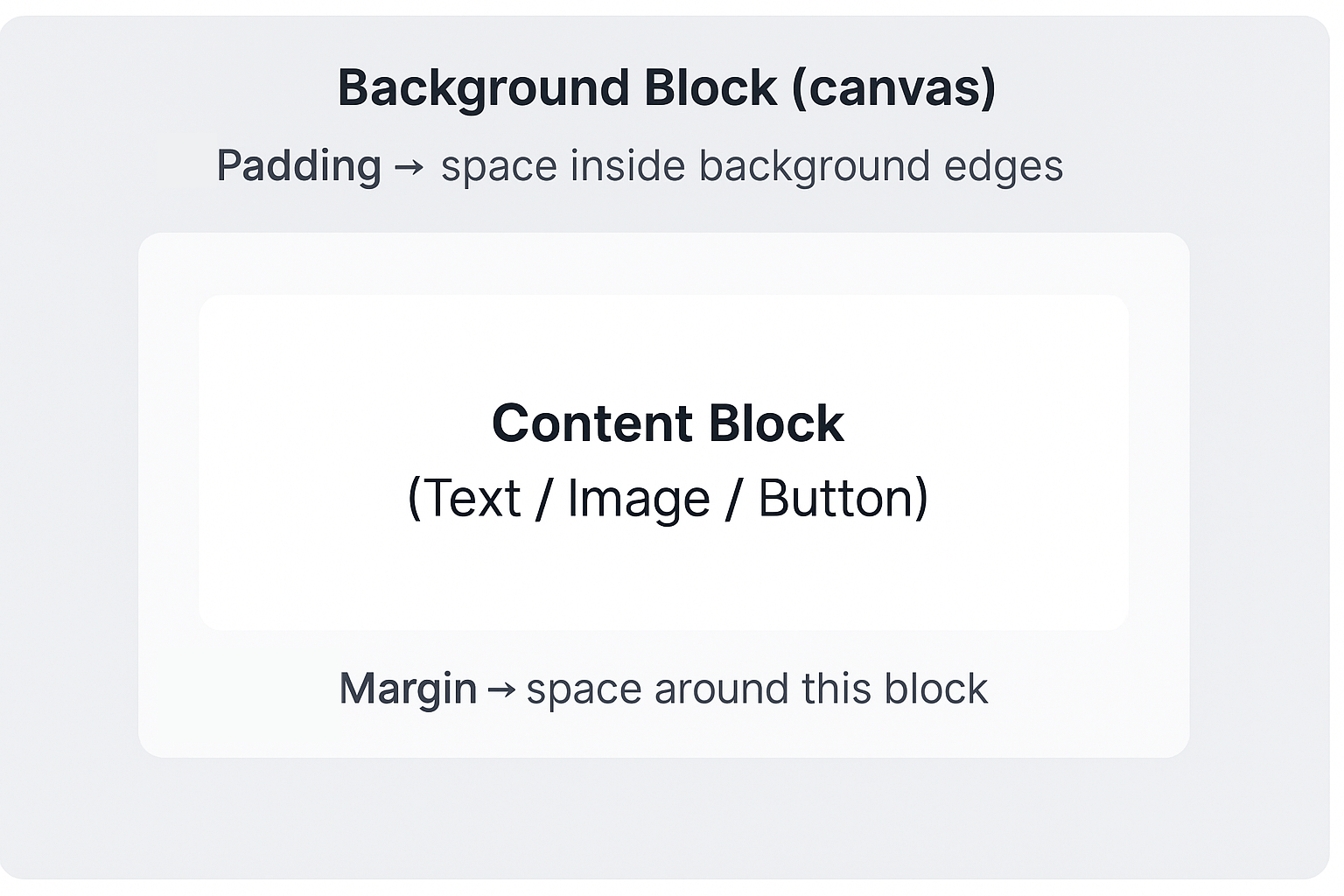
Everything is placed on the Background block (your canvas). Use:
* **Padding** on the **Background** for space between your content and the message edges.
* **Margin** on individual blocks for space between elements (headline → image → button).
**Quick rules for consistent layouts**
1. Use **Padding** to control distance from the message edges.
2. Use **Margin** to separate blocks vertically.
3. Avoid stacking large padding and margins on the same side.
4. Prefer centered, flow-based layouts over tight/edge-aligned designs.
5. Always use **Preview** on multiple device sizes before publishing.
If you expect frequent landscape usage (tablets, games, video apps), test your message in landscape before publishing. Wide layouts often need smaller text sizes, tighter spacing, or fewer stacked blocks.
***
## Use blocks and spacing for clean layouts
Everything is placed on the Background block (your canvas). Use:
* **Padding** on the **Background** for space between your content and the message edges.
* **Margin** on individual blocks for space between elements (headline → image → button).
**Quick rules for consistent layouts**
1. Use **Padding** to control distance from the message edges.
2. Use **Margin** to separate blocks vertically.
3. Avoid stacking large padding and margins on the same side.
4. Prefer centered, flow-based layouts over tight/edge-aligned designs.
5. Always use **Preview** on multiple device sizes before publishing.
 ***
## Block reference
Use these blocks to build your message. Each block supports styling and (in most cases) an optional click action.
### Text block
Use for headlines, descriptions, disclaimers, or personalized copy.
**What you can customize**
* **Responsive sizing**: Width/height in percentages.
* **Fonts**: Google Fonts.
* **Formatting**: Bold, italic, underline.
* **Color**: Hex or RGBA (supports transparency).
* **Alignment**: Left, center, right.
* **Size**: Adjustable font size.
**Advanced**
* **Margins**: Space around the block.
**Tips**
* Localize with language-based segments or [using Liquid syntax](./using-liquid-syntax).
* Personalize with [Tags](./message-personalization).
***
## Block reference
Use these blocks to build your message. Each block supports styling and (in most cases) an optional click action.
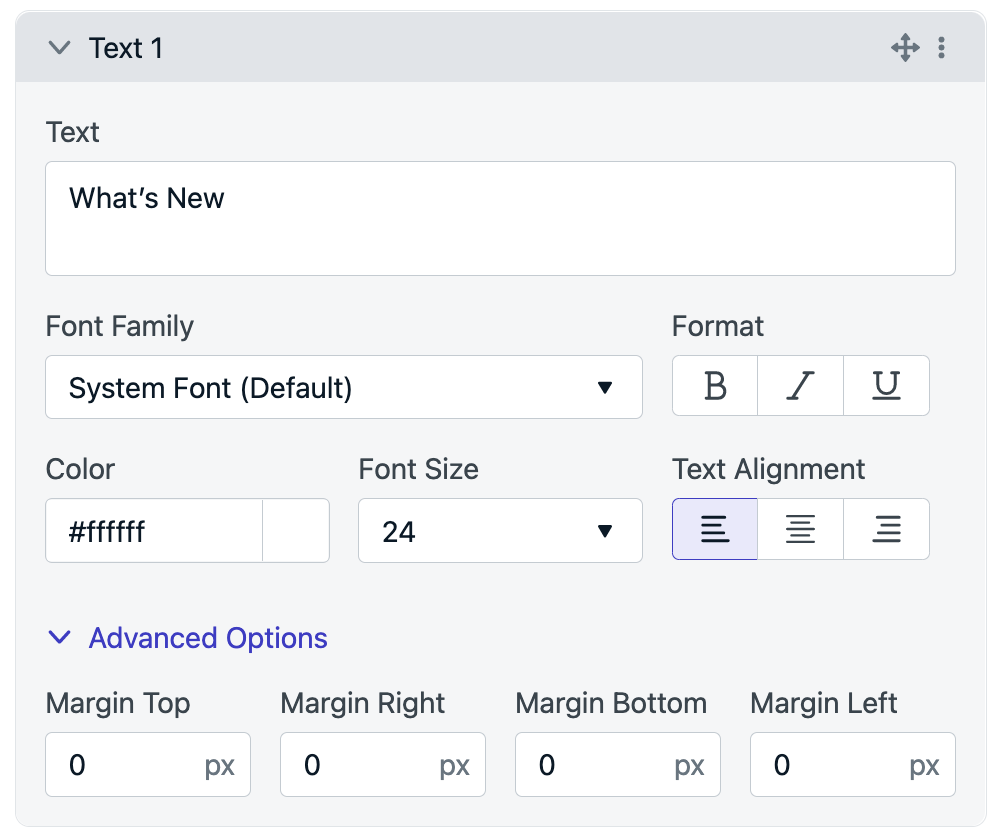
### Text block
Use for headlines, descriptions, disclaimers, or personalized copy.
**What you can customize**
* **Responsive sizing**: Width/height in percentages.
* **Fonts**: Google Fonts.
* **Formatting**: Bold, italic, underline.
* **Color**: Hex or RGBA (supports transparency).
* **Alignment**: Left, center, right.
* **Size**: Adjustable font size.
**Advanced**
* **Margins**: Space around the block.
**Tips**
* Localize with language-based segments or [using Liquid syntax](./using-liquid-syntax).
* Personalize with [Tags](./message-personalization).
 ### Image block
Use images to reinforce the offer, show a feature, or add branding.
**Supported formats and limits**
* `.jpg`, `.png`, `.gif`
* Maximum file size: 5MB
**Tips & recommendations**
* Use common aspect ratios like `16:9`, `4:3`, or `3:2`.
* You can dynamically swap links and image URLs using server-hosted paths. See [Dynamic URLs](./links#dynamic-urls).
* Example: `https://example.com/images/{{ tag_key }}.png`
**What you can customize**
* **Image URL**: Hosted is recommended for performance.
* **Click action**: Optional (link, deep link, tag, outcome, prompt).
**Advanced**
* **Dismiss on click**
* **Margins**: Space around the block.
### Image block
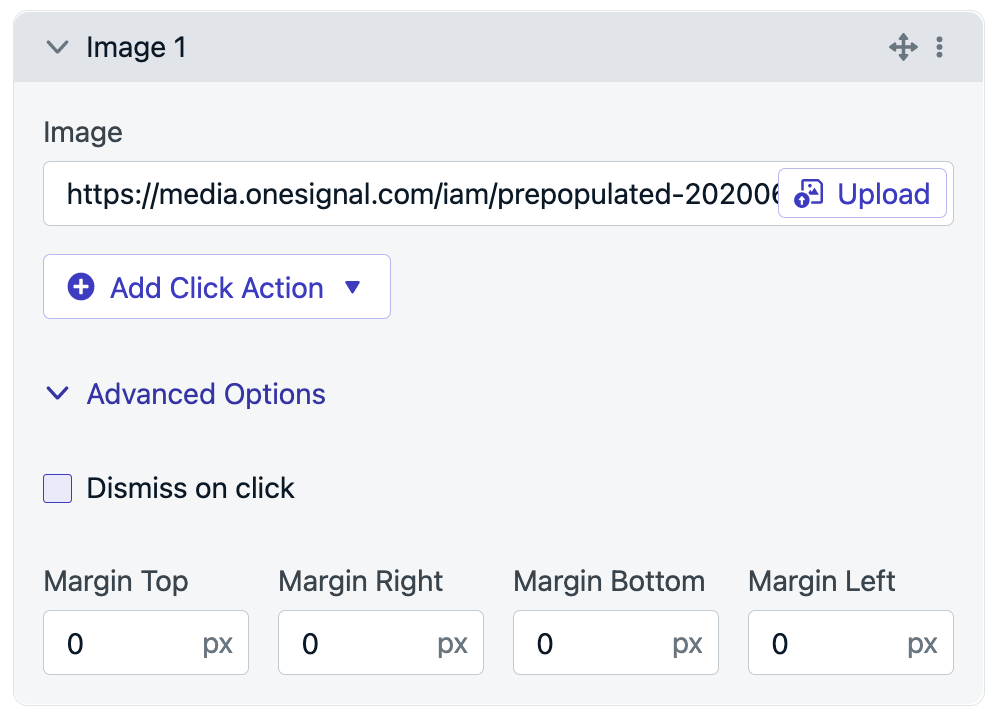
Use images to reinforce the offer, show a feature, or add branding.
**Supported formats and limits**
* `.jpg`, `.png`, `.gif`
* Maximum file size: 5MB
**Tips & recommendations**
* Use common aspect ratios like `16:9`, `4:3`, or `3:2`.
* You can dynamically swap links and image URLs using server-hosted paths. See [Dynamic URLs](./links#dynamic-urls).
* Example: `https://example.com/images/{{ tag_key }}.png`
**What you can customize**
* **Image URL**: Hosted is recommended for performance.
* **Click action**: Optional (link, deep link, tag, outcome, prompt).
**Advanced**
* **Dismiss on click**
* **Margins**: Space around the block.
 If an image URL is slow, blocked, or returns an error, your message can render with broken or empty media. Host images on a reliable CDN and verify they load quickly on mobile networks.
### Button block
Use buttons for primary actions like navigation, collecting feedback, or permission prompts.
**What you can customize**
* Button text and font styling
* Background color, size, and corner radius
* Optional icon/image
* Click action (tagging, outcomes, prompts, deep links)
**Advanced**
* Dismiss on click
* Margins
* Borders and shadows
**Tips**
* Personalize button text or destinations using tags.
* You can make an image-only button by setting the background opacity to 0.
* Use subtle shadows (low opacity, higher blur) to lift the primary CTA.
If an image URL is slow, blocked, or returns an error, your message can render with broken or empty media. Host images on a reliable CDN and verify they load quickly on mobile networks.
### Button block
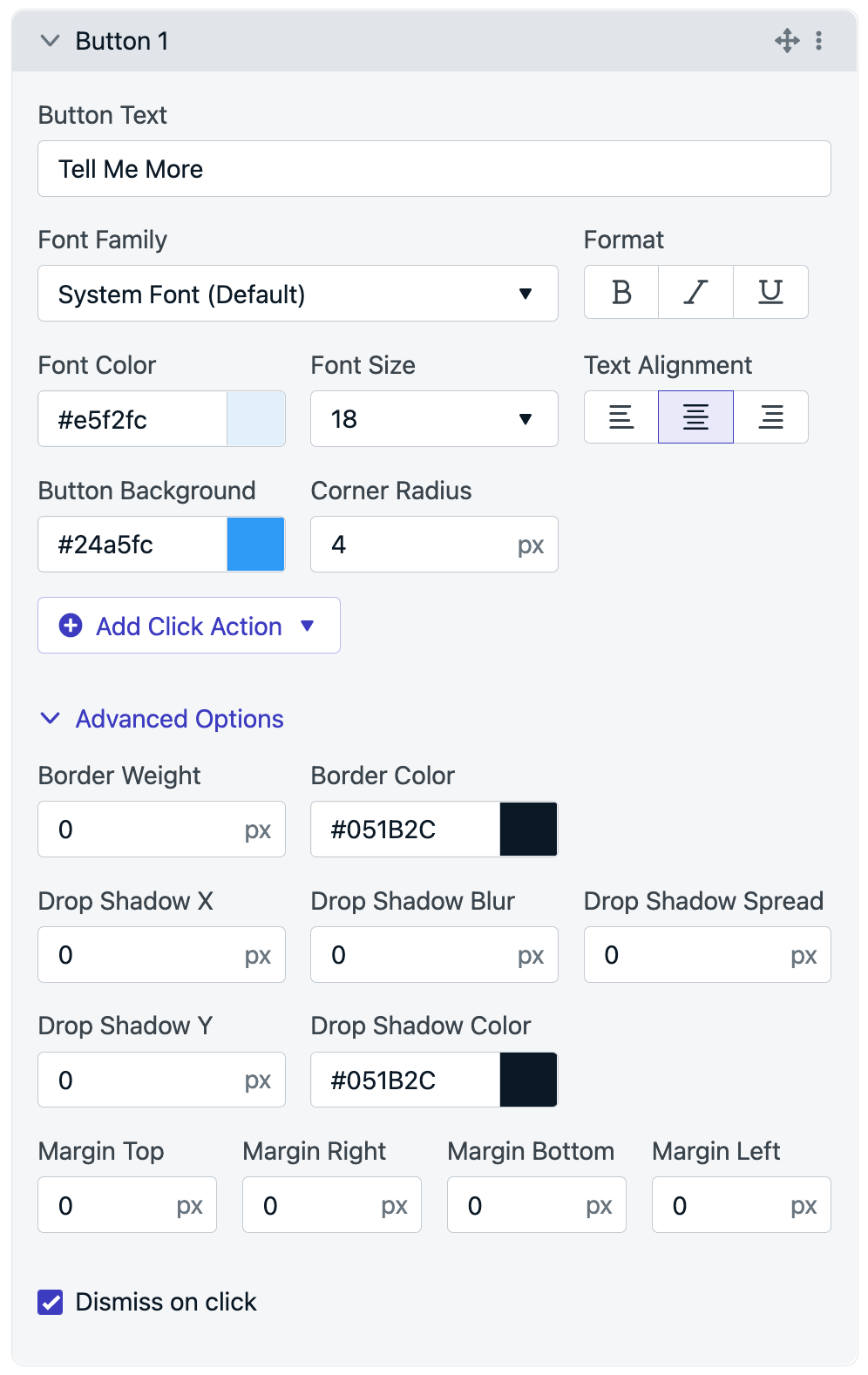
Use buttons for primary actions like navigation, collecting feedback, or permission prompts.
**What you can customize**
* Button text and font styling
* Background color, size, and corner radius
* Optional icon/image
* Click action (tagging, outcomes, prompts, deep links)
**Advanced**
* Dismiss on click
* Margins
* Borders and shadows
**Tips**
* Personalize button text or destinations using tags.
* You can make an image-only button by setting the background opacity to 0.
* Use subtle shadows (low opacity, higher blur) to lift the primary CTA.
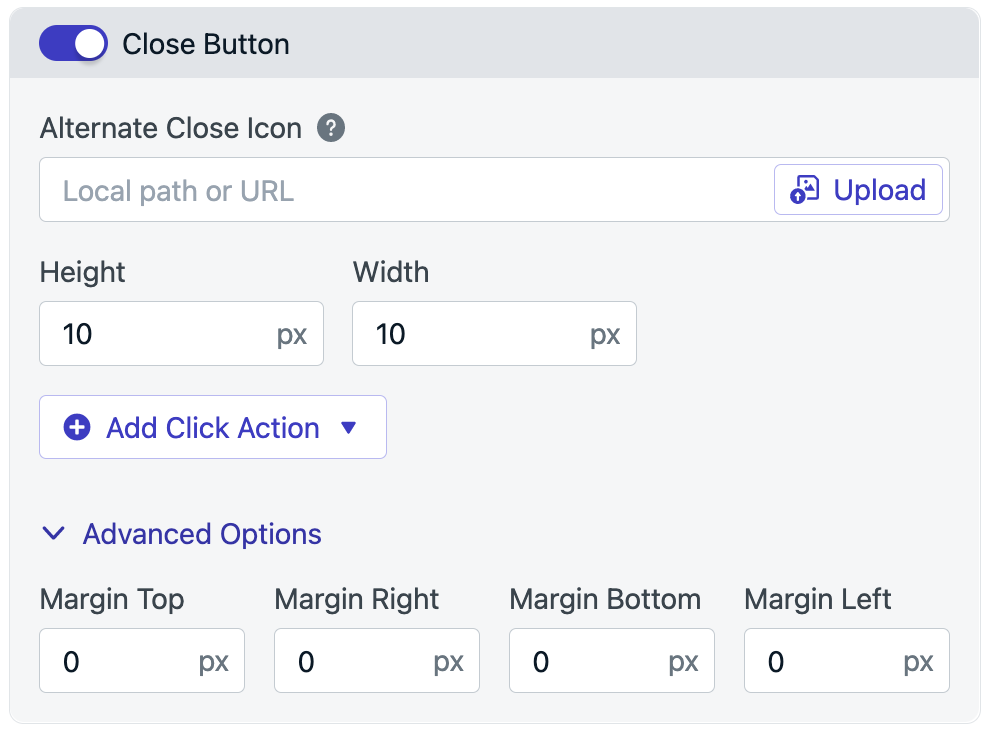
 ### Close button block
The close button controls whether users can dismiss the message using an "X" icon.
**What you can customize**
* Enable/disable visibility
* Custom icon (`.jpg`, `.png`, `.svg`, `.gif`)
* Recommended size: `10x10px`
* Optional click action
**Advanced**
* Margins
If you disable the close button, make sure users still have a clear way to exit (for example, a **dismiss action** on a button or background, or a close timer if your experience uses one). Otherwise, you risk trapping users in the message.
### Close button block
The close button controls whether users can dismiss the message using an "X" icon.
**What you can customize**
* Enable/disable visibility
* Custom icon (`.jpg`, `.png`, `.svg`, `.gif`)
* Recommended size: `10x10px`
* Optional click action
**Advanced**
* Margins
If you disable the close button, make sure users still have a clear way to exit (for example, a **dismiss action** on a button or background, or a close timer if your experience uses one). Otherwise, you risk trapping users in the message.
 ### Background block
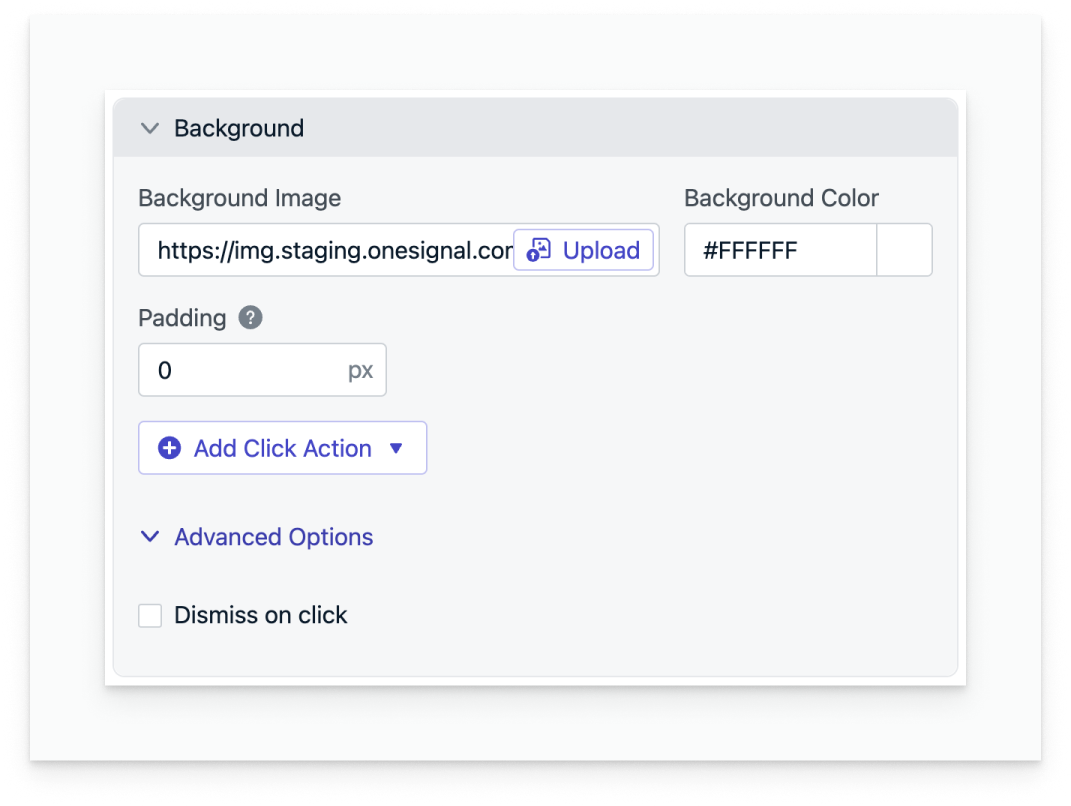
The background is the canvas that holds your layout.
**What you can customize**
* Background color (RGBA supported)
* Background image (`.jpg`, `.png`, `.gif`)
* Optional click action
**Advanced**
* Padding (default `24px`)
* Dismiss on click
### Background block
The background is the canvas that holds your layout.
**What you can customize**
* Background color (RGBA supported)
* Background image (`.jpg`, `.png`, `.gif`)
* Optional click action
**Advanced**
* Padding (default `24px`)
* Dismiss on click
 ***
## Personalization & localization
You can personalize in-app messages using [Tags](./add-user-data-tags) including inside text, button labels, and URLs.
For localization, see [Multi-langauge messages](./multi-language-messaging#send-messages-in-different-languages).
A good personalization test is to send the message to a small internal segment with known tag values and confirm:
* The text and images render with the expected substitutions
* Links resolve correctly
* Buttons fire the expected click outcomes/tags
***
## FAQ
### Can I remove the gray overlay or drop shadow from top/bottom banner in-apps?
Yes—update your SDKs and add the config below.
**iOS 5.1.5+**
```xml iOS Info.plist theme={null}
OneSignal_in_app_message_hide_drop_shadow
OneSignal_in_app_message_hide_gray_overlay
```
**Android 5.1.9+**
```xml Android Manifest.xml theme={null}
```
***
## Next steps
* Learn about [In-App Click Actions](./iam-click-actions) to customize what happens when users click elements in your message.
* Try different [In-App Message Triggers](./iam-triggers) to control when messages appear.
* Need more customization? Try [Design In-App Messages with HTML](./design-your-in-app-message-with-html).
***
***
## Personalization & localization
You can personalize in-app messages using [Tags](./add-user-data-tags) including inside text, button labels, and URLs.
For localization, see [Multi-langauge messages](./multi-language-messaging#send-messages-in-different-languages).
A good personalization test is to send the message to a small internal segment with known tag values and confirm:
* The text and images render with the expected substitutions
* Links resolve correctly
* Buttons fire the expected click outcomes/tags
***
## FAQ
### Can I remove the gray overlay or drop shadow from top/bottom banner in-apps?
Yes—update your SDKs and add the config below.
**iOS 5.1.5+**
```xml iOS Info.plist theme={null}
OneSignal_in_app_message_hide_drop_shadow
OneSignal_in_app_message_hide_gray_overlay
```
**Android 5.1.9+**
```xml Android Manifest.xml theme={null}
```
***
## Next steps
* Learn about [In-App Click Actions](./iam-click-actions) to customize what happens when users click elements in your message.
* Try different [In-App Message Triggers](./iam-triggers) to control when messages appear.
* Need more customization? Try [Design In-App Messages with HTML](./design-your-in-app-message-with-html).
***