> ## Documentation Index
> Fetch the complete documentation index at: https://documentation.onesignal.com/llms.txt
> Use this file to discover all available pages before exploring further.
# Keys & IDs
> Find and manage your OneSignal App ID, Organization ID, and API keys. Learn how to create, rotate, secure, and migrate keys safely.
Your OneSignal account includes **public IDs** (App ID, Organization ID) and **private API keys** (App API key, Organization API key).
* [App ID](#app-id) and [Organization ID](#organization-id) are public identifiers, safe to use in client-side code and SDK initialization.
* [App API key](#app-api-key) and [Organization API key](#organization-api-key) are private secrets. Store them securely and never expose them in client-side code.
Find these in the OneSignal dashboard under **Settings > Keys & IDs** (app-level) or **Organizations > Your Organization > Keys & IDs** (organization-level).
***
## App ID
The **App ID** is a public UUID (v4) that identifies your OneSignal app.
You use it for:
* Initializing the SDK (Mobile SDK setup, Web SDK setup)
* Making API requests such as Create message and Create user
Find your App ID in the dashboard under **Settings > Keys & IDs** or via the [View apps](/reference/view-apps) API.
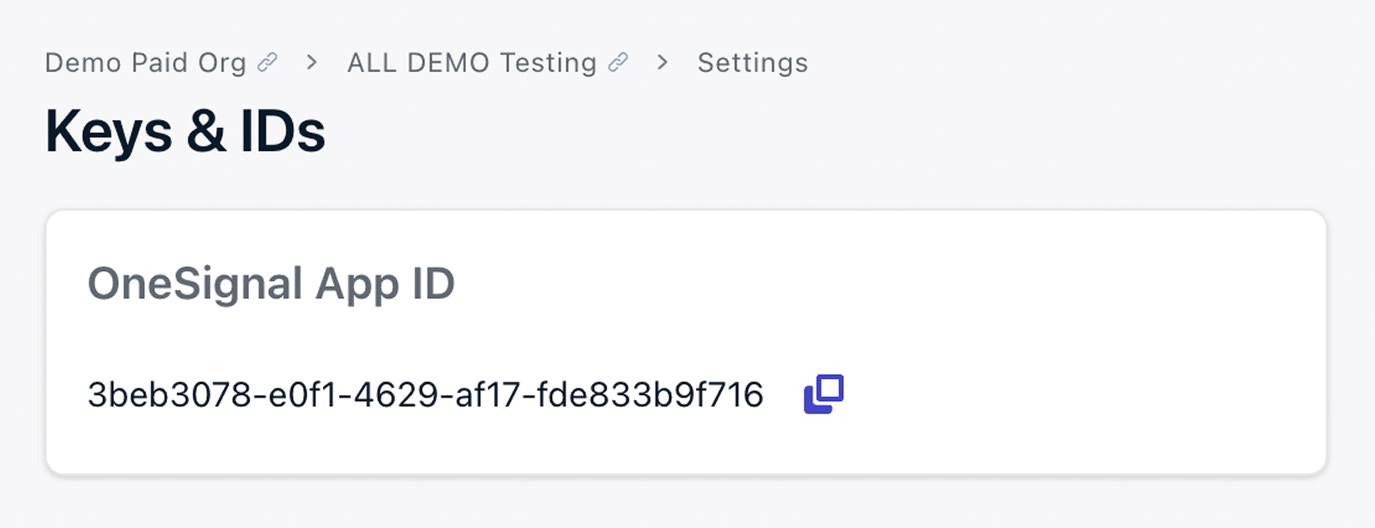 Your App ID is safe to use in client-side SDK initialization. It is not a secret.
***
## Organization ID
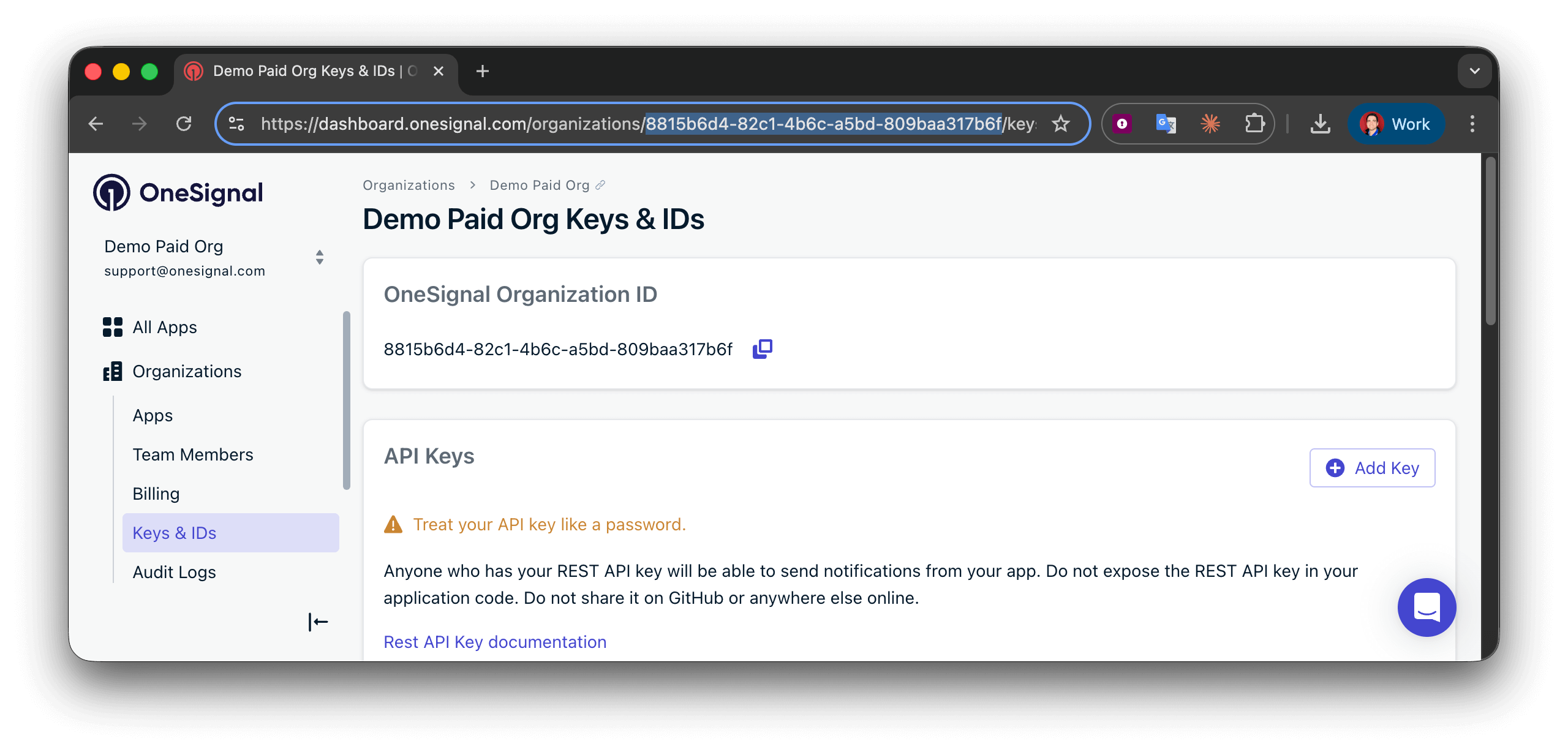
The **Organization ID (Org ID)** is a UUID (v4) that groups all apps under your billing plan.
You need it for Organization-level APIs such as:
* [Create an app](/reference/create-an-app)
* [Update an app](/reference/update-an-app)
Find it in **Organizations > Your Organization > Keys & IDs** or via the [View an app](/reference/view-an-app) API.
Your App ID is safe to use in client-side SDK initialization. It is not a secret.
***
## Organization ID
The **Organization ID (Org ID)** is a UUID (v4) that groups all apps under your billing plan.
You need it for Organization-level APIs such as:
* [Create an app](/reference/create-an-app)
* [Update an app](/reference/update-an-app)
Find it in **Organizations > Your Organization > Keys & IDs** or via the [View an app](/reference/view-an-app) API.
 ***
## API keys
There are two kinds of API keys. Both authenticate REST API requests and must be kept secret. Pick the one that matches what you want to do:
| Key | Use it for |
| --------------------------------------------- | -------------------------------------------------------------------------- |
| [App API key](#app-api-key) | One specific app: sending messages, creating users, reading stats. |
| [Organization API key](#organization-api-key) | Across your whole organization: creating apps and managing other API keys. |
You can create up to 16 App API keys per app and 16 Organization API keys per organization.
### App API key
Use an **App API key** for any REST API request scoped to a single app: sending messages; creating or updating users; or reading message history.
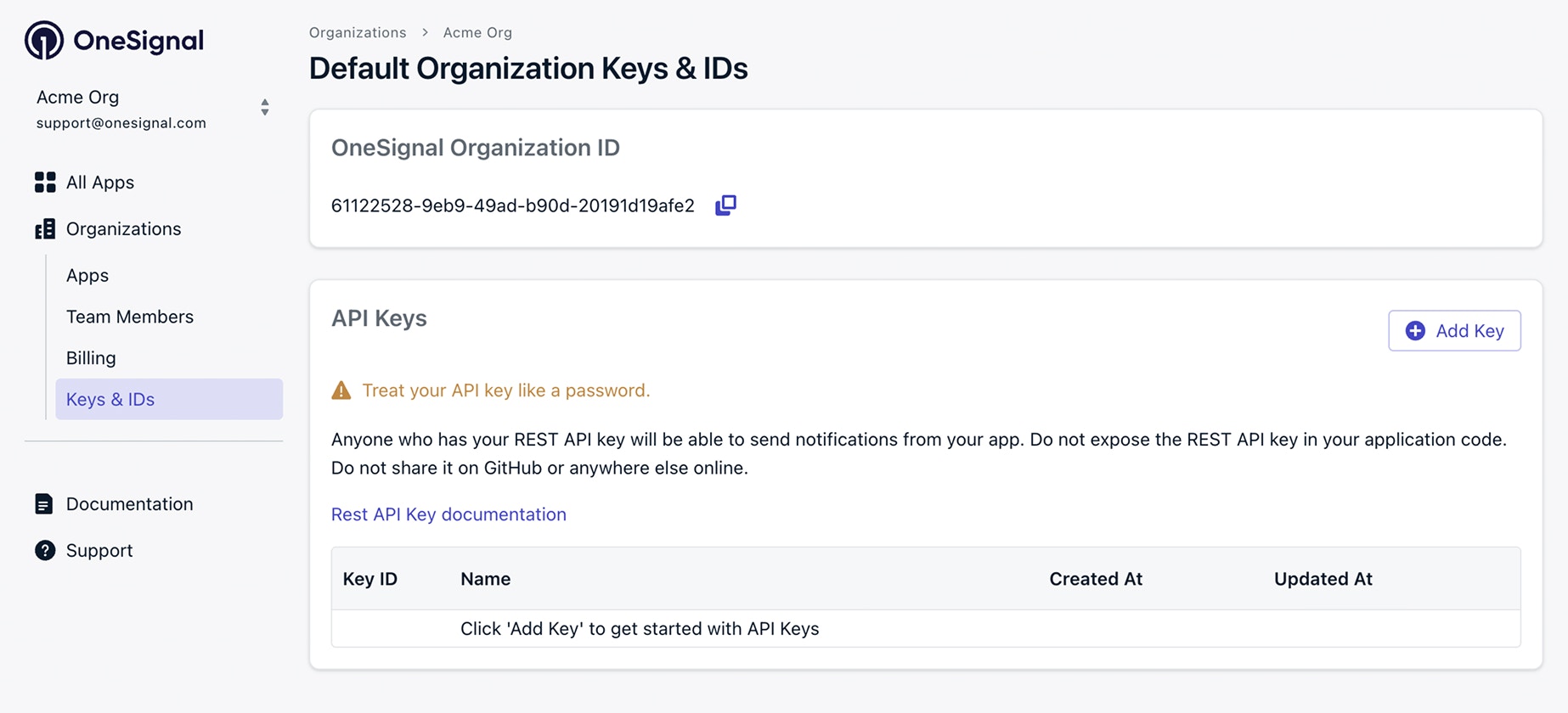
The dashboard never shows existing API key values. The string in the Key ID column is just an internal identifier, not the key. To get a working secret again, follow the steps below to create a new API key or [rotate an existing key](#rotate-a-key). Rotation generates a new value while keeping the same Key ID, name, and IP allowlist, and the old value stops working immediately.
***
## API keys
There are two kinds of API keys. Both authenticate REST API requests and must be kept secret. Pick the one that matches what you want to do:
| Key | Use it for |
| --------------------------------------------- | -------------------------------------------------------------------------- |
| [App API key](#app-api-key) | One specific app: sending messages, creating users, reading stats. |
| [Organization API key](#organization-api-key) | Across your whole organization: creating apps and managing other API keys. |
You can create up to 16 App API keys per app and 16 Organization API keys per organization.
### App API key
Use an **App API key** for any REST API request scoped to a single app: sending messages; creating or updating users; or reading message history.
The dashboard never shows existing API key values. The string in the Key ID column is just an internal identifier, not the key. To get a working secret again, follow the steps below to create a new API key or [rotate an existing key](#rotate-a-key). Rotation generates a new value while keeping the same Key ID, name, and IP allowlist, and the old value stops working immediately.
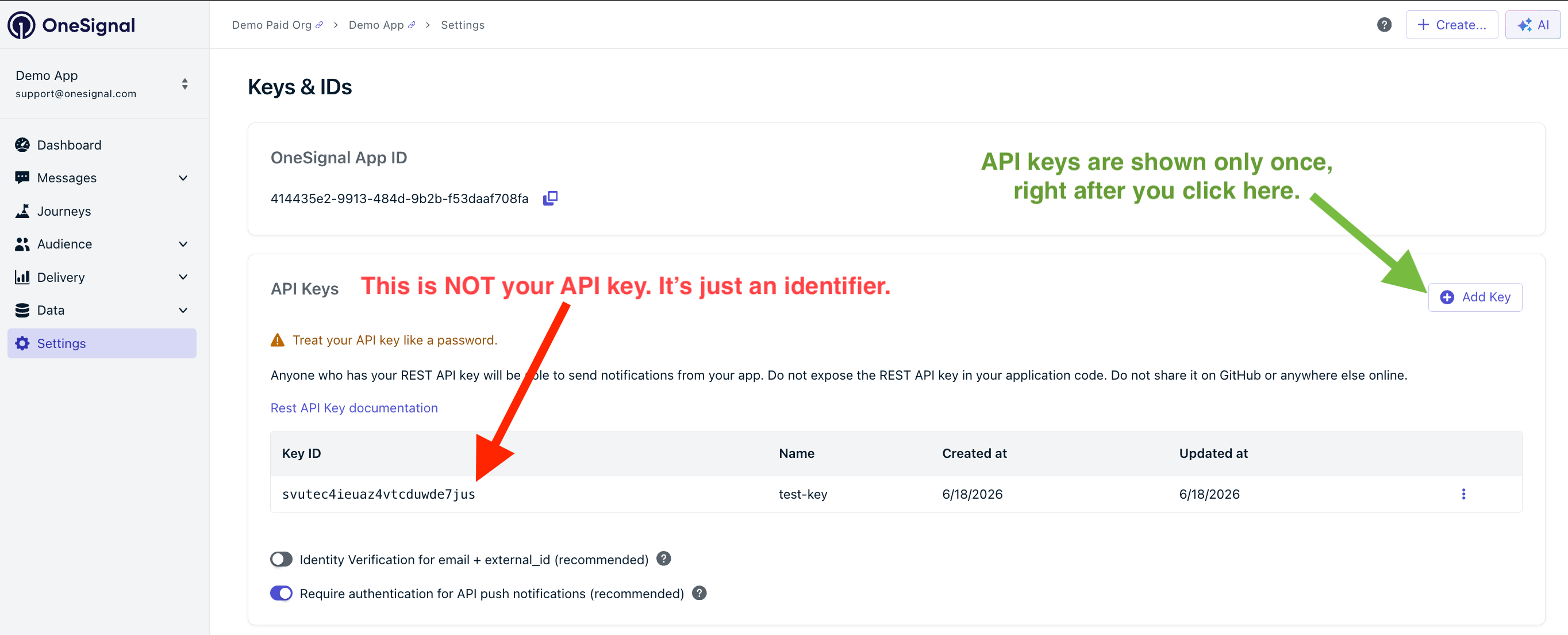 **Create an App API key**
Follow these steps to create an App API key within the dashboard or use the [Create API key](/reference/create-api-key) API.
In the OneSignal dashboard, select your app and go to **Settings > Keys & IDs**.
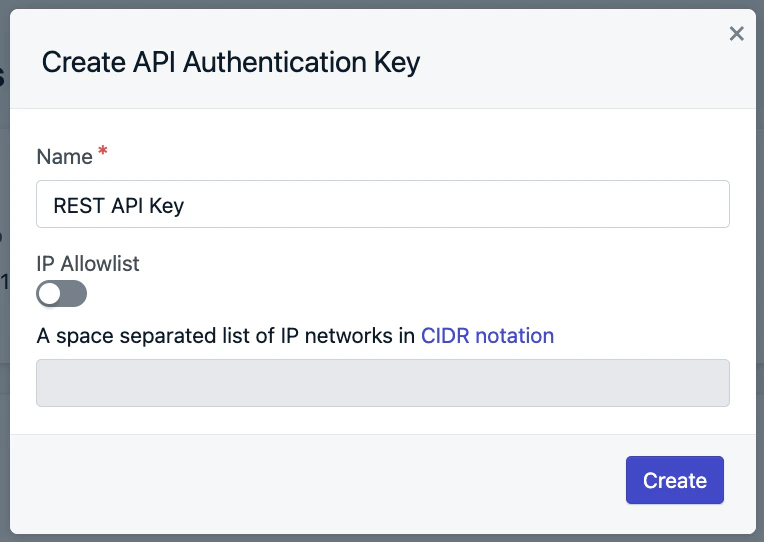
Enter a descriptive name (for example, `Backend service`). Optionally add an [IP allowlist](#ip-allowlist) so the key only works from approved servers.
The value starts with `os_v2_app_` and is shown **only once**. Store it in a secrets manager or backend environment variable right away.
**Create an App API key**
Follow these steps to create an App API key within the dashboard or use the [Create API key](/reference/create-api-key) API.
In the OneSignal dashboard, select your app and go to **Settings > Keys & IDs**.
Enter a descriptive name (for example, `Backend service`). Optionally add an [IP allowlist](#ip-allowlist) so the key only works from approved servers.
The value starts with `os_v2_app_` and is shown **only once**. Store it in a secrets manager or backend environment variable right away.
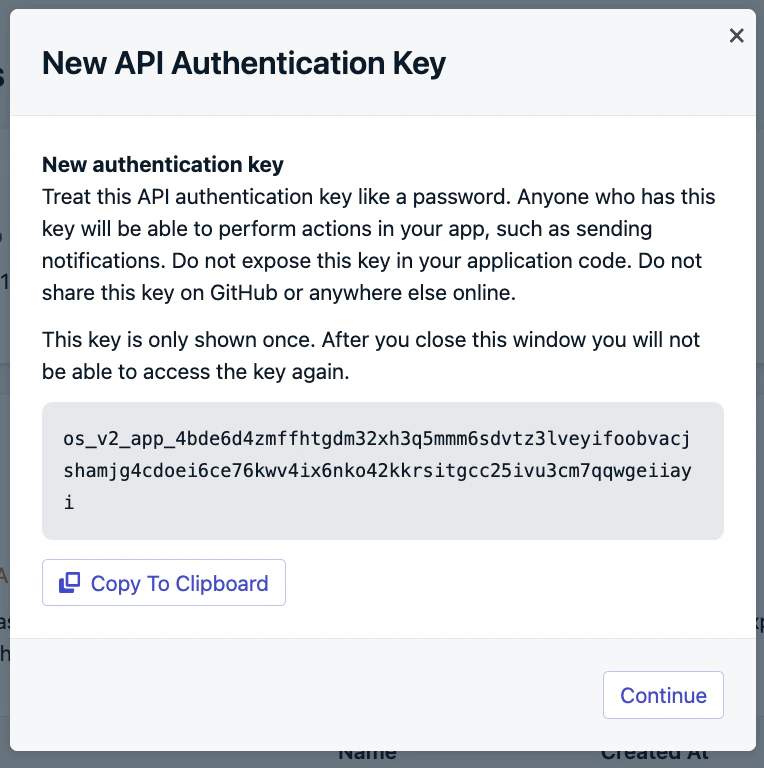 Treat App API keys like passwords:
* Never expose them in mobile or web client code.
* Never commit them to public repositories (like GitHub).
* Store them in a secure backend or secret manager.
### Organization API key
Use an **Organization API key** for operations that span all the apps in your organization. Common endpoints:
* **App management:** [Create an app](/reference/create-an-app), [View apps](/reference/view-apps)
* **API key management:** [Create API key](/reference/create-api-key), [Delete API key](/reference/delete-api-key), [Rotate API key](/reference/rotate-api-key)
**Create an Organization API key:**
Organization API keys are dashboard-only. There is no API endpoint for creating them.
In the OneSignal dashboard, go to **Organizations > Your Organization > Keys & IDs**.
Enter a descriptive name (for example, `App provisioning`). Optionally add an [IP allowlist](#ip-allowlist).
The value starts with `os_v2_app_` and is shown **only once**. Store it securely right away.
Treat App API keys like passwords:
* Never expose them in mobile or web client code.
* Never commit them to public repositories (like GitHub).
* Store them in a secure backend or secret manager.
### Organization API key
Use an **Organization API key** for operations that span all the apps in your organization. Common endpoints:
* **App management:** [Create an app](/reference/create-an-app), [View apps](/reference/view-apps)
* **API key management:** [Create API key](/reference/create-api-key), [Delete API key](/reference/delete-api-key), [Rotate API key](/reference/rotate-api-key)
**Create an Organization API key:**
Organization API keys are dashboard-only. There is no API endpoint for creating them.
In the OneSignal dashboard, go to **Organizations > Your Organization > Keys & IDs**.
Enter a descriptive name (for example, `App provisioning`). Optionally add an [IP allowlist](#ip-allowlist).
The value starts with `os_v2_app_` and is shown **only once**. Store it securely right away.
 Organization API keys grant access to every app in your organization. Treat them with extra care, and only share them with services that genuinely need organization-wide access.
***
## IP allowlist
IP allowlisting is optional but strongly recommended. It restricts API key usage to specific IP addresses so a leaked key cannot be used from elsewhere.
* Enter space-separated CIDR blocks (example: `192.0.2.0/24 192.0.2.123/32`).
* Requests from non-allowed IPs are denied.
Use IP allowlisting for:
* Backend services with static IPs.
* High-security production environments.
Organization API keys grant access to every app in your organization. Treat them with extra care, and only share them with services that genuinely need organization-wide access.
***
## IP allowlist
IP allowlisting is optional but strongly recommended. It restricts API key usage to specific IP addresses so a leaked key cannot be used from elsewhere.
* Enter space-separated CIDR blocks (example: `192.0.2.0/24 192.0.2.123/32`).
* Requests from non-allowed IPs are denied.
Use IP allowlisting for:
* Backend services with static IPs.
* High-security production environments.
 ***
## Manage API keys
After creating a key, you can edit, rotate, or delete it from the key list in **Settings > Keys & IDs**. App API keys also support these operations via REST API. Organization API keys are dashboard-only.
### Edit a key
Update the name or IP allowlist without changing the secret value. No integration changes are required.
Use the dashboard, or the [Update API key](/reference/update-api-key) API (App API keys only).
### Rotate a key
Rotating generates a new secret while keeping the same Key ID, name, and IP allowlist. The old secret stops working immediately.
Rotate a key when:
* The key was exposed.
* A team member with access leaves.
* A routine security rotation is due.
* You lost the original key value and need a working secret.
After rotating a key, update every service using the old value. Requests with the old key fail immediately.
Use the dashboard, or the [Rotate API key](/reference/rotate-api-key) API (App API keys only).
### Delete a key
Deleting permanently removes the key and immediately blocks API access using that key. Use deletion when a key is no longer needed.
Use the dashboard, or the [Delete API key](/reference/delete-api-key) API (App API keys only).
***
## Migrating from legacy API keys
OneSignal introduced App and Organization API keys (with naming, rotation, and IP allowlisting) in November 2024. The legacy User Auth key and the original REST API key are still accepted, but the management UI for them has been removed and new keys cannot be created.
Create a new [App API key](#app-api-key) or [Organization API key](#organization-api-key) depending on which legacy key you are replacing.
Replace the legacy key with the new value in every service that authenticates against OneSignal.
Change your API base URL from `https://onesignal.com/api/v1/` to `https://api.onesignal.com`.
Test API requests in a staging environment, then disable or delete the legacy key in **Settings > Keys & IDs**.
Verify API requests in staging before disabling your legacy key in production.
***
## Block API access
To immediately revoke a key, [rotate](#rotate-a-key) or [delete](#delete-a-key) it in **Settings > Keys & IDs**. Requests using the old value fail right away.
To stop message sending or pause an app entirely, see [Disabled Apps & Organizations](./disabled-apps).
***
## Security best practices
* Store API keys in a secure backend (never client-side).
* Use environment variables or a secrets manager.
* Enable IP allowlisting when possible.
* Rotate keys periodically.
* Use separate keys for staging and production.
***
## FAQ
### How do I find my API key?
API key values start with `os_v2_app_` and are shown only once, immediately after you create or rotate the key. The **Key ID** column in the dashboard is an internal identifier, not the API key, and returns `401 Unauthorized` if used for authentication. If you didn't save your key value, [rotate the key](#rotate-a-key) to generate a new one. See [App API key](#app-api-key) or [Organization API key](#organization-api-key) for the full flow.
### Can I retrieve a legacy App API key?
No. OneSignal no longer displays legacy App API keys. If you cannot find the value in your codebase, generate a new App API key and update your integrations.
### What is the difference between an App ID, App API key, and Organization API key?
* **App ID**: A public identifier for your app. Used in SDK setup and API requests to specify the app.
* **App API key**: A secret used to send messages and manage users for one app.
* **Organization API key**: A secret used to manage apps and organization-level settings across your entire account.
### What happens if my API key is exposed?
[Rotate the key](#rotate-a-key) immediately. Rotation invalidates the old value and issues a new one while keeping the same Key ID, name, and IP allowlist. Then update every service that uses the key. Review your [audit logs](./audit-logs) for unexpected API activity.
***
## Related pages
Authenticate requests and understand the OneSignal REST API.
Per-key rate limits and best practices for high-volume integrations.
Review API and dashboard activity by key, user, and time.
Pause or shut down an app and understand billing implications.
***
## Manage API keys
After creating a key, you can edit, rotate, or delete it from the key list in **Settings > Keys & IDs**. App API keys also support these operations via REST API. Organization API keys are dashboard-only.
### Edit a key
Update the name or IP allowlist without changing the secret value. No integration changes are required.
Use the dashboard, or the [Update API key](/reference/update-api-key) API (App API keys only).
### Rotate a key
Rotating generates a new secret while keeping the same Key ID, name, and IP allowlist. The old secret stops working immediately.
Rotate a key when:
* The key was exposed.
* A team member with access leaves.
* A routine security rotation is due.
* You lost the original key value and need a working secret.
After rotating a key, update every service using the old value. Requests with the old key fail immediately.
Use the dashboard, or the [Rotate API key](/reference/rotate-api-key) API (App API keys only).
### Delete a key
Deleting permanently removes the key and immediately blocks API access using that key. Use deletion when a key is no longer needed.
Use the dashboard, or the [Delete API key](/reference/delete-api-key) API (App API keys only).
***
## Migrating from legacy API keys
OneSignal introduced App and Organization API keys (with naming, rotation, and IP allowlisting) in November 2024. The legacy User Auth key and the original REST API key are still accepted, but the management UI for them has been removed and new keys cannot be created.
Create a new [App API key](#app-api-key) or [Organization API key](#organization-api-key) depending on which legacy key you are replacing.
Replace the legacy key with the new value in every service that authenticates against OneSignal.
Change your API base URL from `https://onesignal.com/api/v1/` to `https://api.onesignal.com`.
Test API requests in a staging environment, then disable or delete the legacy key in **Settings > Keys & IDs**.
Verify API requests in staging before disabling your legacy key in production.
***
## Block API access
To immediately revoke a key, [rotate](#rotate-a-key) or [delete](#delete-a-key) it in **Settings > Keys & IDs**. Requests using the old value fail right away.
To stop message sending or pause an app entirely, see [Disabled Apps & Organizations](./disabled-apps).
***
## Security best practices
* Store API keys in a secure backend (never client-side).
* Use environment variables or a secrets manager.
* Enable IP allowlisting when possible.
* Rotate keys periodically.
* Use separate keys for staging and production.
***
## FAQ
### How do I find my API key?
API key values start with `os_v2_app_` and are shown only once, immediately after you create or rotate the key. The **Key ID** column in the dashboard is an internal identifier, not the API key, and returns `401 Unauthorized` if used for authentication. If you didn't save your key value, [rotate the key](#rotate-a-key) to generate a new one. See [App API key](#app-api-key) or [Organization API key](#organization-api-key) for the full flow.
### Can I retrieve a legacy App API key?
No. OneSignal no longer displays legacy App API keys. If you cannot find the value in your codebase, generate a new App API key and update your integrations.
### What is the difference between an App ID, App API key, and Organization API key?
* **App ID**: A public identifier for your app. Used in SDK setup and API requests to specify the app.
* **App API key**: A secret used to send messages and manage users for one app.
* **Organization API key**: A secret used to manage apps and organization-level settings across your entire account.
### What happens if my API key is exposed?
[Rotate the key](#rotate-a-key) immediately. Rotation invalidates the old value and issues a new one while keeping the same Key ID, name, and IP allowlist. Then update every service that uses the key. Review your [audit logs](./audit-logs) for unexpected API activity.
***
## Related pages
Authenticate requests and understand the OneSignal REST API.
Per-key rate limits and best practices for high-volume integrations.
Review API and dashboard activity by key, user, and time.
Pause or shut down an app and understand billing implications.