> ## Documentation Index
> Fetch the complete documentation index at: https://documentation.onesignal.com/llms.txt
> Use this file to discover all available pages before exploring further.
# Team members
> Manage OneSignal user access by adding, removing, or updating team member roles at the app or organization level. Learn role permissions and plan availability.
Manage who can access your OneSignal account at the **Organization level** (all apps) or the **App level** (specific apps). Assign each user a role based on their needs and responsibilities.
For example:
* An **analyst** who needs to review messaging performance across apps could be an **Organization Viewer**.
* A **developer** or **marketer** working on one app can be assigned as an **App Admin**.
* A **content writer** who builds messages but should not send them could be an **Organization Composer**.
* A **finance team member** who only needs billing access could be an **Organization Finance** role.
* A **contractor** who only needs access to a single app can start as an **Organization Team Member** with an app-level role layered on.
For details on how Apps and Organizations work together, see [Apps, Organizations, and Accounts](./apps-organizations).
***
## Managing team access
You can grant access at either the **Organization** level (all apps) or **App** level (specific apps).
### Invite a team member to an Organization
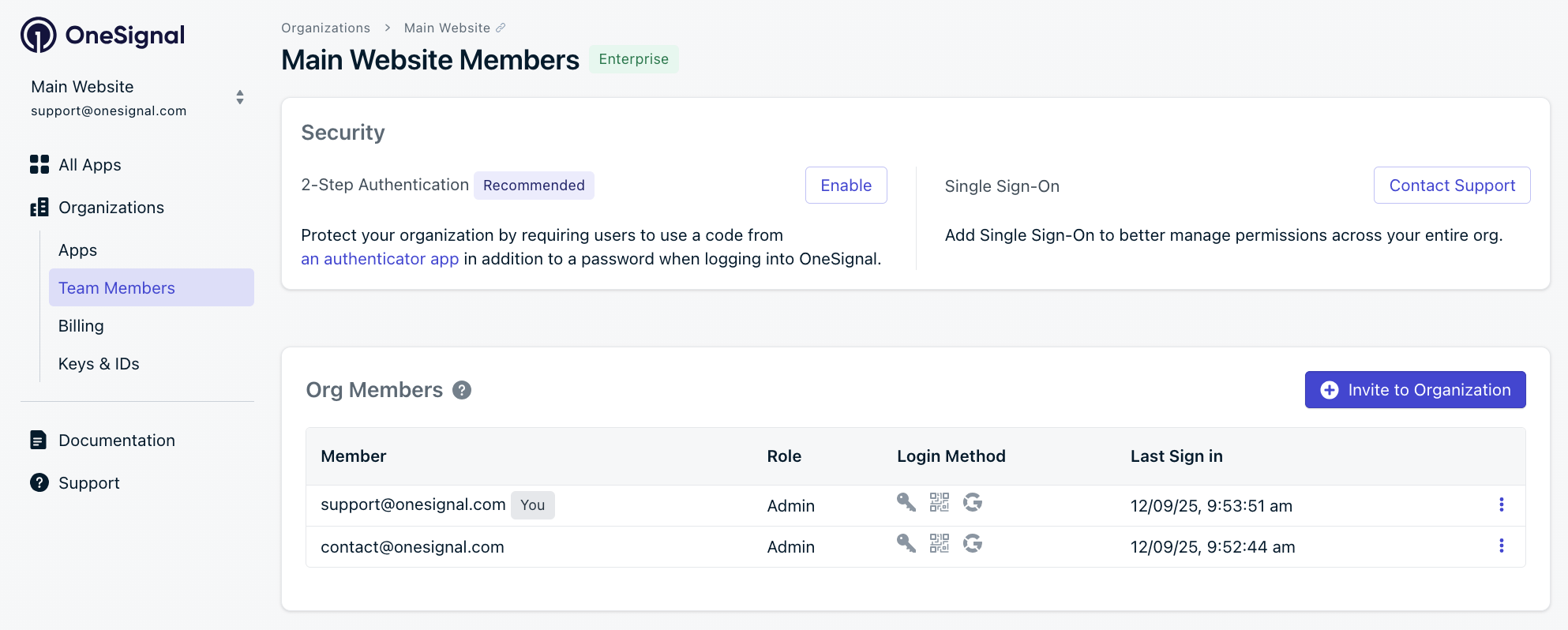
**Organization Admins** can invite users and assign them roles that apply to all apps in the Organization.
Go to **Organizations > \[Your Organization] > Team Members**.
Click **Invite to Organization**.
Choose a role: Admin, Finance, Operations, Editor, Composer, Viewer, or Team Member.
The invited user receives an email to accept the invitation. Once accepted, they appear in the Team Members list with the assigned role.
 ### Invite a team member to an App
App-level roles let you grant **additional permissions** on a specific App beyond what the user's Organization role provides.
App-level roles can only **add** permissions on top of the user's Organization role. They cannot restrict or reduce access. You can assign an app role only when it grants access the user's Organization role does not already provide. For example, an Organization Viewer can be elevated to an App Editor on a specific App, but an Organization Editor cannot be downgraded to an App Viewer. See [valid app-level role assignments](#valid-app-level-role-assignments) for the full mapping.
Go to your App's **Settings > Team Members**.
Click **Invite to App**.
Choose a role for that app: Admin, Operations, Editor, Composer, or Viewer.
#### Valid App-level role assignments
When you assign an App-level role, it must grant access the user's Organization role does not already have. If the Organization role already covers the app role, the assignment is redundant and is skipped. Both the client and server enforce these rules.
| Org Role | Valid App Roles |
| ------------- | ----------------------------------------------------- |
| `admin` | None (already has full access) |
| `editor` | `operations`, `admin` |
| `composer` | `editor`, `operations`, `admin` |
| `operations` | `editor`, `composer`, `admin` |
| `viewer` | `composer`, `editor`, `operations`, `admin` |
| `finance` | `viewer`, `composer`, `editor`, `operations`, `admin` |
| `team_member` | `viewer`, `composer`, `editor`, `operations`, `admin` |
**Editor, Composer, and Operations are not a strict hierarchy.** Operations grants write access to suppressions and sender identities that Editor and Composer do not have, while Editor and Composer can build and manage messaging content that Operations cannot. Because neither fully covers the other, you can layer them in either direction. For example, an Organization Editor can be given App Operations to add suppression management, and an Organization Operations user can be given App Editor to add the messaging workflow.
**Finance and Team Member are Organization-only roles** that grant no app messaging access on their own, so any app role adds access for them. Finance keeps its billing access at the Organization level while gaining the assigned app permissions.
### Update or remove user access
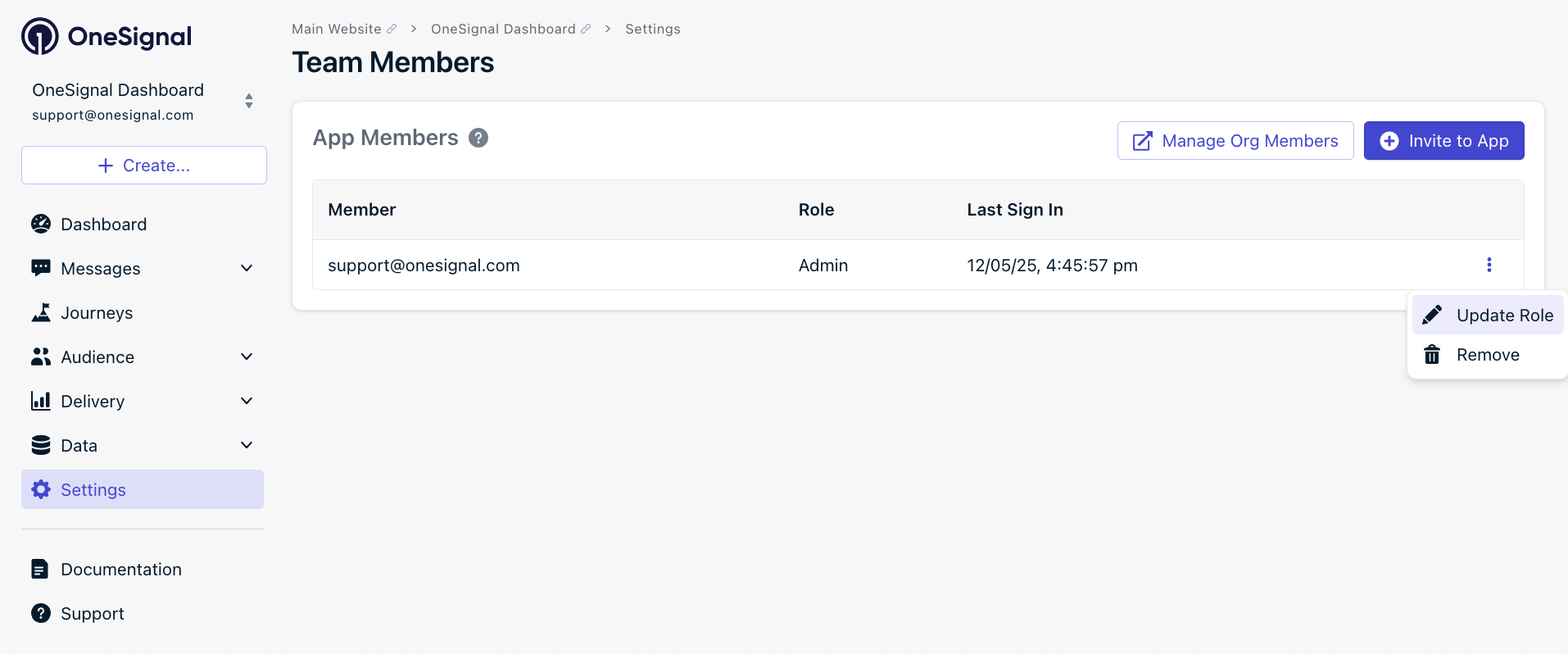
Go to the **Team Members** page for the Organization or App.
Click the **Options** menu (⋮) next to the user's email address.
Select **Update Role** or **Remove**.
### Invite a team member to an App
App-level roles let you grant **additional permissions** on a specific App beyond what the user's Organization role provides.
App-level roles can only **add** permissions on top of the user's Organization role. They cannot restrict or reduce access. You can assign an app role only when it grants access the user's Organization role does not already provide. For example, an Organization Viewer can be elevated to an App Editor on a specific App, but an Organization Editor cannot be downgraded to an App Viewer. See [valid app-level role assignments](#valid-app-level-role-assignments) for the full mapping.
Go to your App's **Settings > Team Members**.
Click **Invite to App**.
Choose a role for that app: Admin, Operations, Editor, Composer, or Viewer.
#### Valid App-level role assignments
When you assign an App-level role, it must grant access the user's Organization role does not already have. If the Organization role already covers the app role, the assignment is redundant and is skipped. Both the client and server enforce these rules.
| Org Role | Valid App Roles |
| ------------- | ----------------------------------------------------- |
| `admin` | None (already has full access) |
| `editor` | `operations`, `admin` |
| `composer` | `editor`, `operations`, `admin` |
| `operations` | `editor`, `composer`, `admin` |
| `viewer` | `composer`, `editor`, `operations`, `admin` |
| `finance` | `viewer`, `composer`, `editor`, `operations`, `admin` |
| `team_member` | `viewer`, `composer`, `editor`, `operations`, `admin` |
**Editor, Composer, and Operations are not a strict hierarchy.** Operations grants write access to suppressions and sender identities that Editor and Composer do not have, while Editor and Composer can build and manage messaging content that Operations cannot. Because neither fully covers the other, you can layer them in either direction. For example, an Organization Editor can be given App Operations to add suppression management, and an Organization Operations user can be given App Editor to add the messaging workflow.
**Finance and Team Member are Organization-only roles** that grant no app messaging access on their own, so any app role adds access for them. Finance keeps its billing access at the Organization level while gaining the assigned app permissions.
### Update or remove user access
Go to the **Team Members** page for the Organization or App.
Click the **Options** menu (⋮) next to the user's email address.
Select **Update Role** or **Remove**.
 ***
## Roles and permissions
Organization roles take priority over App roles. If a user is an Organization Admin, they automatically have all App Admin privileges across every App in the Organization. No additional App-level role assignment is needed.
When a user has both an Organization role and an App role on the same App, their effective access is the more privileged of the two.
### Role types
OneSignal offers the following roles at the **Organization** level:
| Role | Best for | Access summary |
| ----------- | -------------------------- | ----------------------------------------------------------------------------------------------------------------------------------------------------------------------------- |
| Admin | Developers, Owners | Full control over all org settings, billing, and messaging. Automatically includes all App Admin privileges across every app in the org |
| Finance | Finance teams | View org settings, apps, members, and billing. Edit billing. No app-level permissions |
| Operations | Ops teams | View access across all apps plus manage suppressions and sender identities |
| Editor | Marketers, PMs | Full messaging workflow: create segments, build and send messages, manage webhooks and imports. Cannot modify underlying user or subscription records, or change app settings |
| Composer | Content writers, Designers | Create and edit messages, templates, segments, and journeys. Cannot send, activate, or delete most content. No export access |
| Viewer | Analysts, Read-only users | View-only access across all apps. Cannot edit, send, or export |
| Team Member | Minimal access users | Can view the org and its apps list. No app-level permissions on its own. Access is layered on through app-level role assignments |
The following roles are available at the **App** level:
| Role | Best for | Access summary |
| ---------- | --------------------------- | -------------------------------------------------------------------------------------------------------------------- |
| Admin | App owners, Lead developers | Full control over the app including settings, keys, integrations, and team management |
| Operations | Ops teams | View access across app features plus manage suppressions and sender identities |
| Editor | Marketers, PMs | Create, edit, send, and delete messages and related content. Manage webhooks and imports. Cannot change app settings |
| Composer | Content writers | Create and edit messages, templates, and segments. Cannot send or activate. No export access |
| Viewer | Read-only users | View-only access to app data. Cannot edit, send, or export |
**Editor scope:** Editors control *what to send and to whom*. They can view audience data, build segments from it, and run the full messaging workflow, but they cannot modify the underlying user or subscription records (tags, imports, deletions, subscription status).
#### About the Team Member role
The `team_member` role is an Organization-level role that grants no App permissions on its own. Access is layered on explicitly through App-level role assignments, making it a clean least-privilege starting point.
`team_member` is automatically assigned in two situations:
* When a new user is invited to an App for the first time and has no existing Organization role
* When a user logs in through SSO for the first time and their identity provider has not yet been mapped to a specific OneSignal role
### Permission details by role
Select a role below to see its full permissions.
**Scope:** Organization and App
Full control over everything. Organization Admins automatically have all App Admin privileges across every app in the org. Admin is the only role that can manage app and org settings, API keys, team members, integrations, billing, single sign-on (SSO), and two-factor authentication (2FA) enforcement.
| Area | Permissions |
| ----------------------------- | ------------------------------------------------------------------------------------------------------------------------------------------- |
| Messaging | Create, edit, send, cancel, delete, and export all message types. Send test notifications |
| Journeys | Create, edit, activate, delete, and export journeys and goals |
| Segments | Full control including setting defaults and deleting users from segments |
| Templates and dynamic content | Create, edit, and delete templates, dynamic content, and saved rows |
| In-app messages | Create, edit, activate, and delete |
| Users and subscriptions | View, edit, delete, import, and export. Full test user management |
| Webhooks and event streams | Create, edit, activate, test, and delete |
| Custom events and outcomes | View analytics, set retention, set tracking, and export |
| Labels | Create, edit, and delete |
| Suppressions | Create, delete, and export |
| Integrations | Activate and edit |
| App settings | Edit settings, manage API keys, manage team members, view and export audit logs, toggle app status, delete app |
| Org settings | Edit settings, create and manage apps, manage members, manage billing, manage API keys, manage SSO, enforce 2FA, view and export audit logs |
| Account | 2FA, email, and password (own account) |
Org Settings access is limited to users with the **Organization Admin** role. App-level-only Admins do not have permission to modify organization-level settings such as billing, plan upgrades, SSO, or org-wide 2FA.
**Scope:** Organization only
Finance is an Organization-level role focused on billing access. It does not include any App-level permissions.
| Area | Permissions |
| --------------- | -------------------------------------------------- |
| Org settings | View org, view apps, view members, view audit logs |
| Billing | View and edit billing |
| Account | 2FA, email, and password (own account) |
| Everything else | No access |
**Cannot:** View or interact with any app-level features. Send messages. Manage team members. Access API keys.
**Scope:** Organization and App
Operations has view access across all features plus write access to suppressions and sender identities. This role is designed for operational tasks like managing suppression lists without granting broader messaging or settings permissions.
| Area | Permissions |
| ----------------------------- | -------------------------------------- |
| Messaging | View messages and analytics |
| Journeys | View journeys and analytics |
| Segments | View segments and analytics |
| Templates and dynamic content | View only |
| In-app messages | View messages and analytics |
| Users and subscriptions | View only |
| Webhooks and event streams | View webhooks and results |
| Custom events and outcomes | View analytics |
| Labels | View only |
| Suppressions | Create, delete, and export |
| Sender identities | Create and edit |
| Integrations | View only |
| App settings | View app, analytics, and team members |
| Org settings | View org, apps, and members |
| Account | 2FA, email, and password (own account) |
**Cannot:** Create, send, or edit messages. Manage journeys, segments, or templates. Import or export users. Manage API keys. Edit app or org settings.
**Scope:** Organization and App
Editors can create, edit, send, and delete messages and most content. They can manage webhooks and handle imports. They cannot change app or org settings, manage team members, or access API keys.
| Area | Permissions |
| ----------------------------- | ------------------------------------------------------------------------------------------------------- |
| Messaging | Create, edit, send, cancel, delete, and export all message types. Send test notifications |
| Journeys | Create, edit, activate, and delete |
| Segments | Create, edit, activate, set default, and delete |
| Templates and dynamic content | Create, edit, and delete |
| In-app messages | Create, edit, activate, and delete |
| Users and subscriptions | View, import users and subscriptions, add and remove test users |
| Webhooks and event streams | Create, edit, activate, test, and delete |
| Custom events and outcomes | View analytics and export |
| Labels | Create, edit, and delete |
| Suppressions | View only |
| Integrations | View only |
| App settings | View app and analytics, export analytics, view VAPID (Voluntary Application Server Identification) keys |
| Org settings | View org and apps |
| Account | 2FA, email, and password (own account) |
**Cannot:** Edit or delete users and subscriptions directly. Export users. Change app or org settings. Manage API keys. Manage team members. Access billing. Delete users from a segment.
**Scope:** Organization and App
Composers can create and edit messages, templates, segments, and journeys, but they cannot send, activate, or delete most content. They have no export access.
| Area | Permissions |
| ----------------------------- | ------------------------------------------------- |
| Messaging | Create and edit messages. Send test notifications |
| Journeys | Create and edit |
| Segments | Create and edit |
| Templates and dynamic content | Create and edit |
| In-app messages | Create and edit |
| Users and subscriptions | View. Add test users |
| Webhooks and event streams | View only |
| Custom events and outcomes | View analytics |
| Labels | Create and edit |
| Suppressions | No access |
| Integrations | View only |
| App settings | View app and analytics |
| Org settings | View org and apps |
| Account | 2FA, email, and password (own account) |
**Cannot:** Send or activate messages, journeys, automations, or in-app messages. Delete any content. Export anything. Import users. Remove test users. Manage webhooks. Access app or org settings. Delete labels.
Composer can edit dynamic content only when it is not tied to live published messages or active journeys.
**Scope:** Organization and App
View-only access. Viewers can see messages, analytics, segments, templates, and most app data, but cannot create, edit, send, or export anything.
| Area | Permissions |
| ----------------------------- | -------------------------------------- |
| Messaging | View messages and analytics |
| Journeys | View journeys and analytics |
| Segments | View segments and analytics |
| Templates and dynamic content | View only |
| In-app messages | View messages and analytics |
| Users and subscriptions | View only |
| Webhooks and event streams | View webhooks and results |
| Custom events and outcomes | View analytics |
| Labels | View only |
| Suppressions | View only |
| Integrations | View only |
| App settings | View app and analytics |
| Org settings | View org and apps |
| Account | 2FA, email, and password (own account) |
**Cannot:** Create, edit, send, activate, or delete anything. Export any data. Import users. Access API keys or manage settings.
**Scope:** Organization only
The `team_member` role grants no App permissions on its own. It provides minimal Organization-level visibility while App access is layered on through App-level role assignments.
| Area | Permissions |
| --------------- | --------------------------------------------- |
| Org settings | View org and apps list |
| Account | 2FA, email, and password (own account) |
| Everything else | No access until an app-level role is assigned |
`team_member` is automatically assigned in two situations:
* When a new user is invited to an App for the first time and has no existing Organization role
* When a user logs in through SSO for the first time and their identity provider has not yet been mapped to a specific OneSignal role
### Role availability by plan
Role availability differs between Organization-level and App-level roles. Team Member and Finance are Organization-only roles. All other roles have both an Organization and App equivalent.
Admin and Team Member are always available on every plan. The remaining roles are unlocked by your plan's entitlements: Viewer, then Editor and Composer, and finally Finance and Operations. If your plan is downgraded below the tier that a role requires, users holding that role are automatically converted to Admin on the affected App or Organization.
#### Organization roles
| Role | Free Plan | Growth Plan | Professional Plan | Enterprise |
| ----------- | :-------: | :---------: | :---------------: | :--------: |
| Admin | ✅ | ✅ | ✅ | ✅ |
| Team Member | ✅ | ✅ | ✅ | ✅ |
| Viewer | ❌ | ✅ | ✅ | ✅ |
| Editor | ❌ | ❌ | ✅ | ✅ |
| Composer | ❌ | ❌ | ✅ | ✅ |
| Finance | ❌ | ❌ | ❌ | ✅ |
| Operations | ❌ | ❌ | ❌ | ✅ |
#### App-level roles
| Role | Free Plan | Growth Plan | Professional Plan | Enterprise |
| ---------- | :-------: | :---------: | :---------------: | :--------: |
| Admin | ✅ | ✅ | ✅ | ✅ |
| Viewer | ❌ | ✅ | ✅ | ✅ |
| Editor | ❌ | ❌ | ✅ | ✅ |
| Composer | ❌ | ❌ | ✅ | ✅ |
| Operations | ❌ | ❌ | ❌ | ✅ |
***
## Best practices
* **Assign the minimum role needed.** Don't give full Admin access if Composer or Viewer is enough.
* **Use Organization roles** for users who need access across many Apps, like analysts or leadership.
* **Use the Team Member role** with App-level assignments for users who only need access to specific Apps.
* **Layer Operations onto messaging roles** when a user needs suppression or sender identity management in addition to building messages, since Operations is not a superset of Editor or Composer.
* **Limit API key access** to trusted technical users with Admin roles.
* **Upgrade your plan** to unlock additional roles beyond Admin and Team Member.
***
## FAQ
### What's the difference between Organization and App roles?
An Organization role applies across every App in the Organization, while an App role applies only to the specific App where it's assigned. Organization roles take priority: an Organization Admin automatically has App Admin access on every App, with no App-level assignment needed.
### Can an App-level role reduce a user's access?
No. App-level roles can only add permissions on top of a user's Organization role, never restrict or reduce them. For example, an Organization Viewer can be elevated to App Editor on a specific App, but an Organization Editor cannot be downgraded to App Viewer.
### Why can't I assign a certain App role to a user?
The App role you're assigning must grant access the user's Organization role does not already have. If the Organization role already covers it, the assignment is redundant and is skipped. See [Valid App-level role assignments](#valid-app-level-role-assignments) for the full mapping.
### What's the difference between the Editor, Composer, and Operations roles?
Editor runs the full messaging workflow (create, edit, send, and delete messages and content). Composer can create and edit that content but cannot send, activate, or delete it. Operations adds write access to suppressions and sender identities on top of view access, but cannot build or send messages. They are not a strict hierarchy, so you can layer them in either direction.
### Why was a user automatically assigned the Team Member role?
OneSignal assigns `team_member` automatically when a user is invited to an App for the first time with no existing Organization role, or when a user logs in through SSO for the first time before their identity provider is mapped to a OneSignal role. It grants no App permissions until an App-level role is assigned.
## Related pages
Understand how Apps and Organizations relate and how access is structured.
Configure SSO and map your identity provider's groups to OneSignal roles.
Review who changed what across your Organization and Apps.
Find and manage the API keys and IDs that Admins control.
***
## Roles and permissions
Organization roles take priority over App roles. If a user is an Organization Admin, they automatically have all App Admin privileges across every App in the Organization. No additional App-level role assignment is needed.
When a user has both an Organization role and an App role on the same App, their effective access is the more privileged of the two.
### Role types
OneSignal offers the following roles at the **Organization** level:
| Role | Best for | Access summary |
| ----------- | -------------------------- | ----------------------------------------------------------------------------------------------------------------------------------------------------------------------------- |
| Admin | Developers, Owners | Full control over all org settings, billing, and messaging. Automatically includes all App Admin privileges across every app in the org |
| Finance | Finance teams | View org settings, apps, members, and billing. Edit billing. No app-level permissions |
| Operations | Ops teams | View access across all apps plus manage suppressions and sender identities |
| Editor | Marketers, PMs | Full messaging workflow: create segments, build and send messages, manage webhooks and imports. Cannot modify underlying user or subscription records, or change app settings |
| Composer | Content writers, Designers | Create and edit messages, templates, segments, and journeys. Cannot send, activate, or delete most content. No export access |
| Viewer | Analysts, Read-only users | View-only access across all apps. Cannot edit, send, or export |
| Team Member | Minimal access users | Can view the org and its apps list. No app-level permissions on its own. Access is layered on through app-level role assignments |
The following roles are available at the **App** level:
| Role | Best for | Access summary |
| ---------- | --------------------------- | -------------------------------------------------------------------------------------------------------------------- |
| Admin | App owners, Lead developers | Full control over the app including settings, keys, integrations, and team management |
| Operations | Ops teams | View access across app features plus manage suppressions and sender identities |
| Editor | Marketers, PMs | Create, edit, send, and delete messages and related content. Manage webhooks and imports. Cannot change app settings |
| Composer | Content writers | Create and edit messages, templates, and segments. Cannot send or activate. No export access |
| Viewer | Read-only users | View-only access to app data. Cannot edit, send, or export |
**Editor scope:** Editors control *what to send and to whom*. They can view audience data, build segments from it, and run the full messaging workflow, but they cannot modify the underlying user or subscription records (tags, imports, deletions, subscription status).
#### About the Team Member role
The `team_member` role is an Organization-level role that grants no App permissions on its own. Access is layered on explicitly through App-level role assignments, making it a clean least-privilege starting point.
`team_member` is automatically assigned in two situations:
* When a new user is invited to an App for the first time and has no existing Organization role
* When a user logs in through SSO for the first time and their identity provider has not yet been mapped to a specific OneSignal role
### Permission details by role
Select a role below to see its full permissions.
**Scope:** Organization and App
Full control over everything. Organization Admins automatically have all App Admin privileges across every app in the org. Admin is the only role that can manage app and org settings, API keys, team members, integrations, billing, single sign-on (SSO), and two-factor authentication (2FA) enforcement.
| Area | Permissions |
| ----------------------------- | ------------------------------------------------------------------------------------------------------------------------------------------- |
| Messaging | Create, edit, send, cancel, delete, and export all message types. Send test notifications |
| Journeys | Create, edit, activate, delete, and export journeys and goals |
| Segments | Full control including setting defaults and deleting users from segments |
| Templates and dynamic content | Create, edit, and delete templates, dynamic content, and saved rows |
| In-app messages | Create, edit, activate, and delete |
| Users and subscriptions | View, edit, delete, import, and export. Full test user management |
| Webhooks and event streams | Create, edit, activate, test, and delete |
| Custom events and outcomes | View analytics, set retention, set tracking, and export |
| Labels | Create, edit, and delete |
| Suppressions | Create, delete, and export |
| Integrations | Activate and edit |
| App settings | Edit settings, manage API keys, manage team members, view and export audit logs, toggle app status, delete app |
| Org settings | Edit settings, create and manage apps, manage members, manage billing, manage API keys, manage SSO, enforce 2FA, view and export audit logs |
| Account | 2FA, email, and password (own account) |
Org Settings access is limited to users with the **Organization Admin** role. App-level-only Admins do not have permission to modify organization-level settings such as billing, plan upgrades, SSO, or org-wide 2FA.
**Scope:** Organization only
Finance is an Organization-level role focused on billing access. It does not include any App-level permissions.
| Area | Permissions |
| --------------- | -------------------------------------------------- |
| Org settings | View org, view apps, view members, view audit logs |
| Billing | View and edit billing |
| Account | 2FA, email, and password (own account) |
| Everything else | No access |
**Cannot:** View or interact with any app-level features. Send messages. Manage team members. Access API keys.
**Scope:** Organization and App
Operations has view access across all features plus write access to suppressions and sender identities. This role is designed for operational tasks like managing suppression lists without granting broader messaging or settings permissions.
| Area | Permissions |
| ----------------------------- | -------------------------------------- |
| Messaging | View messages and analytics |
| Journeys | View journeys and analytics |
| Segments | View segments and analytics |
| Templates and dynamic content | View only |
| In-app messages | View messages and analytics |
| Users and subscriptions | View only |
| Webhooks and event streams | View webhooks and results |
| Custom events and outcomes | View analytics |
| Labels | View only |
| Suppressions | Create, delete, and export |
| Sender identities | Create and edit |
| Integrations | View only |
| App settings | View app, analytics, and team members |
| Org settings | View org, apps, and members |
| Account | 2FA, email, and password (own account) |
**Cannot:** Create, send, or edit messages. Manage journeys, segments, or templates. Import or export users. Manage API keys. Edit app or org settings.
**Scope:** Organization and App
Editors can create, edit, send, and delete messages and most content. They can manage webhooks and handle imports. They cannot change app or org settings, manage team members, or access API keys.
| Area | Permissions |
| ----------------------------- | ------------------------------------------------------------------------------------------------------- |
| Messaging | Create, edit, send, cancel, delete, and export all message types. Send test notifications |
| Journeys | Create, edit, activate, and delete |
| Segments | Create, edit, activate, set default, and delete |
| Templates and dynamic content | Create, edit, and delete |
| In-app messages | Create, edit, activate, and delete |
| Users and subscriptions | View, import users and subscriptions, add and remove test users |
| Webhooks and event streams | Create, edit, activate, test, and delete |
| Custom events and outcomes | View analytics and export |
| Labels | Create, edit, and delete |
| Suppressions | View only |
| Integrations | View only |
| App settings | View app and analytics, export analytics, view VAPID (Voluntary Application Server Identification) keys |
| Org settings | View org and apps |
| Account | 2FA, email, and password (own account) |
**Cannot:** Edit or delete users and subscriptions directly. Export users. Change app or org settings. Manage API keys. Manage team members. Access billing. Delete users from a segment.
**Scope:** Organization and App
Composers can create and edit messages, templates, segments, and journeys, but they cannot send, activate, or delete most content. They have no export access.
| Area | Permissions |
| ----------------------------- | ------------------------------------------------- |
| Messaging | Create and edit messages. Send test notifications |
| Journeys | Create and edit |
| Segments | Create and edit |
| Templates and dynamic content | Create and edit |
| In-app messages | Create and edit |
| Users and subscriptions | View. Add test users |
| Webhooks and event streams | View only |
| Custom events and outcomes | View analytics |
| Labels | Create and edit |
| Suppressions | No access |
| Integrations | View only |
| App settings | View app and analytics |
| Org settings | View org and apps |
| Account | 2FA, email, and password (own account) |
**Cannot:** Send or activate messages, journeys, automations, or in-app messages. Delete any content. Export anything. Import users. Remove test users. Manage webhooks. Access app or org settings. Delete labels.
Composer can edit dynamic content only when it is not tied to live published messages or active journeys.
**Scope:** Organization and App
View-only access. Viewers can see messages, analytics, segments, templates, and most app data, but cannot create, edit, send, or export anything.
| Area | Permissions |
| ----------------------------- | -------------------------------------- |
| Messaging | View messages and analytics |
| Journeys | View journeys and analytics |
| Segments | View segments and analytics |
| Templates and dynamic content | View only |
| In-app messages | View messages and analytics |
| Users and subscriptions | View only |
| Webhooks and event streams | View webhooks and results |
| Custom events and outcomes | View analytics |
| Labels | View only |
| Suppressions | View only |
| Integrations | View only |
| App settings | View app and analytics |
| Org settings | View org and apps |
| Account | 2FA, email, and password (own account) |
**Cannot:** Create, edit, send, activate, or delete anything. Export any data. Import users. Access API keys or manage settings.
**Scope:** Organization only
The `team_member` role grants no App permissions on its own. It provides minimal Organization-level visibility while App access is layered on through App-level role assignments.
| Area | Permissions |
| --------------- | --------------------------------------------- |
| Org settings | View org and apps list |
| Account | 2FA, email, and password (own account) |
| Everything else | No access until an app-level role is assigned |
`team_member` is automatically assigned in two situations:
* When a new user is invited to an App for the first time and has no existing Organization role
* When a user logs in through SSO for the first time and their identity provider has not yet been mapped to a specific OneSignal role
### Role availability by plan
Role availability differs between Organization-level and App-level roles. Team Member and Finance are Organization-only roles. All other roles have both an Organization and App equivalent.
Admin and Team Member are always available on every plan. The remaining roles are unlocked by your plan's entitlements: Viewer, then Editor and Composer, and finally Finance and Operations. If your plan is downgraded below the tier that a role requires, users holding that role are automatically converted to Admin on the affected App or Organization.
#### Organization roles
| Role | Free Plan | Growth Plan | Professional Plan | Enterprise |
| ----------- | :-------: | :---------: | :---------------: | :--------: |
| Admin | ✅ | ✅ | ✅ | ✅ |
| Team Member | ✅ | ✅ | ✅ | ✅ |
| Viewer | ❌ | ✅ | ✅ | ✅ |
| Editor | ❌ | ❌ | ✅ | ✅ |
| Composer | ❌ | ❌ | ✅ | ✅ |
| Finance | ❌ | ❌ | ❌ | ✅ |
| Operations | ❌ | ❌ | ❌ | ✅ |
#### App-level roles
| Role | Free Plan | Growth Plan | Professional Plan | Enterprise |
| ---------- | :-------: | :---------: | :---------------: | :--------: |
| Admin | ✅ | ✅ | ✅ | ✅ |
| Viewer | ❌ | ✅ | ✅ | ✅ |
| Editor | ❌ | ❌ | ✅ | ✅ |
| Composer | ❌ | ❌ | ✅ | ✅ |
| Operations | ❌ | ❌ | ❌ | ✅ |
***
## Best practices
* **Assign the minimum role needed.** Don't give full Admin access if Composer or Viewer is enough.
* **Use Organization roles** for users who need access across many Apps, like analysts or leadership.
* **Use the Team Member role** with App-level assignments for users who only need access to specific Apps.
* **Layer Operations onto messaging roles** when a user needs suppression or sender identity management in addition to building messages, since Operations is not a superset of Editor or Composer.
* **Limit API key access** to trusted technical users with Admin roles.
* **Upgrade your plan** to unlock additional roles beyond Admin and Team Member.
***
## FAQ
### What's the difference between Organization and App roles?
An Organization role applies across every App in the Organization, while an App role applies only to the specific App where it's assigned. Organization roles take priority: an Organization Admin automatically has App Admin access on every App, with no App-level assignment needed.
### Can an App-level role reduce a user's access?
No. App-level roles can only add permissions on top of a user's Organization role, never restrict or reduce them. For example, an Organization Viewer can be elevated to App Editor on a specific App, but an Organization Editor cannot be downgraded to App Viewer.
### Why can't I assign a certain App role to a user?
The App role you're assigning must grant access the user's Organization role does not already have. If the Organization role already covers it, the assignment is redundant and is skipped. See [Valid App-level role assignments](#valid-app-level-role-assignments) for the full mapping.
### What's the difference between the Editor, Composer, and Operations roles?
Editor runs the full messaging workflow (create, edit, send, and delete messages and content). Composer can create and edit that content but cannot send, activate, or delete it. Operations adds write access to suppressions and sender identities on top of view access, but cannot build or send messages. They are not a strict hierarchy, so you can layer them in either direction.
### Why was a user automatically assigned the Team Member role?
OneSignal assigns `team_member` automatically when a user is invited to an App for the first time with no existing Organization role, or when a user logs in through SSO for the first time before their identity provider is mapped to a OneSignal role. It grants no App permissions until an App-level role is assigned.
## Related pages
Understand how Apps and Organizations relate and how access is structured.
Configure SSO and map your identity provider's groups to OneSignal roles.
Review who changed what across your Organization and Apps.
Find and manage the API keys and IDs that Admins control.