

Overview
Web push webhooks are client-side callbacks the browser fires through the OneSignal Web SDK whenever users interact with your web push notifications (displayed, clicked, or dismissed). The browser sends the notification data and any custom parameters to the webhook URL you configure per web app. You set them up in Settings > Web or in your Web SDKinit() call.
Key Benefits:
- Track notification engagement in real-time
- Trigger automated workflows based on user interactions
- Sync notification data with your analytics platform
- Implement custom business logic for notification events
Which webhook do you need?
OneSignal has several distinct features that are commonly called “webhooks”. They live in different places and do different things. This page covers web push webhooks: browser-side callbacks that fire only for web push interactions. They do not apply to mobile app push, email, SMS, in-app messages, or server-side events. For most integrations, use Event Streams. To choose between the options:Browser Support
Available Webhook Events
notification.willDisplay
Triggered immediately after a notification appears on the user’s screen. Use cases: Track delivery rates, log impression data, trigger follow-up campaignsnotification.clicked
Triggered when a user clicks on the notification body or any action button. Use cases: Track engagement rates, trigger conversion events, redirect users to specific contentnotification.dismissed
Triggered when a user actively dismisses a notification or when it expires automatically. Browser support: Chrome only Use cases: Track dismissal rates, optimize notification timing, A/B test notification content Important: Clicking the notification body or action buttons does NOT trigger the dismissed webhook.Setup Methods
- Dashboard Configuration (Recommended for Most Users)
- Custom Code Integration
1
Navigate to Settings > Web in your OneSignal dashboard
2
Enable the “Enable webhooks” toggle
3
Enter your webhook URLs for each event you want to track
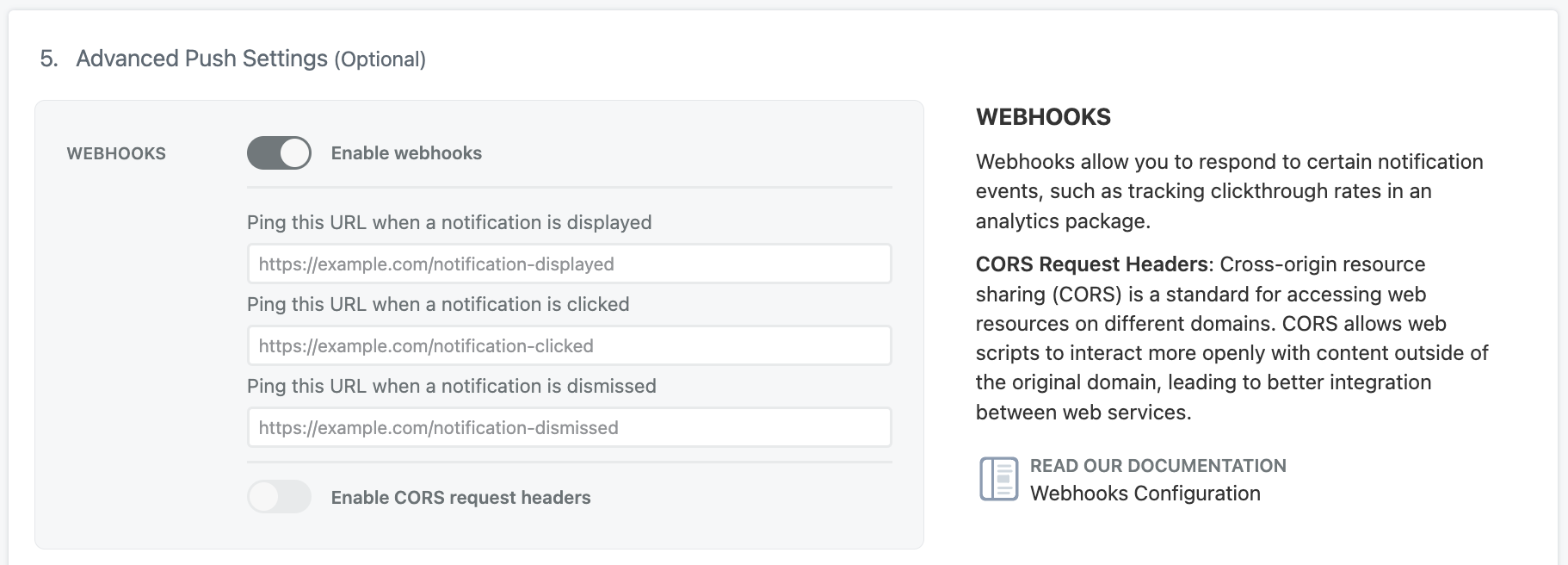
Enable webhooks in your OneSignal dashboard settings
Make sure your webhook URLs are HTTPS (required by Chrome’s security policies).
CORS Configuration
Thecors setting determines what headers and data your webhook endpoint receives:
cors: false(Recommended): Simpler setup, no CORS configuration needed on your servercors: true: Provides additional headers but requires CORS support on your server
cors: true:
- You need the
Content-Type: application/jsonheader - You want the
X-OneSignal-Eventheader for easier event identification - Your server already supports CORS for non-simple requests
Webhook Request Format
Standard Request (cors: false)
Your webhook endpoint receives a POST request with this payload structure:Enhanced Request (cors: true)
Same payload as above, plus these additional headers:Payload Field Reference
Implementation Best Practices
Webhook Endpoint Requirements
Security:- Use HTTPS URLs only (HTTP URLs will be blocked by Chrome)
- Implement proper authentication/validation for your webhook endpoints
- Consider rate limiting to handle high-volume notifications
- Return HTTP 200 status for successful processing
- Respond within 10 seconds to avoid timeouts
- Handle duplicate webhook calls gracefully (implement idempotency)
Error Handling
Common Issues and Solutions
Webhooks Not Firing
Possible causes:- Webhook code not present on all pages with OneSignal initialization
- User hasn’t visited a page with webhook code after it was added
- HTTPS requirement not met
- Server returning non-200 status codes
Missing Data in Webhooks
Cause: Webhooks only track events for users who visit pages with the webhook configuration active. Solution: Deploy webhook code to all pages with OneSignal, not just specific landing pages.Duplicate Webhook Calls
Cause: Network issues or browser behavior may cause duplicate requests. Solution: Implement idempotency using thenotificationId field to deduplicate events.
Webhook Limitations
- One webhook URL per event: You cannot set multiple webhook URLs for the same event type
- HTTPS only: HTTP URLs will not work due to browser security restrictions
- Chrome-only dismissal tracking: The
notification.dismissedevent only works in Chrome - Page dependency: Users must visit pages with webhook code active for tracking to work
Testing Your Webhooks
- Send a test notification through your OneSignal dashboard
- Monitor your webhook endpoint for incoming requests
- Verify payload structure matches your expectations
- Test different scenarios:
- Notification display
- Clicking notification body
- Clicking action buttons (if configured)
- Dismissing notifications (Chrome only)
Next Steps
After setting up webhooks, consider:- Analytics Integration: Forward webhook data to your analytics platform
- User Segmentation: Use webhook events to create user segments based on engagement
- Automated Workflows: Trigger email campaigns or app notifications based on push notification interactions
- A/B Testing: Use webhook data to measure the effectiveness of different notification strategies