Set up, manage, and recover 2-step authentication (2FA) for your OneSignal account, including recovery codes, transferring to a new device, and regaining access if locked out.
Protect your OneSignal account with 2-step authentication (2FA). Once enabled, you enter a time-sensitive 6-digit code from an authenticator app each time you log in.
Save your recovery codes immediately after setup. Recovery codes are shown only once and are the only way to log back in if you lose access to your authenticator app. If you lose both, you must email support@onesignal.com and CC a team member who can verify your identity to regain access.
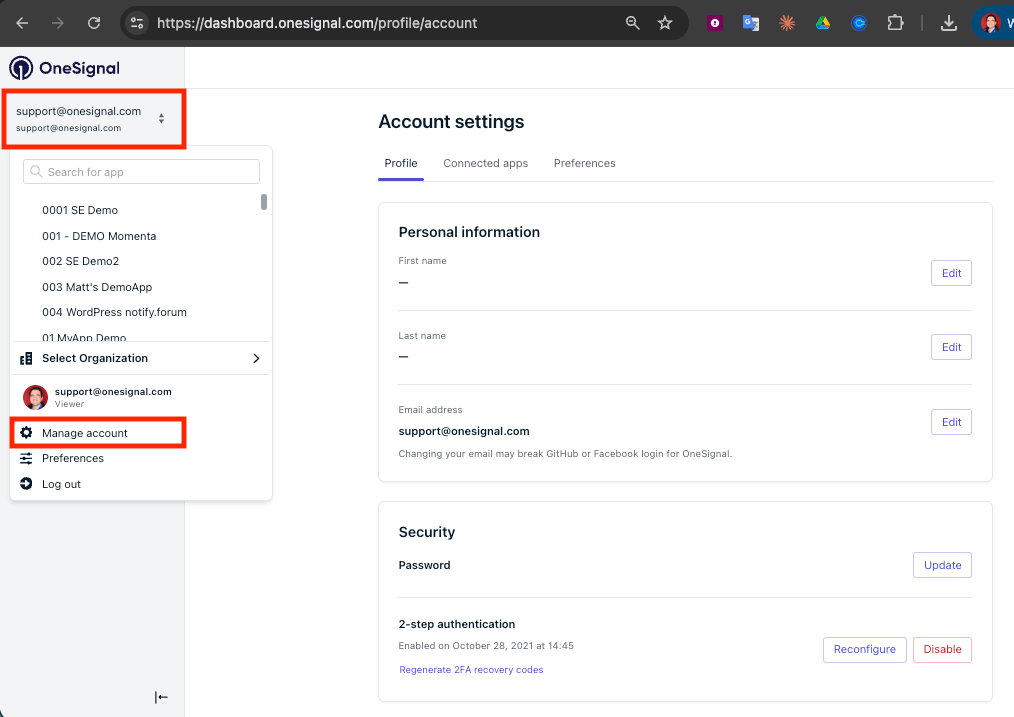
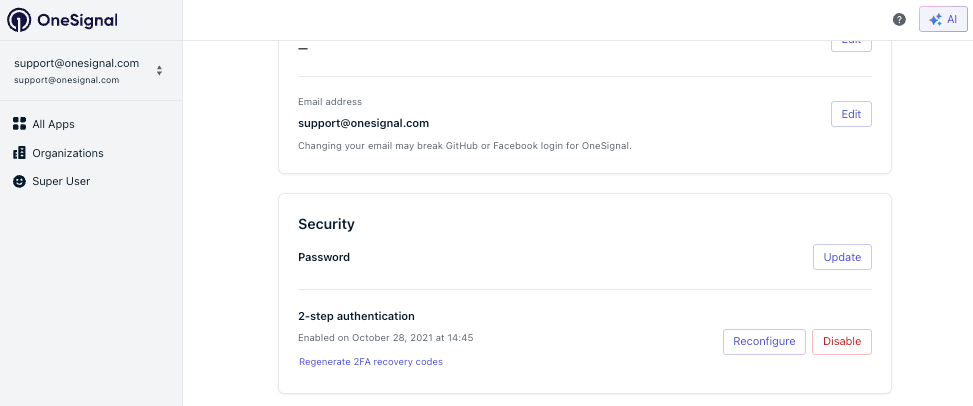
Use this flow whether you’re enabling 2FA for the first time, moving it to a new device, or replacing a lost setup after logging in with a recovery code. The steps are identical. The button is labeled Enable the first time and Reconfigure after that.
Set up your authenticator on a personal device you control long-term, not a shared or temporary test device. If you lose access to that device and your recovery codes, you will be locked out of your account.
Any TOTP (Time-based One-Time Password) compatible app works. Choose one that supports cloud backup or multi-device sync to avoid losing access if you switch phones:
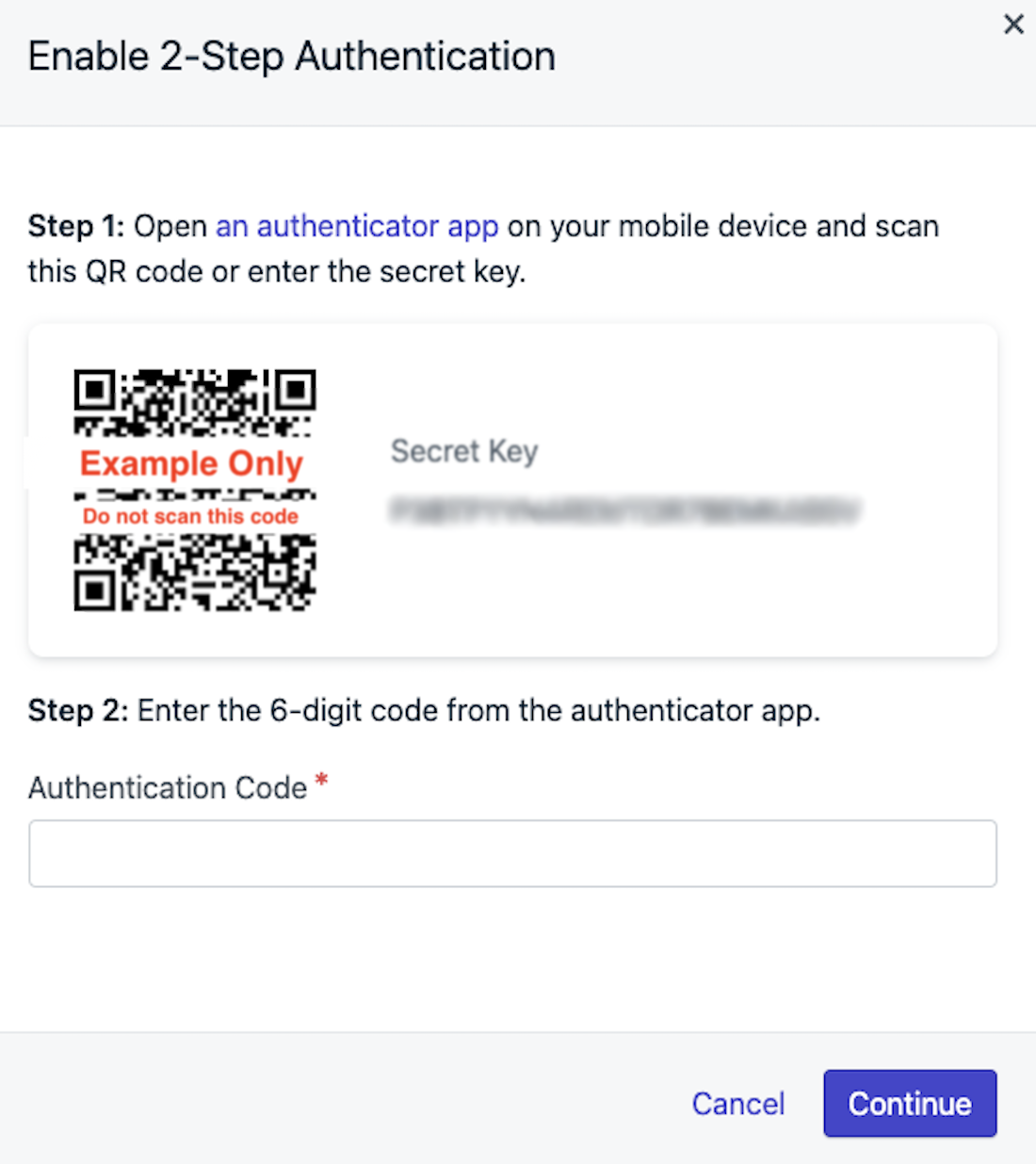
On the Enable 2-Step Authentication screen, scan the QR code with your authenticator app or copy the Secret Key to enter it manually.
QR code and Secret Key shown on the Enable 2-Step Authentication screen.
If entering the key manually in your authenticator app, choose the option to Enter a setup key and name the entry something memorable like OneSignal_[your_email].
2
Enter the 6-digit code
Your authenticator app generates a new 6-digit code every 30 seconds. Enter the current code in OneSignal to verify the connection.If the code fails, wait 30 seconds and try the next one. If it still fails, confirm the Secret Key was entered correctly and try again.
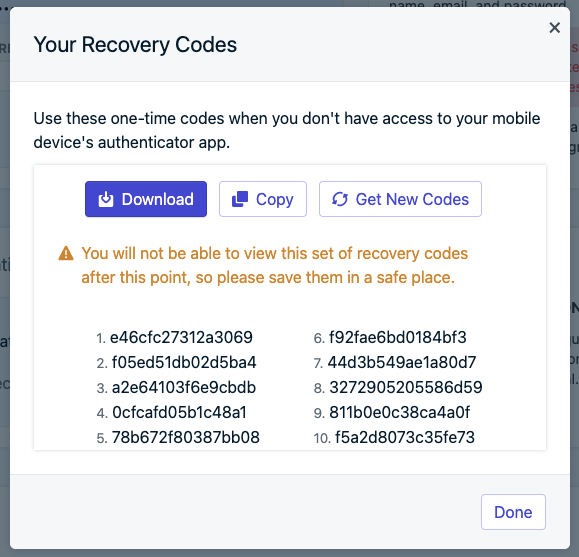
OneSignal displays 10 one-time recovery codes after a successful setup or reconfigure. Each code can only be used once to log in if you lose access to your authenticator app.
Download your recovery codes immediately after setup.
Recovery codes are shown only once. Download or copy them now and store them in a password manager or another secure location. Reconfiguring 2FA invalidates the previous set, so always save the fresh codes after a reconfigure.
Enter your email and password on the OneSignal login page.
On the 2FA verification screen, choose the option to enter a recovery code instead of a 6-digit code.
Enter one of your saved recovery codes. Each code works only once, so cross it off your list after use.
2
Immediately reconfigure 2FA on a device you control
Recovery codes run out. Follow Set up or reconfigure 2-step authentication right after you log in. Reconfiguring invalidates all old recovery codes and generates a fresh set.
If you keep logging in with recovery codes instead of reconfiguring, you will run out and be locked out again.
Email support@onesignal.com and CC a team member who can verify your identity. The team member must have access to the OneSignal account and will need to confirm your access before our Support Team can reset your 2FA.If no one else on your team has access to the OneSignal account, the Support Team will guide you through alternative verification (such as confirming billing or domain ownership).After your 2FA is reset, log in and follow Set up or reconfigure 2-step authentication immediately. Save the new recovery codes this time.
Organization Admins can require every team member to use 2FA. See Team members for role details.
1
Open your organization
Go to Organizations in the left sidebar and select your organization.
2
Open Security settings
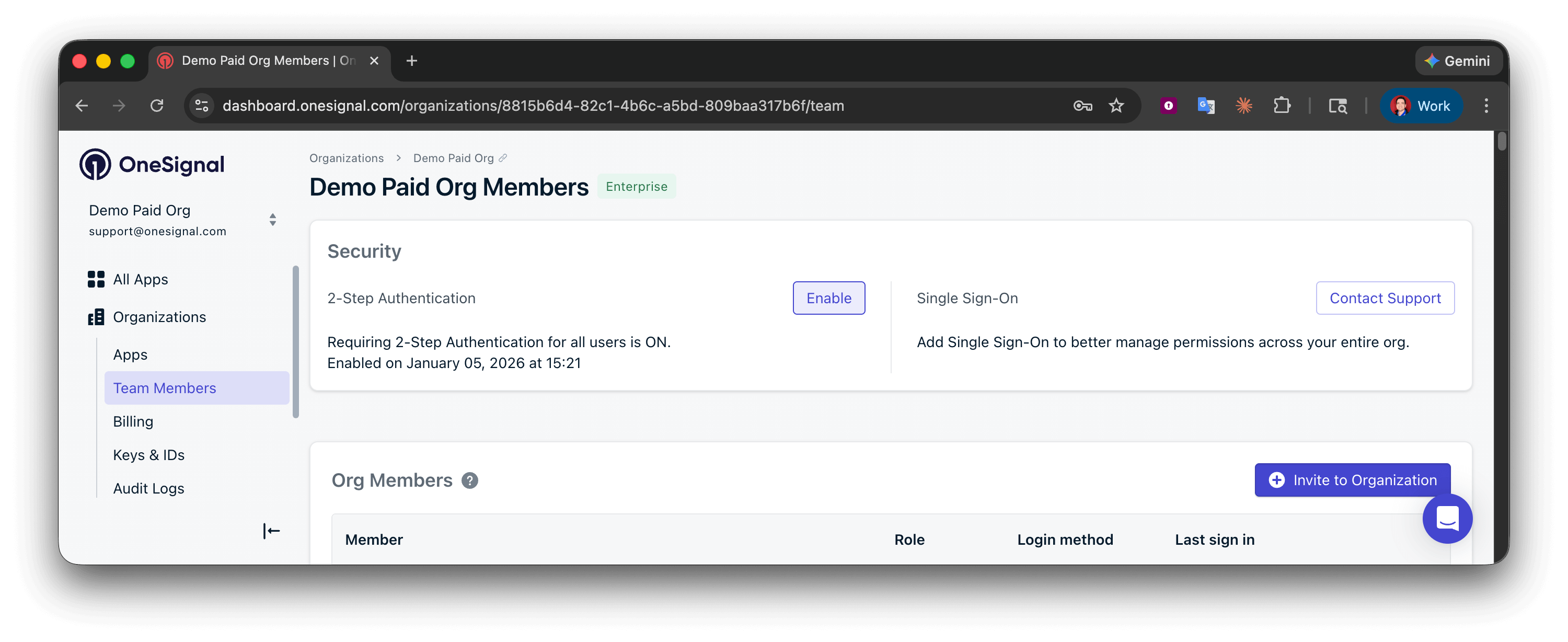
Under Team Members > Security, click Enable.
Security settings with the Enable button for organization-wide 2FA.
3
Require 2-step authentication for all users
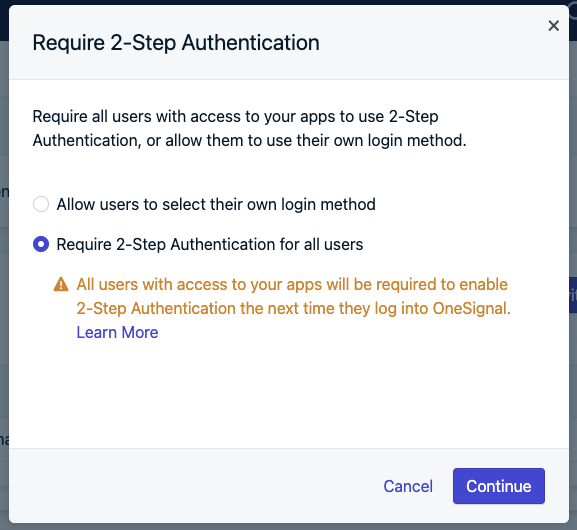
Select Require 2-Step Authentication for all users, then click Continue.
Confirmation dialog requiring 2-Step Authentication for all users.
Future invitations require new users to set up 2FA before accessing the organization or its apps. Existing users without 2FA must set it up on their next login.
I’m locked out of my account, how do I get back in?
See Recover access if locked out. If you have a recovery code, use it to log in and then reconfigure 2FA immediately. If you don’t, email support@onesignal.com and CC a team member who can verify your identity.
Why do I keep getting asked for a recovery code every time I log in?
Your authenticator app is no longer generating valid codes for your OneSignal account. This usually happens when the app was on a device you no longer have. Each recovery code is single-use, so you will eventually run out. To fix this permanently, reconfigure 2FA on a device you currently use after logging in.