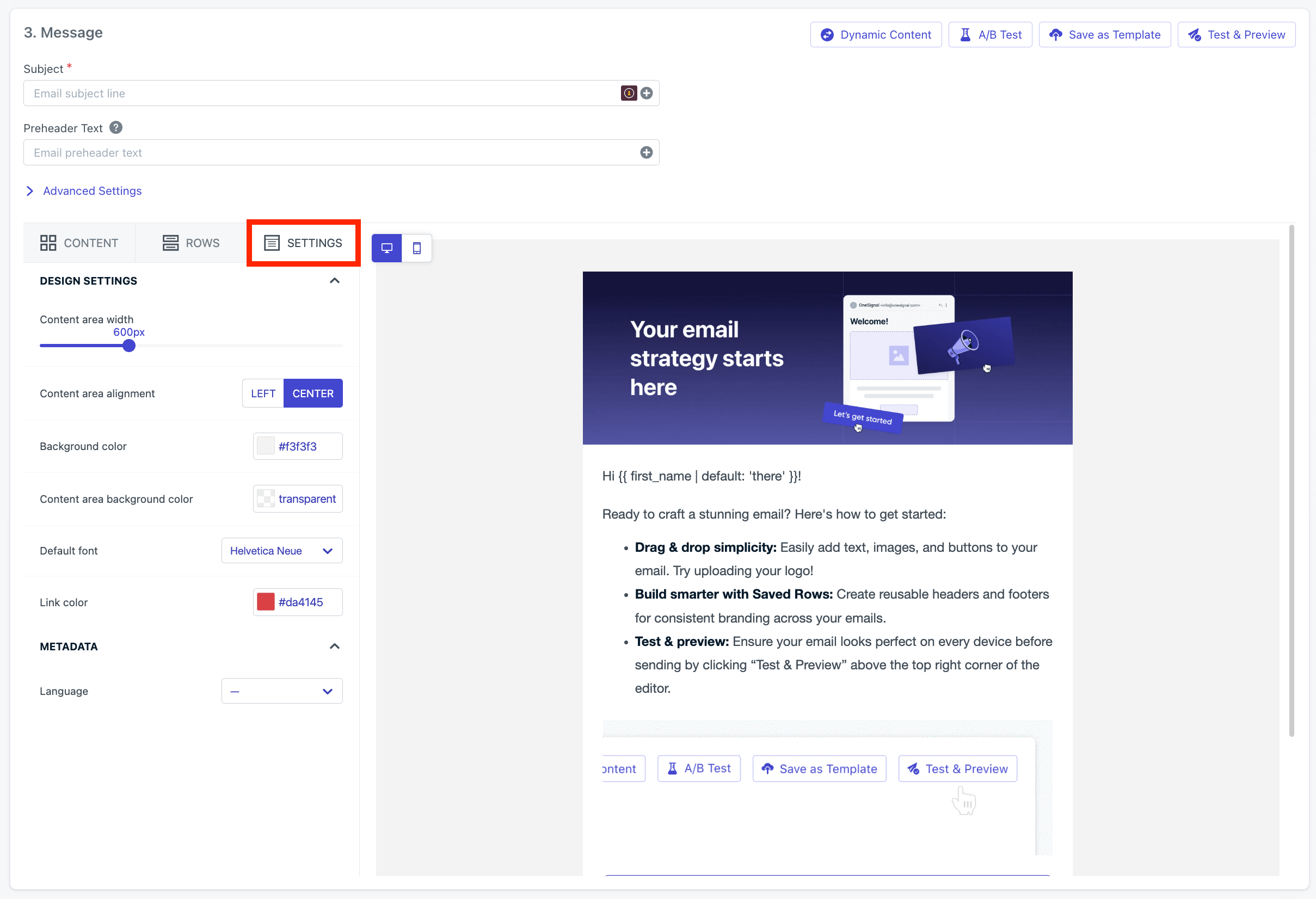
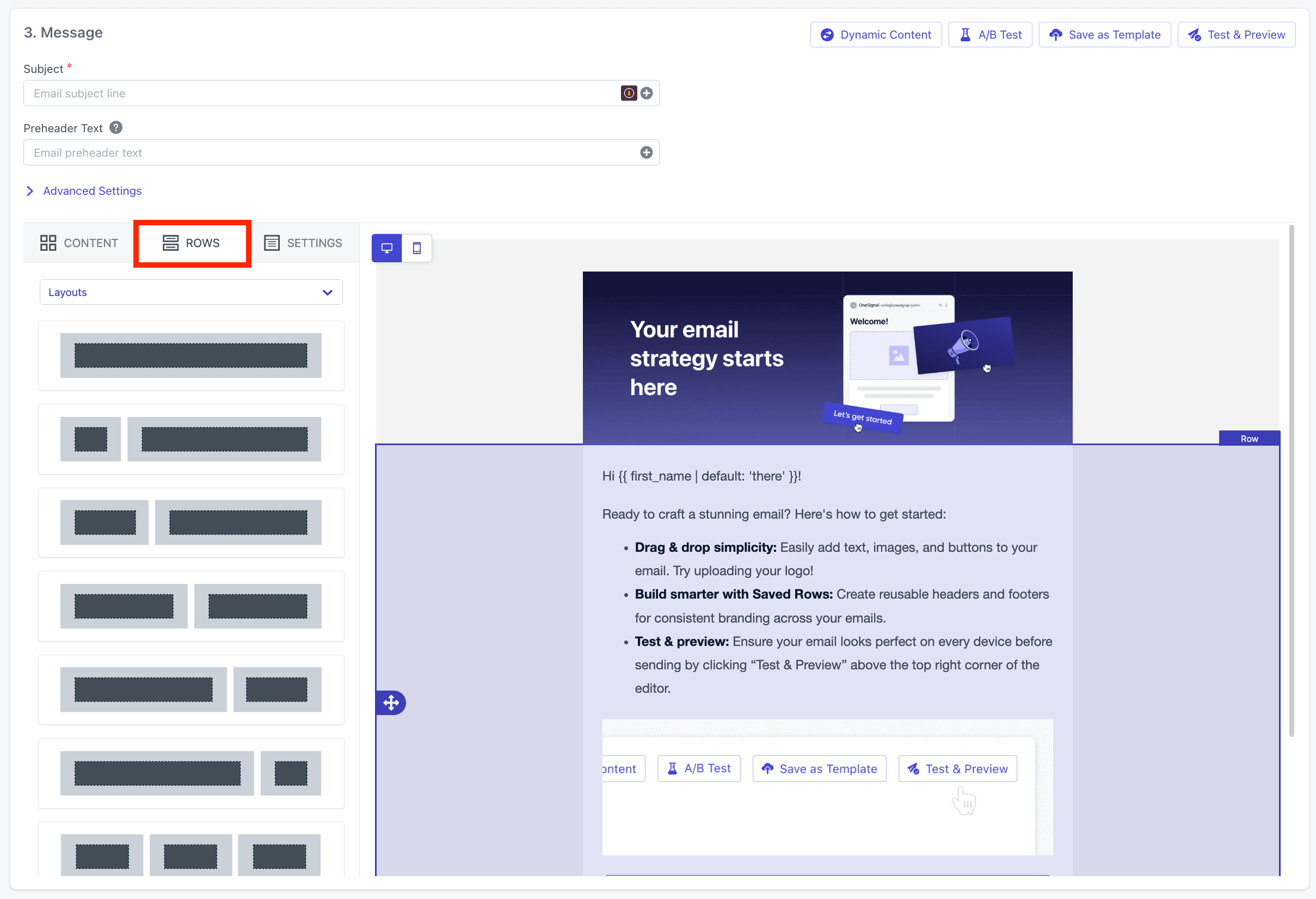
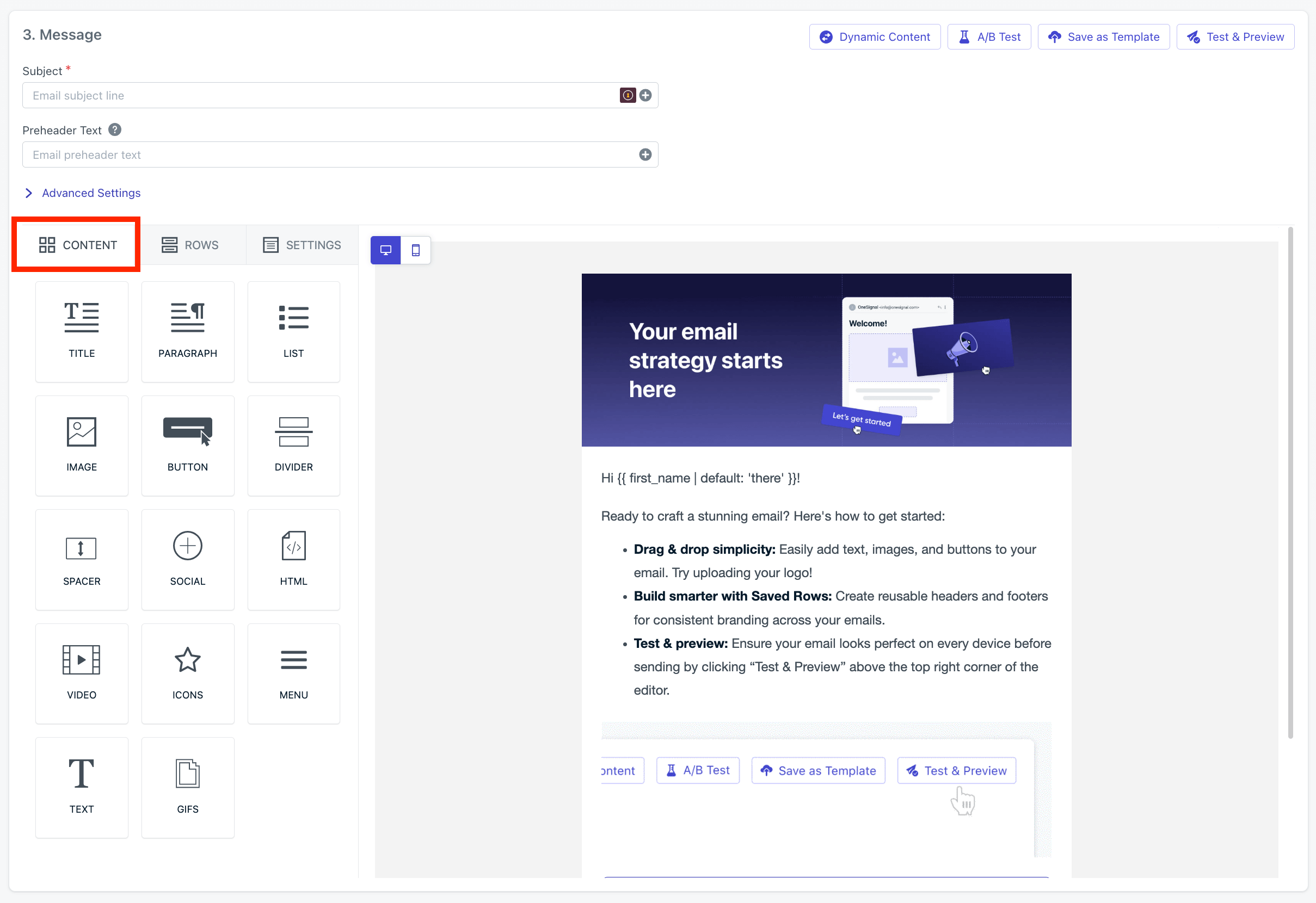
The OneSignal Drag and Drop Email Builder lets you visually design responsive emails exactly as they appear in recipients’ inboxes — without writing full HTML.You build emails using three core components:
Settings – global styles and layout applied across the entire email
Rows – horizontal layout containers that control structure and responsiveness
Content – individual blocks such as text, images, buttons, and HTML
The sections below cover each component and the recommended order for building an email.
Use the Drag and Drop Email Builder if you want to:
Design emails visually without managing full HTML (HTML blocks are available)
Reuse rows or templates across campaigns
Allow non-technical teammates to safely edit content
If you need full HTML control, custom fonts everywhere, or advanced dark mode logic, use the HTML Editor instead.
Rows define the horizontal layout of your email. Each row can contain one or more columns, and each column can contain content blocks.Drag and drop rows into the editor to build your structure.
Adding rows to structure an email
Use rows to control layout and spacing. Avoid relying on individual content blocks for major layout decisions.
Content blocks are the elements recipients see — text, images, buttons, dividers, and HTML.Drag a content block into a row column. It automatically adapts to the column width.
Available content blocks
Decision rules for content blocks:
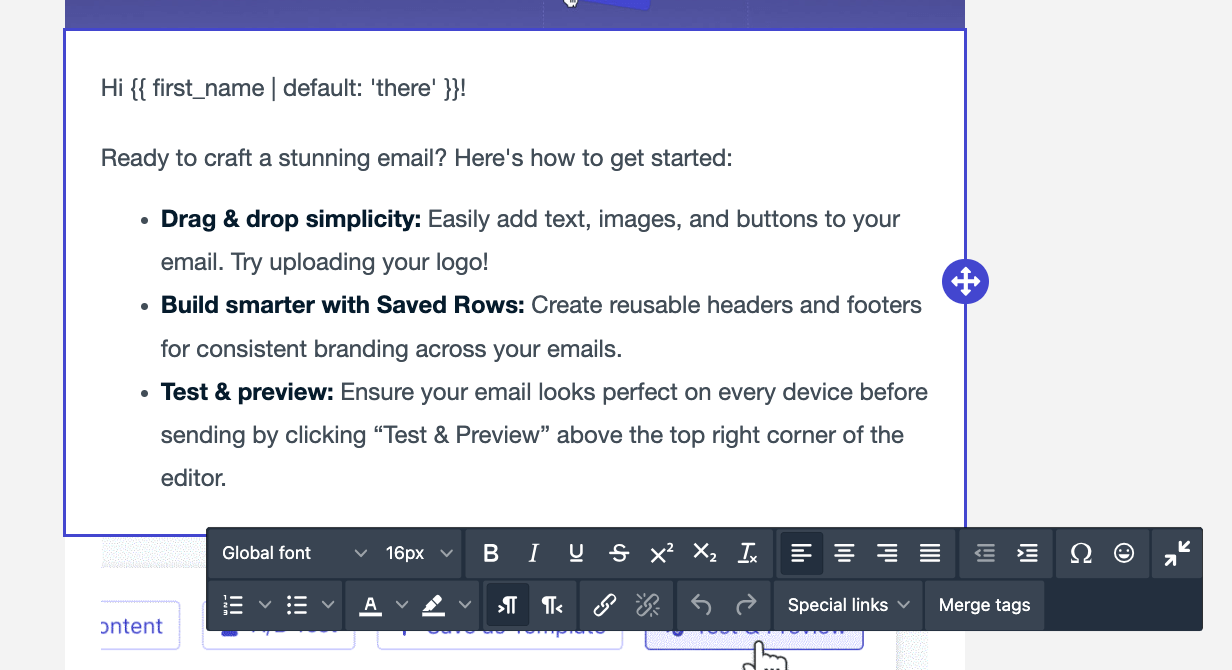
Use Text blocks for most copy.
Use Image blocks for visuals or custom typography.
Use HTML blocks only when you need advanced styling or behavior.
The Drag and Drop Editor supports system fonts by default. To use custom fonts, you must use an HTML block.
HTML block
<!-- Place this into a HTML block at the top of your email --><style type="text/css"> /* Declare Bebas Neue (only loads in clients that support web fonts) */ @font-face { font-family: 'Bebas Neue'; font-style: normal; font-weight: 400; src: url('https://fonts.gstatic.com/s/bebasneue/v9/JTUSjIg69CK48gW7PXoo9Wlhzg.ttf') format('truetype'); }</style><h1 style="font-family:'Bebas Neue', Arial, Helvetica, sans-serif; font-size:36px; line-height:1.2; margin:0; text-transform:uppercase;"> Welcome!</h1><p style="font-family:Arial, Helvetica, sans-serif; font-size:16px; margin:12px 0 0;"> Thanks for subscribing.</p>
Many email clients (including Gmail and Outlook for Windows) do not load web fonts. Use system fonts for body text and reserve custom fonts for headlines only. Always include fallback fonts, or use images for guaranteed typography.
Upload images directly to the OneSignal dashboard so your team can reuse them. The editor supports cropping, filtering, and other effects. You can also reference externally hosted images and videos by URL — make sure each URL is publicly accessible.
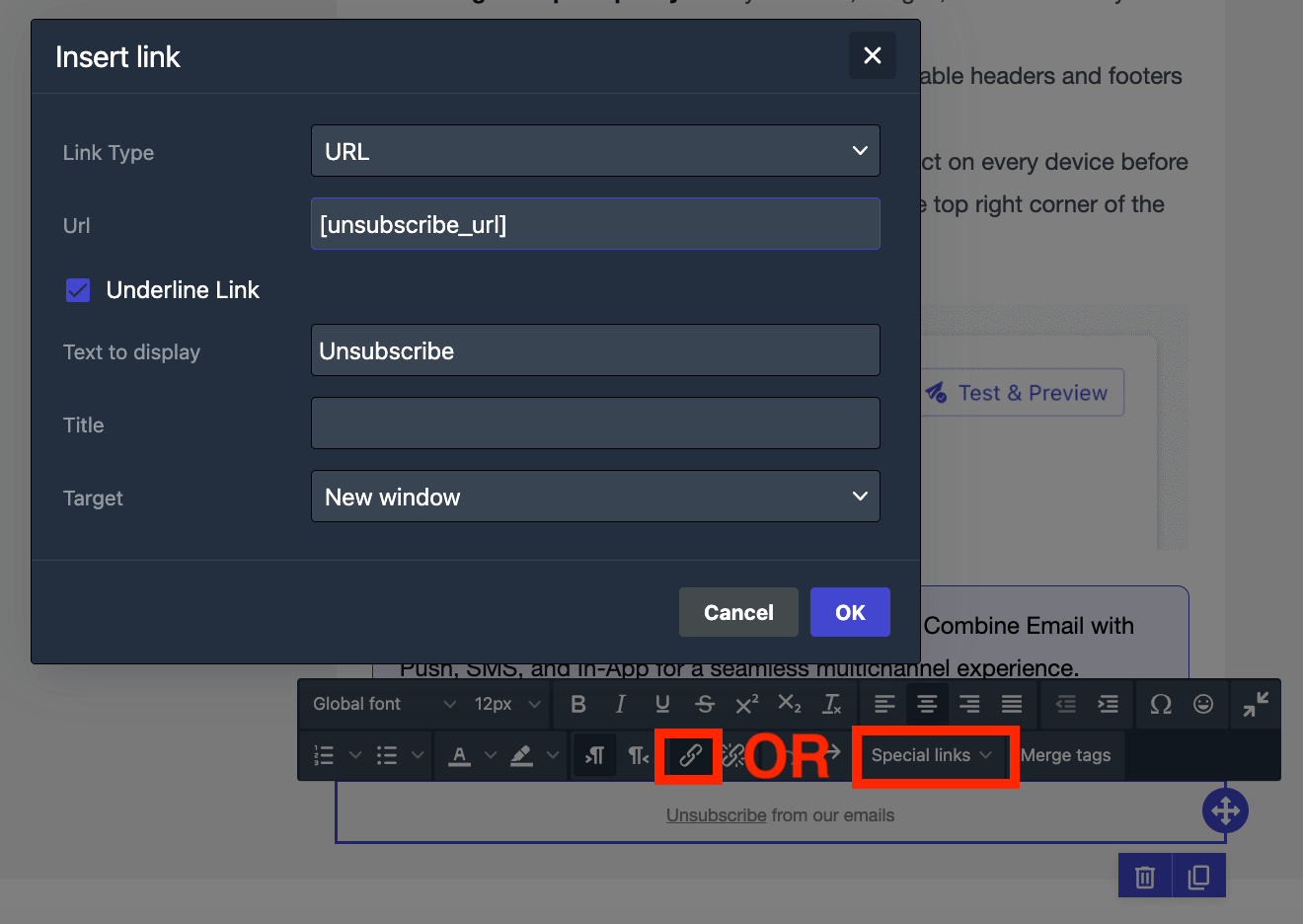
All marketing emails must contain an unsubscribe link. Emails without one are more likely to be flagged as spam by inbox providers. When a recipient clicks the default OneSignal unsubscribe link, their email Subscription is automatically set to unsubscribed.Add the [unsubscribe_url] tag to your email using either method:
Editor (Special links)
HTML block
Select the text you want to turn into the unsubscribe link.
Click the link icon in the toolbar.
Choose Special links > Unsubscribe.
Adding the unsubscribe link using Special links in the editor
Paste the following into an HTML block:
<a href="[unsubscribe_url]">Unsubscribe</a>
Unsubscribe links
Compliance requirements and how OneSignal handles unsubscribes.
Custom unsubscribe page
Replace the default unsubscribe flow with your own branded page.
Most emails render acceptably in dark mode without changes. However, emails with brand colors, logos on white backgrounds, or colored sections often need adjustments.
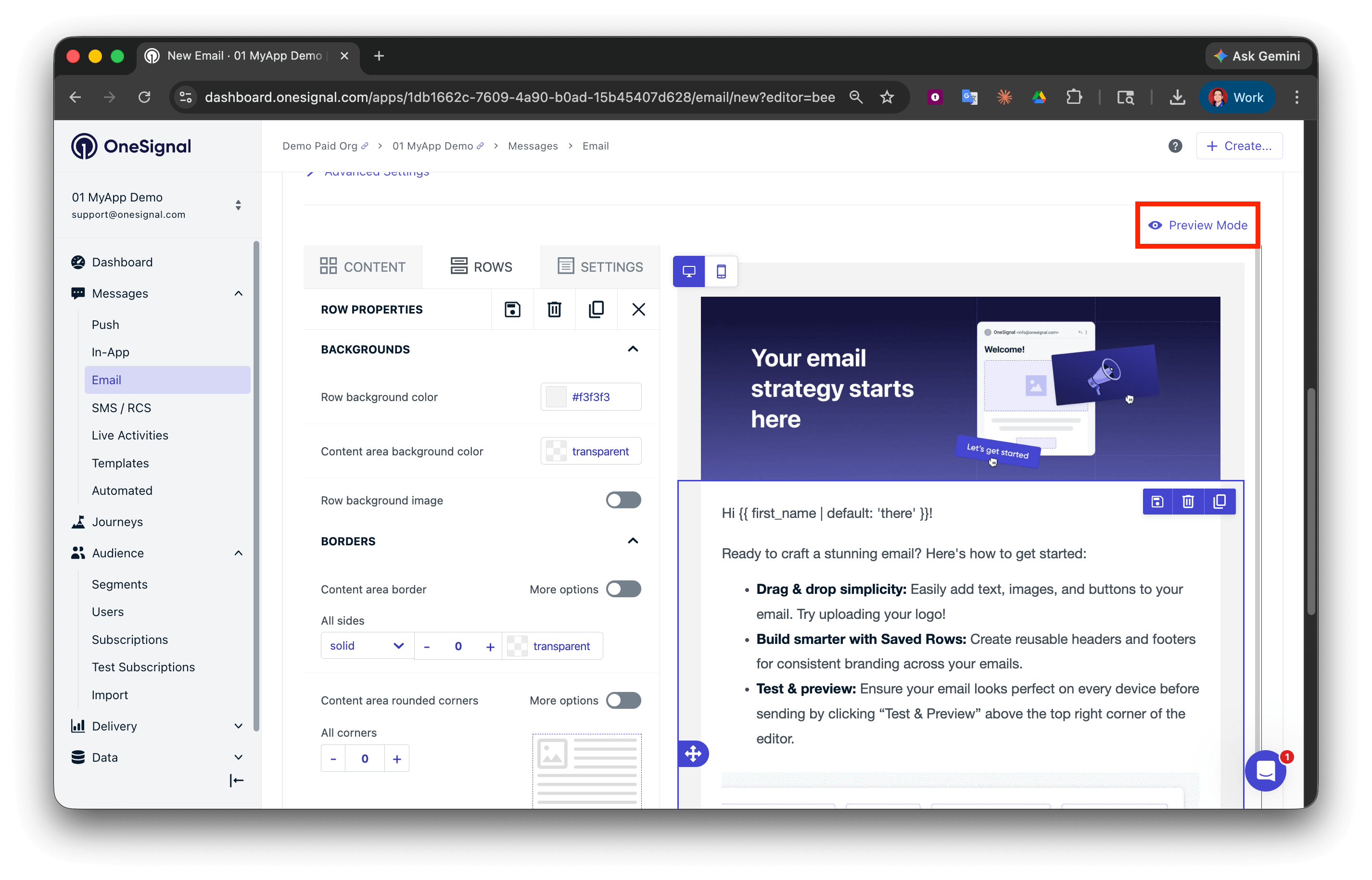
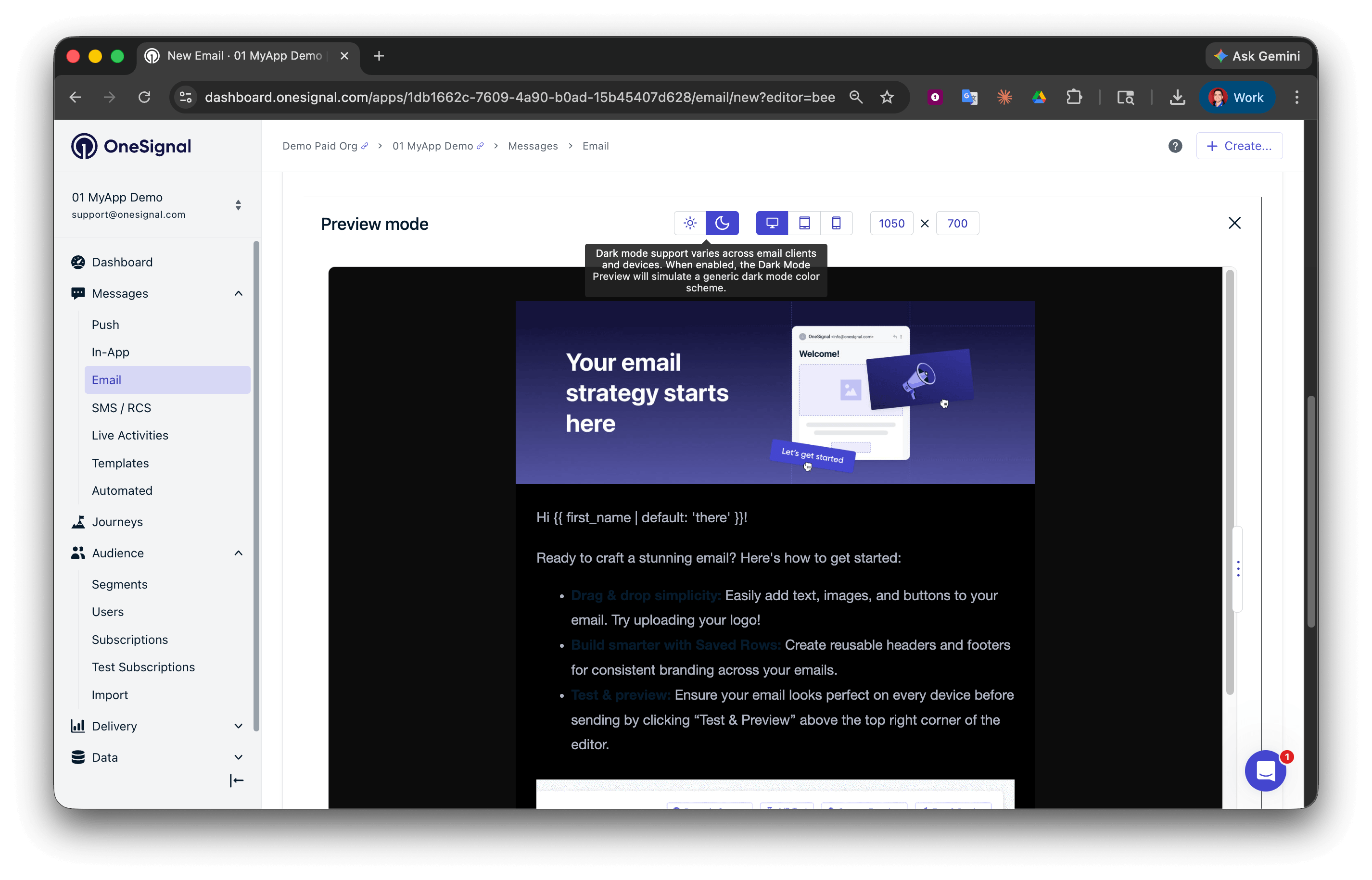
Use the Preview Mode button to get a general preview of dark mode rendering. This preview is an approximation — actual rendering varies by inbox provider (see the client behavior table below).
Preview mode in the Drag and Drop Editor
Light and dark mode toggle in the Drag and Drop Editor
Every email client applies dark mode differently. You cannot control this behavior directly, but you can design emails that render well across all modes.
Client
Behavior
Respects prefers-color-scheme CSS?
Apple Mail (iOS/macOS)
Full color inversion
Yes
Gmail (iOS/Android apps)
Partial inversion — changes light backgrounds but not all colors
No
Gmail (Web)
No dark mode rendering
N/A
Outlook (Windows)
Full inversion using Word rendering engine
No — ignores most CSS overrides
Outlook (Mac/iOS)
Partial inversion
Yes
Yahoo Mail
Partial inversion
No
Samsung Mail
Full inversion
No
Common dark mode failures to watch for:
Disappearing logos — a dark logo on a transparent PNG becomes invisible on a dark background. Add a white or light outline, or use a version with a built-in light background.
Unreadable text — dark text on a light background may stay dark after the background is inverted. Always pair text color overrides with background overrides.
Clashing brand colors — saturated brand colors that look great on white become harsh on dark backgrounds. Test desaturated or muted alternatives.
Invisible buttons — CTA buttons with dark text on a brand-colored background may lose contrast after partial inversion.
Design tips:
Avoid pure white (#FFFFFF) and pure black (#000000). Use off-whites and dark grays to reduce the impact of full-inversion clients.
Use transparent PNGs with care. They blend well with any background, but dark logos on transparent backgrounds become invisible in dark mode. Add a light outline or use a version with a built-in background for logos.
On images that include text, outline dark text in white to ensure legibility. For white text on a dark background, outline in black.
If only a few elements render poorly in dark mode, you can replace them with HTML blocks and override the styling directly using CSS classes and !important declarations.
1
Add an HTML block to the top of your email
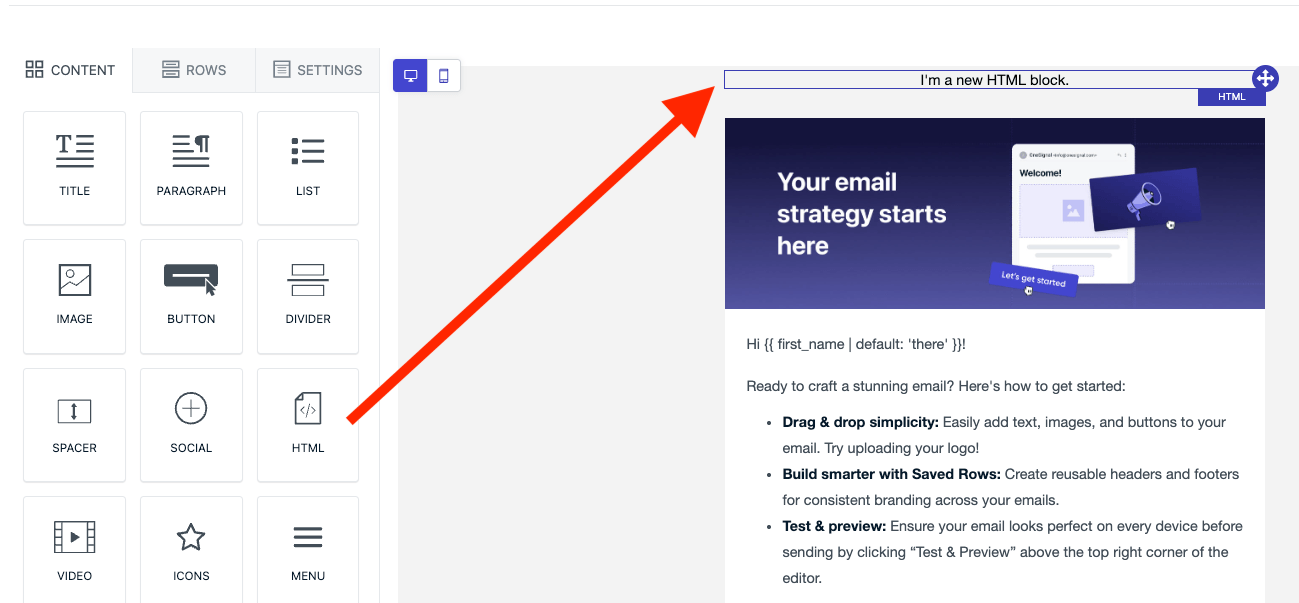
Drag an HTML block into the first row of your email.
Adding an HTML block to the top of your email
2
Add dark mode CSS
Paste the following into the HTML block. The prefers-color-scheme: dark media query applies styles only when the recipient’s email client is in dark mode.
Replace the default [unsubscribe_url] with your own URL. You are responsible for updating the email Subscription status in OneSignal when a recipient unsubscribes. See Create a custom unsubscribe page for setup details.
Outlook on Windows uses the Microsoft Word rendering engine, which does not support modern CSS. Common issues include ignored max-width, collapsed background images, and missing web fonts. Test in Outlook specifically and use inline CSS with explicit width and height attributes on images.
Keep total email size (HTML + images) under 1 MB. Emails over 102 KB of HTML are clipped by Gmail, which hides content below the fold behind a “View entire message” link. Optimize images and remove unused code to stay under this threshold.
Can I reuse parts of an email across multiple campaigns?
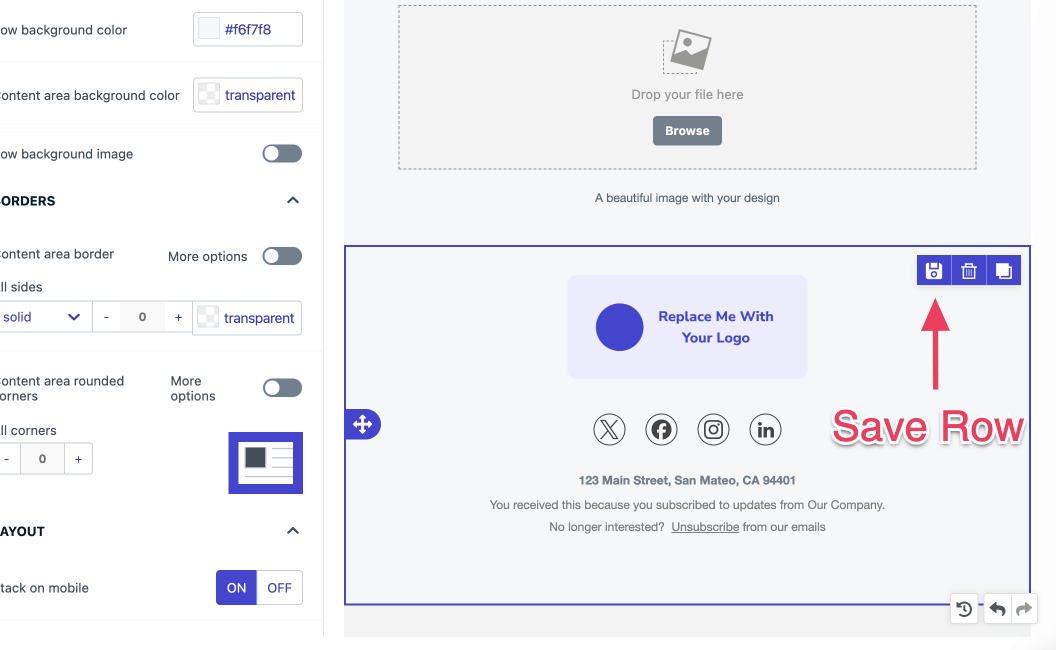
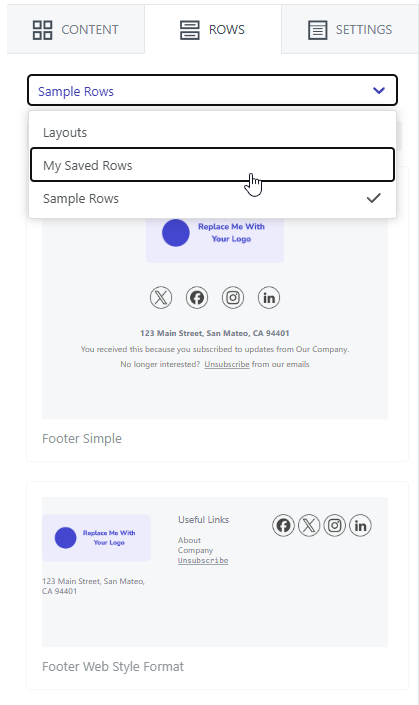
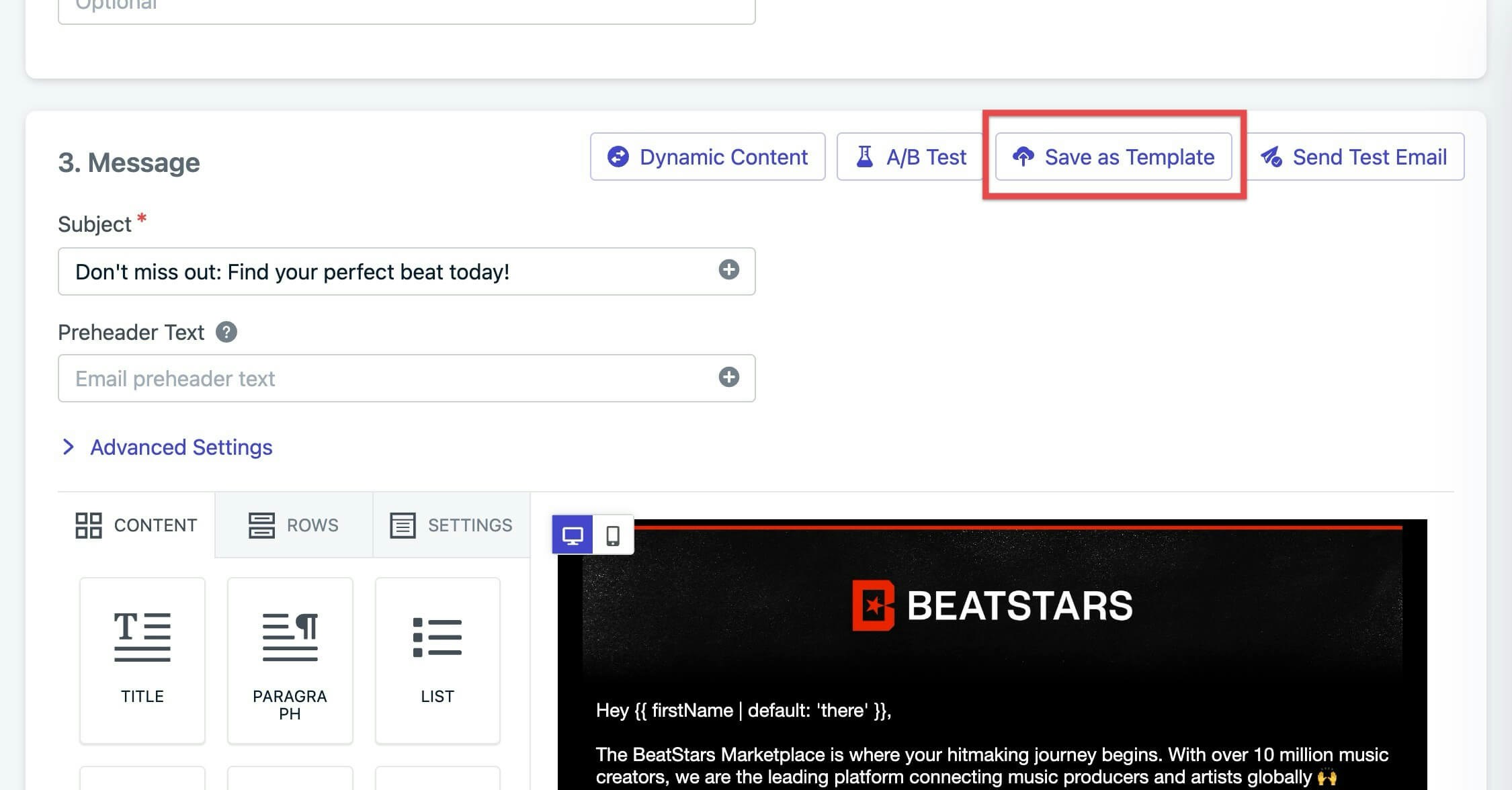
Yes. Save any row as a Saved Row by clicking the save icon on the row. Saved rows appear under Rows > My Saved Rows and can be dragged into any email. For full email reuse, save the entire design as a template.
Use the Preview button in the top toolbar to see how your email renders on desktop and mobile. To send a live test, click Send Test Email and enter a recipient address. Test emails are delivered to the inbox so you can verify rendering, links, and personalization in actual email clients.
Yes, but they render differently across email clients. Outlook on Windows is the most inconsistent — emojis may appear as black-and-white outlines or boxes. If emojis are part of your subject line or CTA text, test across clients before sending.