Manually add SPF, DKIM, DMARC, CNAME, and MX DNS records to authenticate your email sending domain and improve deliverability with OneSignal.
Configure DNS records provided by OneSignal to authenticate your sending domain. In most cases, DNS can be auto-configured from the OneSignal dashboard as described in the Email setup guide. Use this page when you need to add records manually.
If you don’t own a domain, we recommend purchasing one via Cloudflare. This guide uses Cloudflare as an example, but most DNS providers work the same way.
Registering your domain with Cloudflare
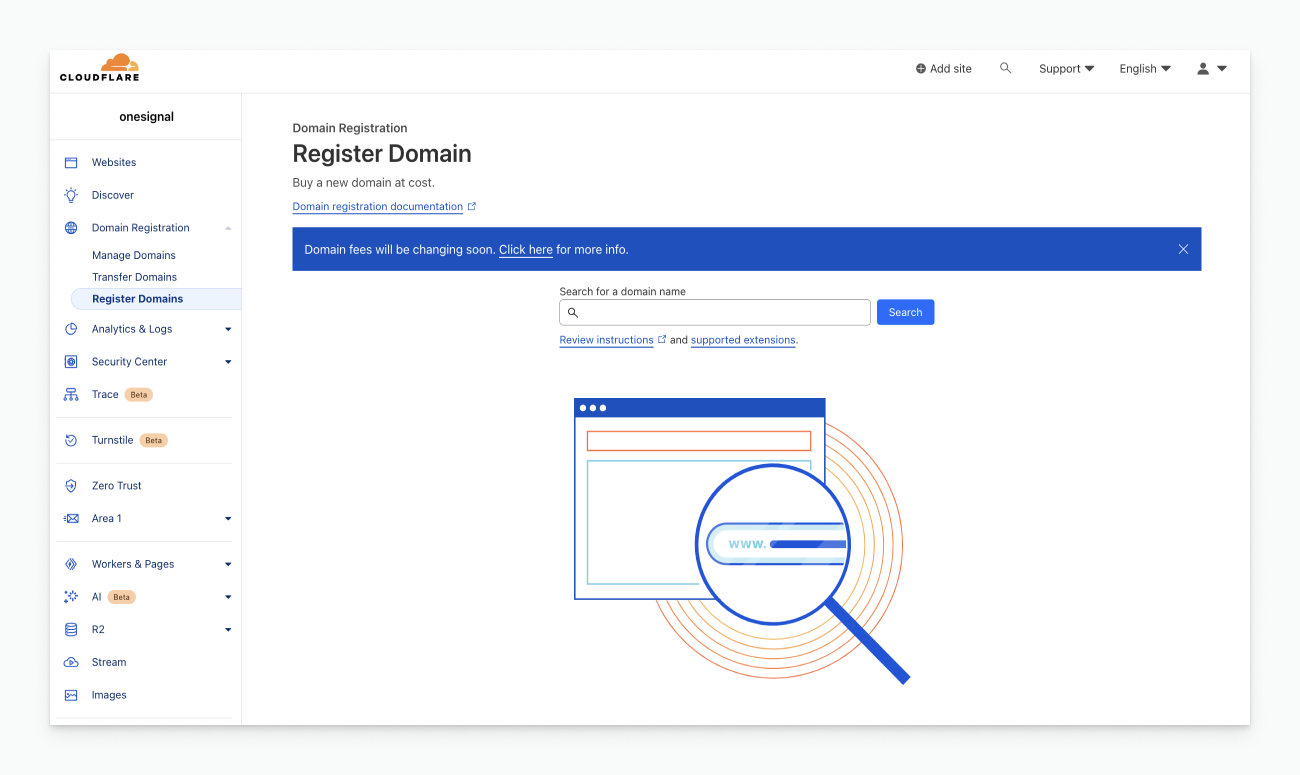
Create an account at Cloudflare.com.Go to Domain Registration > Register Domains.
Cloudflare domain registration page
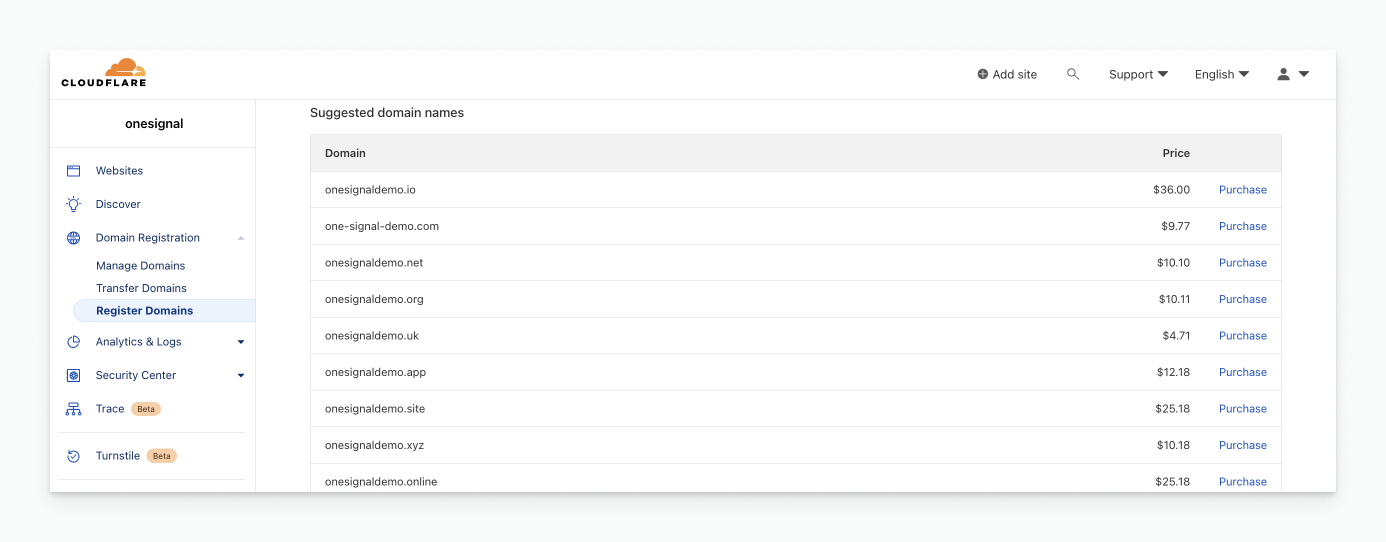
Search for an available name and purchase it.
Cloudflare domain purchase page
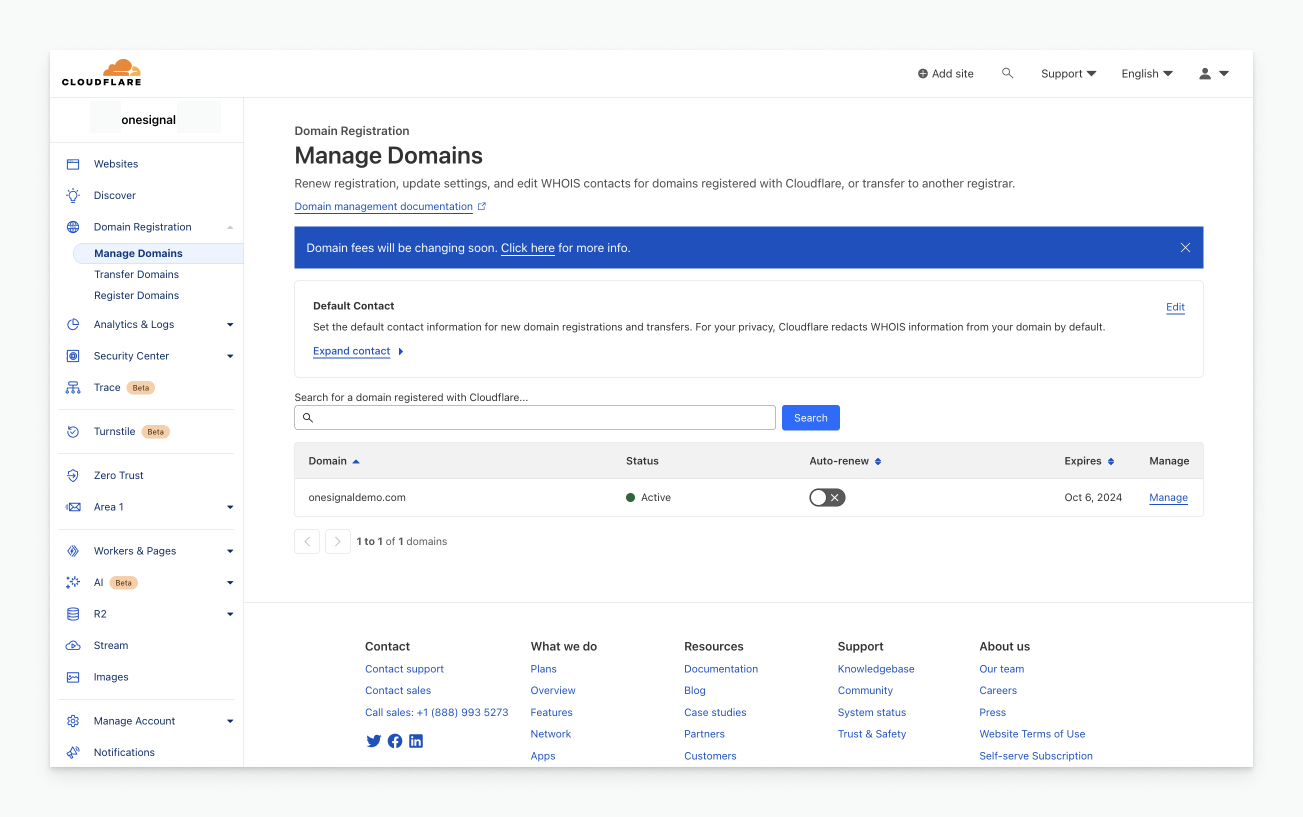
Once purchased, your domain will appear under Domain Registration > Managed Domains.
Complete the Email setup steps until you’re prompted to add DNS records, then return here or use the Auto-Configure DNS button.From the OneSignal dashboard:
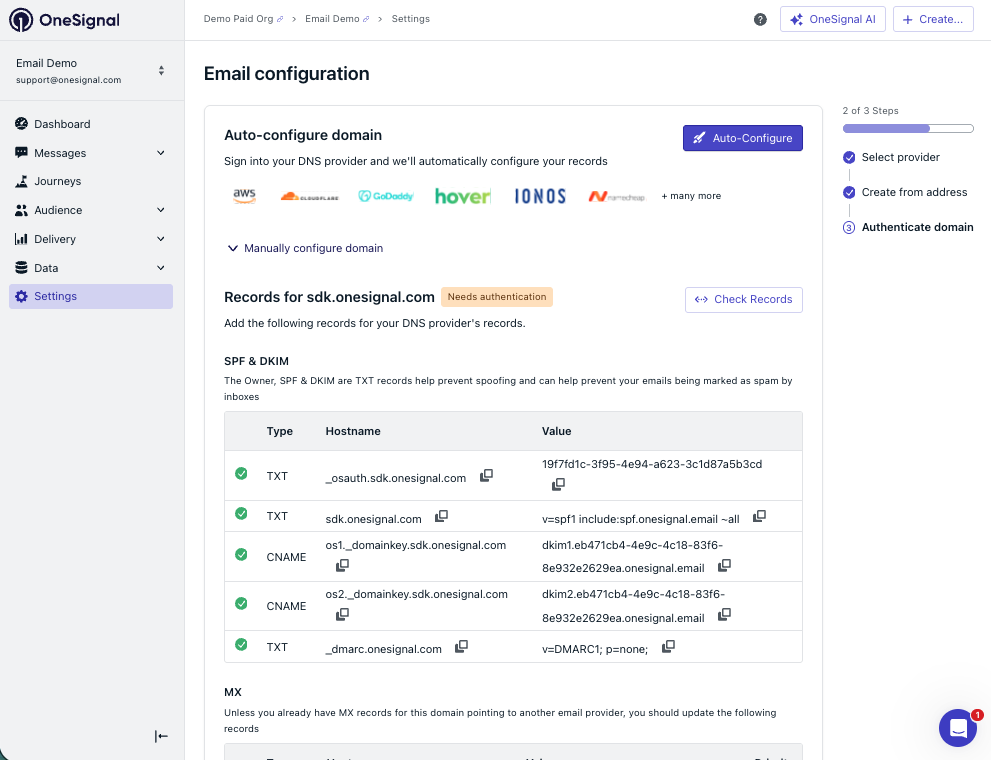
⚠️ means the current DNS record does not match
✅ means the current DNS record matches
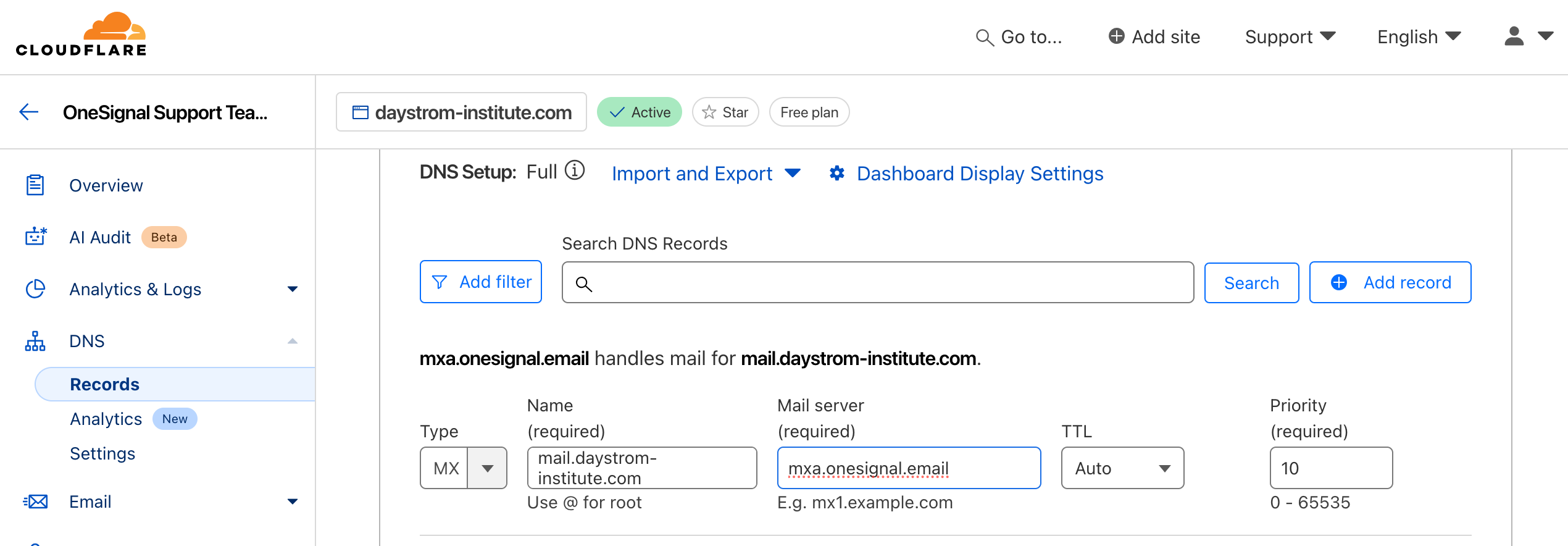
Each DNS record needs to be added to your DNS provider. The exception is the MX record. You must have MX records configured, but they may point to a different mail server (e.g., Gmail).
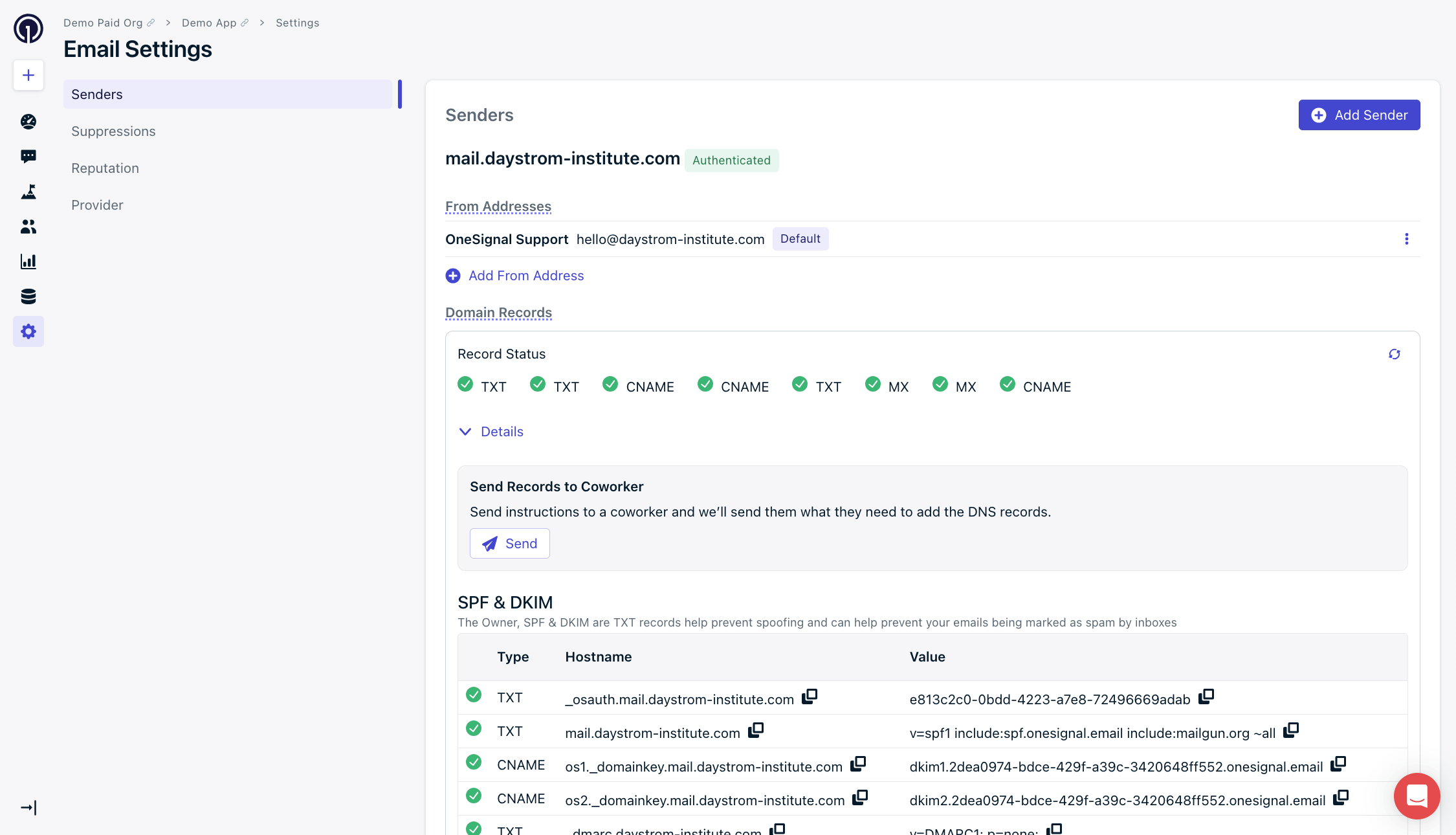
Copy DNS records from OneSignal into your DNS provider
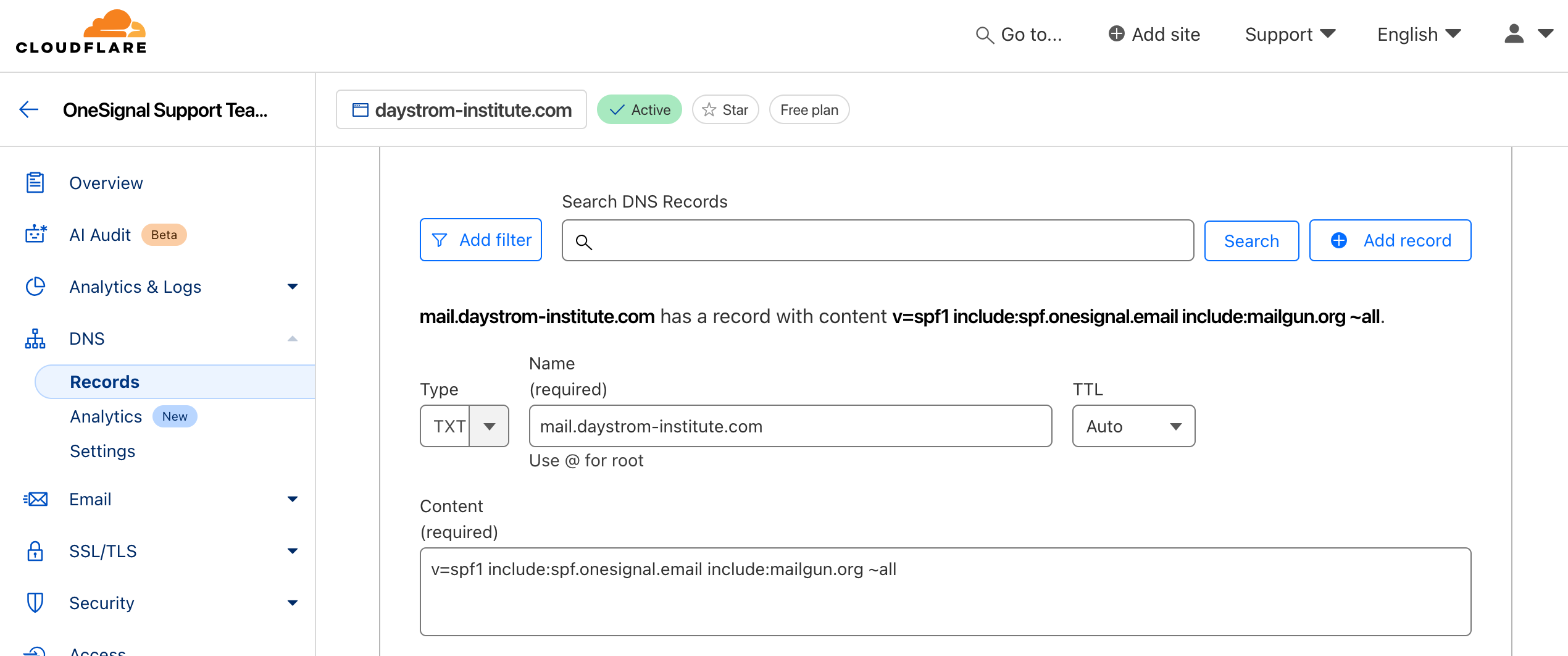
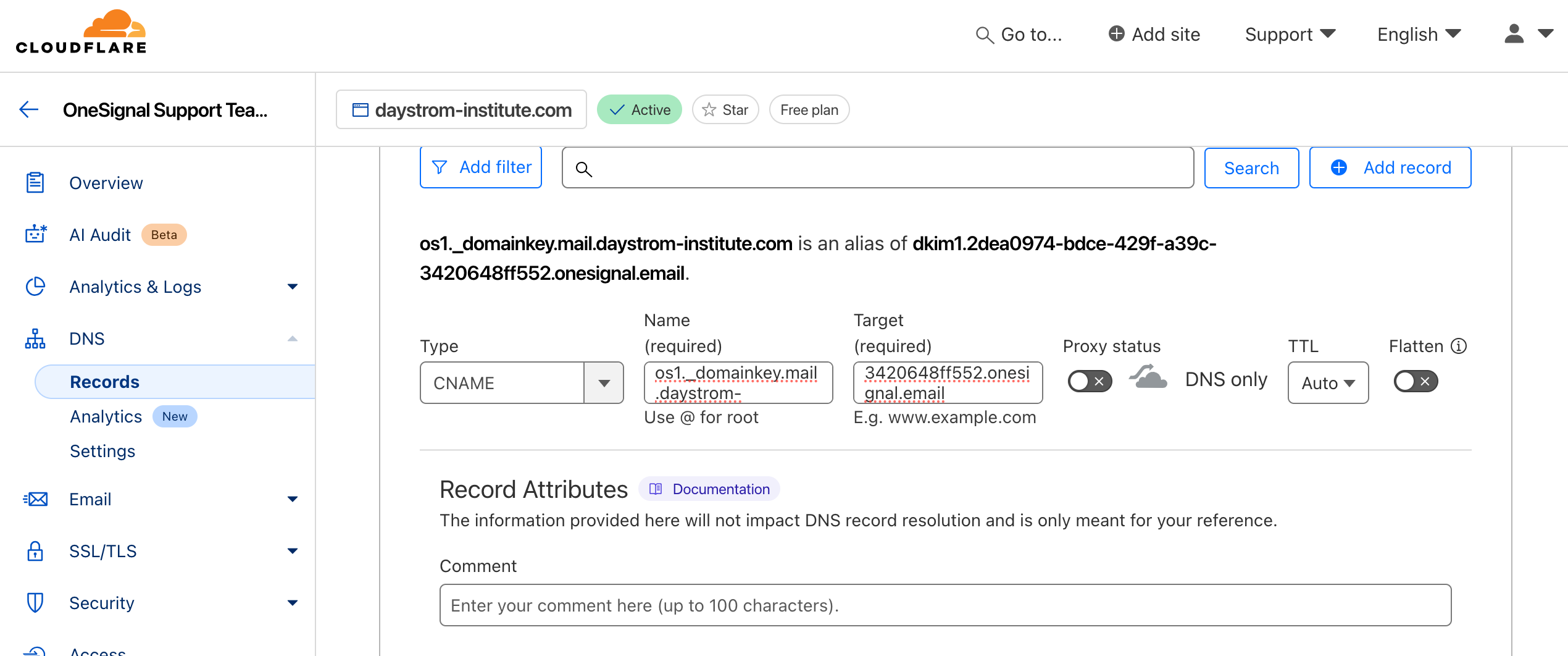
In your DNS provider’s interface (e.g., Cloudflare), go to DNS > Records and add each record.
If you already have an SPF TXT record, do not create a second one. Append additional include: directives to the existing record:v=spf1 include:spf.onesignal.email include:mailgun.org include:your-other-spf-records ~all
OneSignal uses the value v=DMARC1; p=none; for the DMARC record. If you already have a DMARC record, do not add a duplicate. Verify the existing record includes this policy or a stricter one (e.g., p=quarantine or p=reject).
If you need to comply with regulations that require per-recipient consent for open tracking (for example, France’s CNIL guidance), you can omit the tracking CNAME on a dedicated no-tracking sender. See Open-tracking pixel consent for the full workaround.
Type:CNAME
Name: OneSignal “Hostname”
Target: OneSignal “Value”
TTL: Auto or lowest
If using Cloudflare, set Proxy to “DNS only” and Flattening to “Off” for CNAME records. Other DNS providers typically do not require these settings.
Verifies the message content was not altered and was sent by you. The public key is included in the CNAME DNS record provided by OneSignal.We list two DKIM records and require that both be created, though initially only one is active and used for sending email. In the event that the primary record needs to be retired, we will enable the secondary record to be used.
Verified records show ✅. All records should be verified except MX, which may show ⚠️ if it points to a different mail server (e.g., Google Workspace). This is expected and acceptable.
Verified DNS records in the OneSignal dashboard
Verification typically takes a few minutes but can take up to 48 hours.
You likely have an existing SPF record. You should only have one SPF TXT record. Append additional include: directives to its value. See the TXT records section above.
DNS not fully propagated
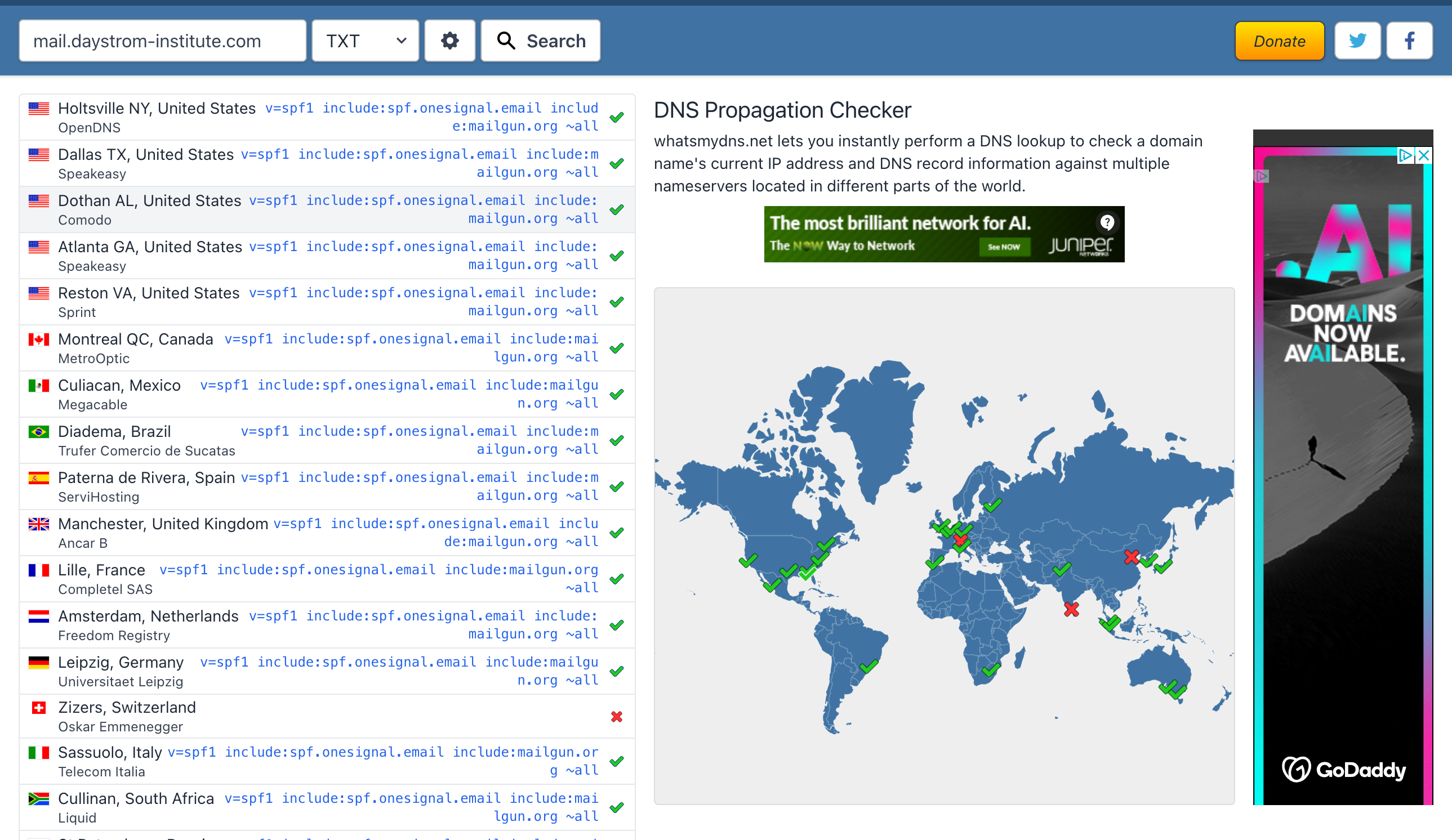
If whatsmydns.net shows a mix of ✅ and ❌, the records have not fully propagated. This can take up to 48 hours. Wait and check again, or contact your DNS provider.
DNS value not matching OneSignal
If the values on whatsmydns.net don’t match what OneSignal provides:
MX records pointing elsewhere (e.g., Google Mail) are expected. This is fine as long as they show ✅ on whatsmydns.net.
Verify the hostname is correct. mail.yourdomain.com is not the same as yourdomain.com.
Verification typically completes within minutes, but DNS propagation can take up to 48 hours depending on your provider and TTL settings. Use whatsmydns.net to check progress.
Do not create duplicate records. For SPF, append OneSignal’s include:spf.onesignal.email to your existing SPF TXT record. For DMARC, verify your existing record includes v=DMARC1; p=none; or a stricter policy.
MX records help avoid domain verification errors even for send-only configurations. If you already use a mail provider like Gmail or Google Workspace, keep your existing MX records. You do not need to overwrite them with OneSignal’s values.
My SPF record looks correct on external DNS checkers, but OneSignal still shows a warning. What should I check?
External DNS checkers confirm that a TXT record exists for your domain, but they do not verify that its value matches what OneSignal expects. A record can exist and still fail OneSignal’s check if the value is wrong or incomplete.To diagnose the mismatch:
In the OneSignal dashboard, find the SPF record showing a warning and note the exact Hostname and Value shown.
Open your DNS provider and locate the TXT record for that hostname.
Compare the record value character-for-character against what OneSignal shows.
If you send email exclusively through OneSignal with no other email providers, the minimal valid SPF value is:v=spf1 include:spf.onesignal.email ~allIf you use other senders, append their include: directives to the same record rather than creating a second SPF record. See What if I already have SPF or DMARC records? above.
Return to Email setup to complete configuration and begin sending emails.