

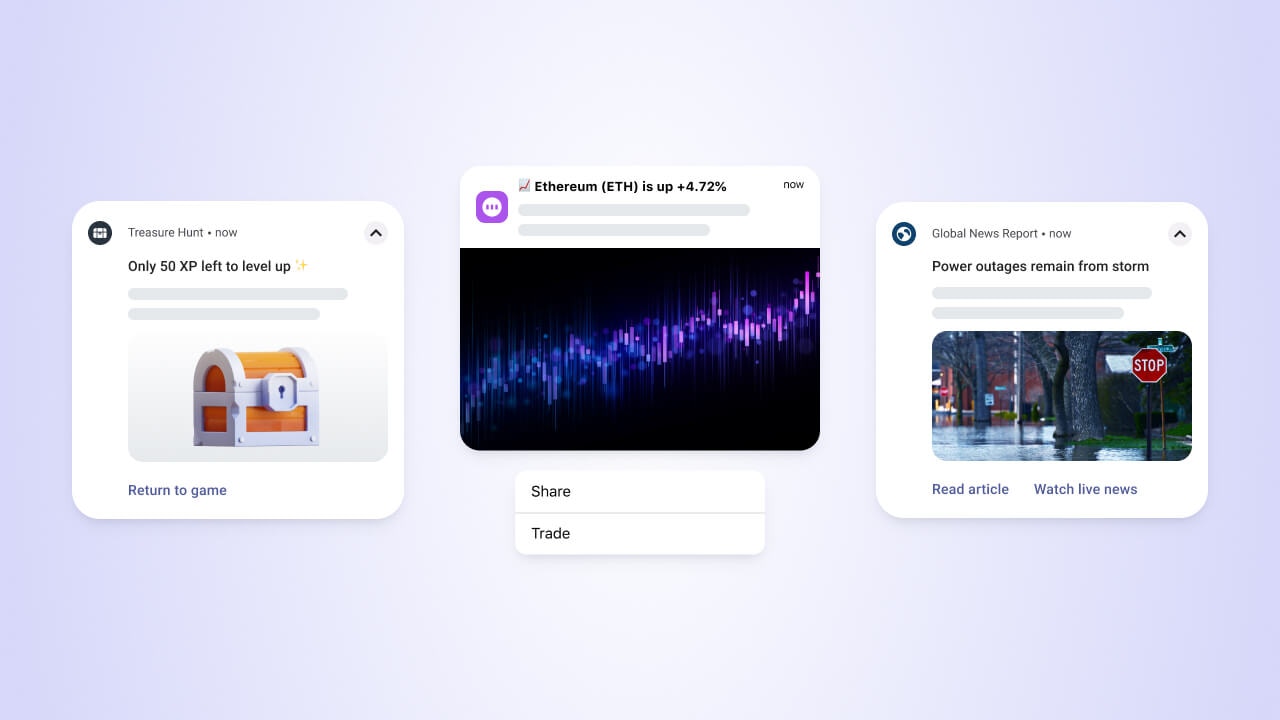
Push notification examples on iOS and Android.
- Users must have your mobile app installed
- You must configure the correct platform credentials (FCM for Android, APNs for iOS, HMS for Huawei, ADM for Amazon)
- Users must grant permission to receive notifications
SDK setup and migration
Integrate the OneSignal SDK into your app to register devices and enable push messaging. If you’re migrating from another provider, OneSignal supports migration from Firebase, Airship, Braze, and others.Mobile SDK setup
Integrate the OneSignal SDK into your app to register devices and enable push messaging.
Migration from another provider
Migrate from Firebase, Airship, Braze, or other push providers.
Push permission prompts
Mobile platforms require Users to opt in before they can receive push notifications. Apple’s Human Interface Guidelines recommend describing what types of information you want to send and giving Users a clear way to opt in or out. You can build a pre-permission prompt using OneSignal’s in-app messages to explain the value before triggering the system prompt.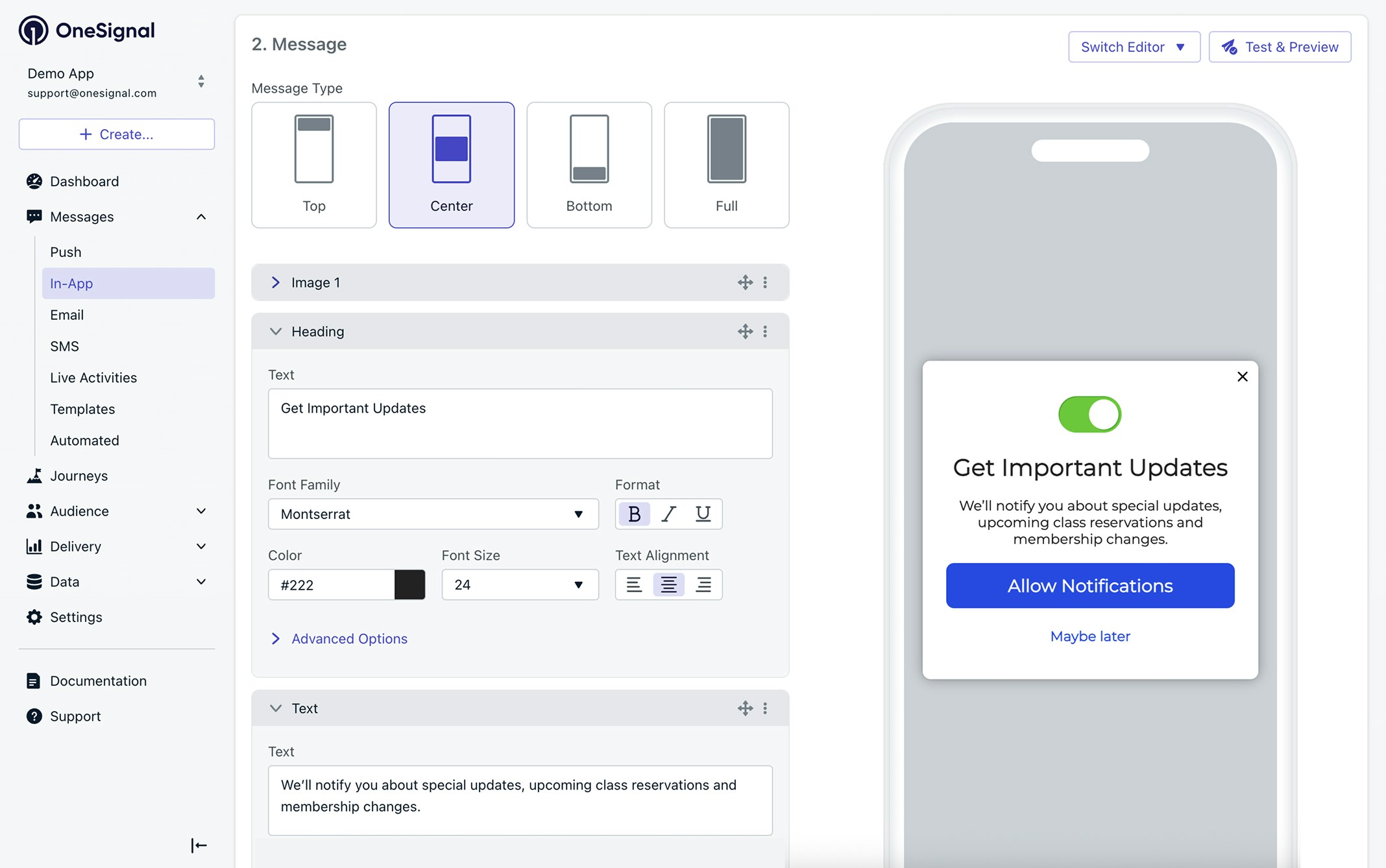
Custom pre-permission push prompt built with in-app messages.
Prompt for push permissions
Build a custom pre-permission prompt using in-app messages.
Mobile SDK reference
Programmatically trigger permission requests in the SDK.
iOS provisional push
Show silent notifications in the notification center before prompting.
Users and Subscriptions
Once the SDK is active, OneSignal automatically creates User and Subscription records as people open your app. Mobile Subscriptions are created when Users:- Open the app for the first time on a device
- Uninstall and reinstall the app, then open it again
OneSignal.login.
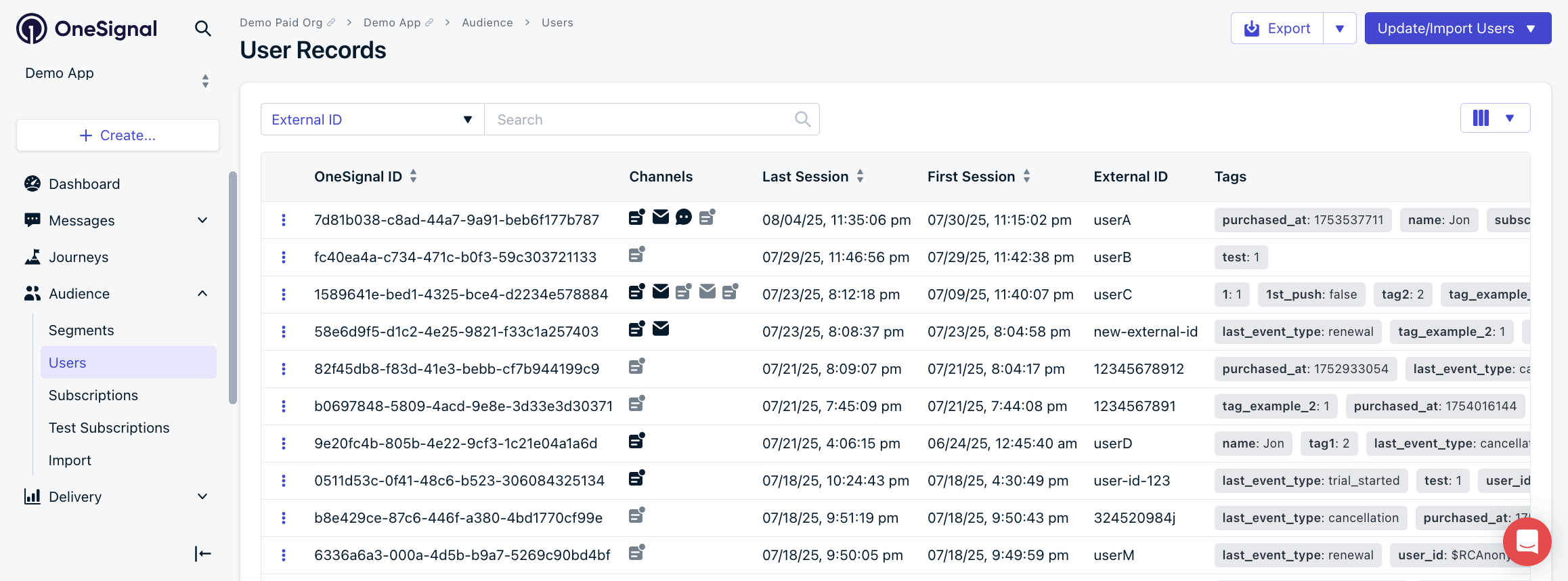
OneSignal dashboard: Audience > Users
Users
Manage Users, assign External IDs, and understand anonymous vs. identified Users.
Subscriptions
How Subscriptions are created and managed across devices and channels.
Segments
Group Users into dynamic segments for targeted messaging.
Design push notifications
Crafting effective push notifications involves more than text. Watch how to make every push notification count, then explore the design elements below.How to make every push notification count
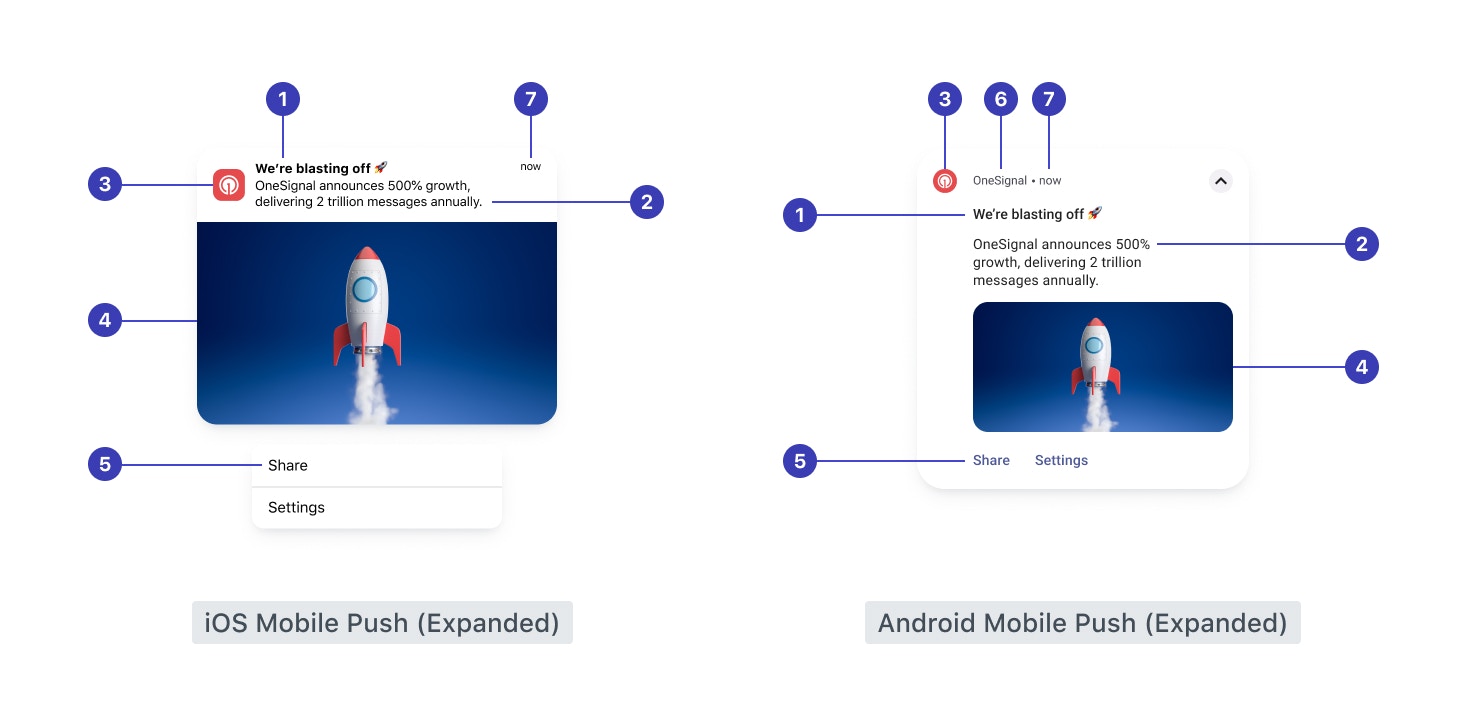
Anatomy of a mobile push notification on iOS and Android.
- Title: Attention-grabbing headline (recommended: under 50 characters)
- Message: Main notification content (recommended: under 120 characters)
- Icons: Android small and large icons. iOS uses the app icon.
- Large image: Eye-catching visual content
- Action buttons: Call-to-action buttons
- Timestamp when push was received
- App name: The name of your app
Push overview
Full overview of push notification creation, options, and delivery behavior.
Templates
Save time with reusable templates for consistent messaging.
Personalization and localization
Watch how to turn generic push notifications into high-performing messages, then explore the personalization options below.How to turn generic push notifications into high-performing messages
Message personalization
Insert dynamic variables like name or preferences to tailor messages.
Multi-language messaging
Automatically deliver messages in each User’s preferred language.
Configure push behavior
Control how notifications behave after delivery, including timing, display settings, and User interactions.Delivery, display, and dismiss settings
Throttling
Control notification delivery speed for large audiences.
Frequency capping
Set limits to prevent over-sending notifications to the same User.
Time to live (TTL)
Define how long push services retain messages when the device is offline.
Collapse ID
Replace previous messages with newer ones to reduce notification clutter.
Android notification categories
Control importance level (banner, silent) and other display aspects.
iOS focus modes and interruption levels
Control priority level (passive, time-sensitive) for iOS.
Notification sounds
Configure notification audio for each platform.
Badges
Manage app icon badge count behavior on iOS.
Data and background notifications
Include custom data in push payloads that your app can handle without displaying a visible notification.Data and background notifications
Send custom payloads without a visual notification.
Additional data
Attach key-value data to push payloads for in-app handling.
Click behavior and deep linking
Control what happens when a User taps a notification.URLs, links, and deep linking
Route Users to relevant content or pages using deep links and tracking URLs.
Deep linking
Platform-specific deep linking implementation details.
Action buttons
Let Users take immediate actions from your notification.
Notification event observers
Listen for click events and trigger in-app behavior with custom code.
Analytics and troubleshooting
Measure notification performance and resolve common delivery issues.Push message reports
View delivery, open rate, and click-through metrics for each message.
Analytics overview
Explore engagement and User behavior metrics across channels.
Notifications not shown or delayed
Troubleshooting checklist if messages aren’t appearing on devices.
Notification images not showing
Fix image rendering issues across platforms.
Duplicate notifications
Troubleshoot why duplicate notifications are being displayed.
Next steps
A/B testing
Optimize messages with experiments to find what drives engagement.
Journeys
Build automated, multi-step messaging flows triggered by User behavior.
Tags
Add User-level data for personalization and targeting.
In-app messages
Reach Users with rich, interactive messages inside your app.
FAQ
Do Users need to opt in for push notifications?
Yes. Both iOS and Android require Users to grant permission before they can receive push notifications. On iOS, you must show the system prompt. On Android 13+, thePOST_NOTIFICATIONS permission is required. Use a pre-permission prompt to explain the value before triggering the system dialog.