

Initialization
Loading SDK Asynchronously
Javascript flag Recommended OneSignal recommends loadingOneSignalSDK.js with the async flag so your page load times don’t increase. To use it, place the following code before calling any other OneSignal functions.
OneSignal.push(["functionName", param1, param2]);OneSignal.push(function() { OneSignal.functionName(param1, param2); });
isPushNotificationsSupported. Option 2 also lets you call as many OneSignal functions as you need inside the passed-in function block.
init
Call this from each page of your site to initialize OneSignal.
Init JSON options are as follows:
Init promptOptions parameters
Pass in these optional parameters within promptOptions when initializing to localize the prompts to your custom text and language. All entries are limited in length. Foreign characters accepted. Each parameter is optional, and its default is used when it is not included.
Init welcomeNotification parameters
Pass in these optional parameters within welcomeNotification when initializing to customize or disable the welcome notification sent to new site visitors. Any person visiting your site for their first time, or an existing user who has completely cleared their cache is considered a new site visitor.
Init notifyButton parameters
Pass in these optional parameters within notifyButton when initializing to enable and customize the Subscription Bell (formerly known as the notify button). All parameters below are optional. If not set, they will be replaced with their defaults.
The following is a basic template of how you would call
init().
Non-HTTPS subdomainName Parameter
Non-HTTPS pages require the subdomainName parameter within the label set within the OneSignal Web configuration.
setDefaultNotificationUrl Method
Pass in the full URL of the default page you want to open when a notification is clicked. When creating a notification, any URL you specify will take precedence and override the default URL. However if no URL is specified, this default URL specified by this call will open instead. If no default URL is specified at all, the notification opens to the root of your site by default.
Safari - This function is not available. Instead, the default notification icon URL is the Site URL you set in your Safari settings.
setDefaultTitle Method
Sets the default title to display on notifications. If a notification is created with a title, the specified title always overrides this default title.
A notification’s title defaults to the title of the page the user last visited. If your page titles vary between pages, this inconsistency can be undesirable. Call this to standardize page titles across notifications, as long as a notification title isn’t specified.
provideUserConsent Method
If your website is set to require the user’s privacy consent or some action before they can subscribe to push, add requiresUserPrivacyConsent: true property in the OneSignal init call. This will stop our SDK from initializing until you call provideUserConsent(true).
You can also revoke consent by setting provideUserConsent(false). This will prevent further collection of user data. To delete the user’s current data see Delete User Data.
Registering Push
showNativePrompt Method
HTTP Setup
Opens a popup window tomylabel.os.tc/subscribe to prompt the user to subscribe to push notifications. Call this in response to a user action like a button or link that was just clicked, otherwise the browser’s popup blocker will prevent the popup from opening.
HTTPS Setup
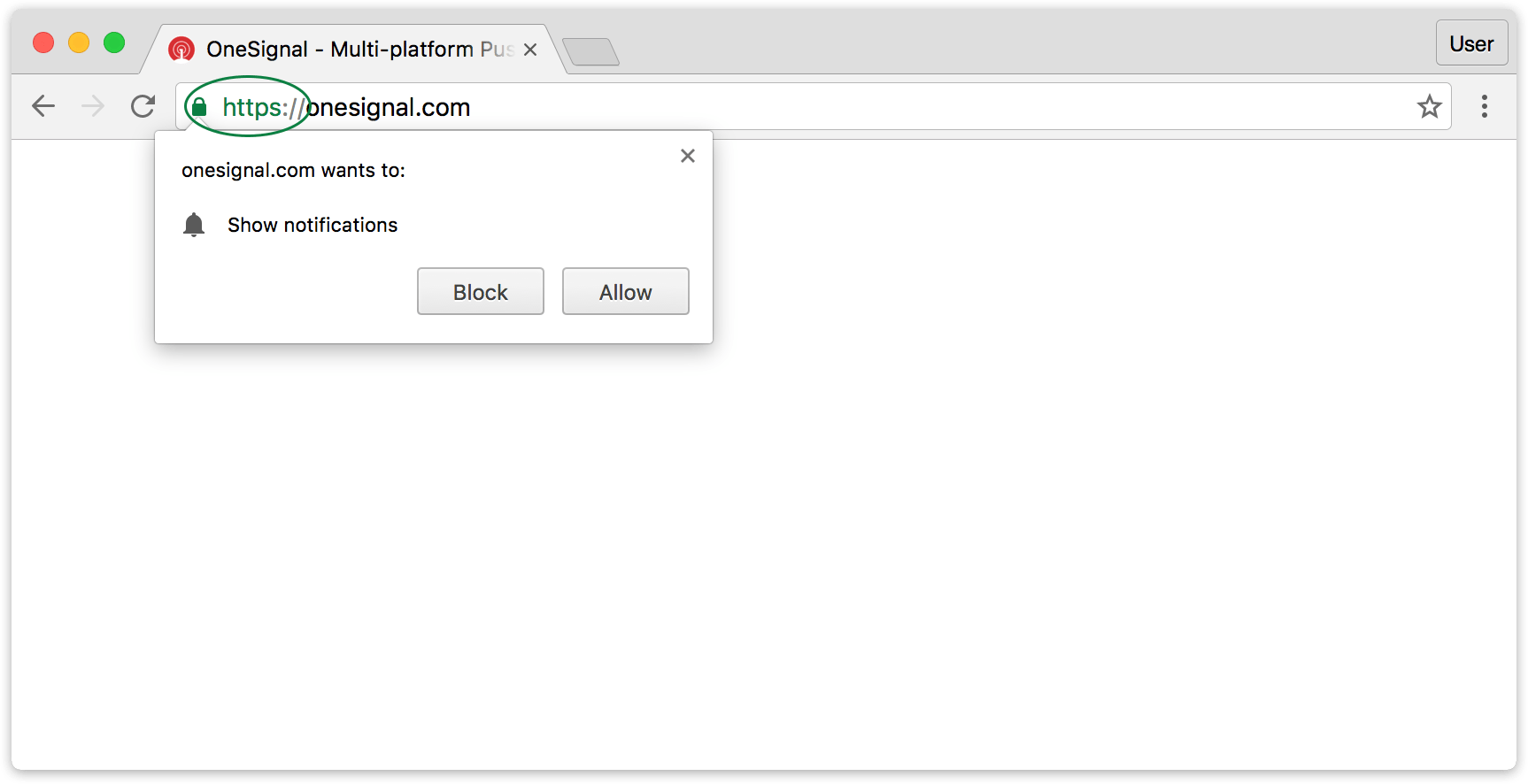
You may call this at any time to show the prompt for push notifications. If notification permissions have already been granted, nothing will happen.registerForPushNotifications Method
See showNativePrompt.
permissionPromptDisplay Event
Event occurs when the browser’s native permission request has just been shown.
showSlidedownPrompt Method
Shows the OneSignal Slide Prompt for HTTP and HTTPS sites. This slides down from the top (or up from the bottom on mobile). Please see Slide Prompt for more details.
Note: This does not replace the Native Browser Prompt required for subscription.
{force: true}. To provide a good user experience however ONLY do this from an action taken on your site to avoid unexpected prompts.
showCategorySlidedown Method
Shows the OneSignal Category Slidedown for HTTP and HTTPS sites. This slides down from the top (or up from the bottom on mobile). Please see Category Slidedown for more details.
Note: This does not replace the Native Browser Prompt required for subscription.
getNotificationPermission Event
Returns a Promise that resolves to the browser’s current notification permission as ‘default’, ‘granted’, or ‘denied’.
You can use this to detect whether the user has allowed notifications, blocked notifications, or has not chosen either setting.
isPushNotificationsSupported Method
Returns true if the current browser environment viewing the page supports push notifications.
Almost all of the API calls on this page internally call this method first before continuing; this check is therefore optional but you may call it if you wish to display a custom message to the user.
This method is synchronous and returns immediately.
isPushNotificationsEnabled Method
HTTPS Only Returns a Promise that resolves to true if the user has already accepted push notifications and successfully registered with Google’s FCM server and OneSignal’s server (i.e. the user is able to receive notifications).
If you used OneSignal.setSubscription() or unsubscribed using the Bell Prompt or Custom Link prompt after the user successfully subscribes through the browser, isPushNotificationsEnabled will show whatever value you set for setSubscription.
If you’re deleting your user entry on our online dashboard for testing, the SDK will not sync with our dashboard and so this method will still return true (because you are still subscribed to the site’s notifications). Follow Clearing your cache and resetting push permissions to reset the browser data.
subscriptionChange Event
Event occurs when the user’s subscription state changes between unsubscribed and subscribed.
Chrome and Firefox - the user’s subscription is true when:
- Your site is granted notification permissions
- Your site visitor’s web storage database containing OneSignal-related data is intact
-
You have not manually opted out the user from receiving notifications
- The Subscription Bell ‘Subscribe’ and ‘Unsubscribe’ button opts users in and out without affecting their other subscription parameters
OneSignal.setSubscription()is used to opt the user in and out
- Your site visitor has an installed background web worker used to display notifications
-
The user changes notification permissions
- The icon next to the URL in the address bar can be clicked to modify site permissions
- Chrome and Firefox notifications come with a button on the notification to block site notifications
- The user clears their browser data (clearing cookies will not effect subscription)
- Another background web worker overwrites our web worker
OneSignal.setSubscription(), which is used to temporarily opt-out the user from receiving notifications by setting a flag on our system so that notifications are not delivered to the user.
To detect changes when using the OneSignal.setSubscription() flag, you would use the OneSignal.isPushNotificationsEnabled() method but this will not get called until the page is refreshed.
Callback Event Parameters
Analytics
notificationPermissionChange Event
Callback Event Parameters
Slide Prompt Events
popoverShown - Slide Prompt has just animated into view and is being shown to the user.
popoverAllowClick - The “Continue” button on the Slide Prompt was clicked.
popoverCancelClick - The “No Thanks” button on the Slide Prompt was clicked.
popoverClosed - The Slide Prompt was just closed.
customPromptClick Event
Event occurs when the user clicks “No Thanks” or “Continue” on our HTTP Pop-Up Prompt (not the browser’s permission request).
Our web SDK shows different permission messages and requests, and this event is best used only with the HTTP Pop-Up Prompt.
Callback Event Parameters
Note: If you are using the Slide Prompt, you will always see this event fire with
granted, since our SDK will automatically click Continue on the popup window for the user. You should therefore ignore this event if you are using the Slide Prompt.
User IDs
getUserId Method
Returns a Promise that resolves to the stored OneSignal subscription ID of the Push Record if one is set, otherwise the Promise resolves to null. If the user isn’t already subscribed, this function will resolve to null immediately.
If you’re getting the subscription ID after the user subscribes, call this within the subscriptionChange event, and check that subscriptionChange is true.
If you’re getting the subscription ID on page load, check that the user is subscribed to notifications (e.g. isPushNotificationsEnabled()).
For custom implementations involving our REST API, associate this OneSignal subscription ID with your data.
Once created, the subscription ID will not change. If the user unsubscribes from web push, for example by clearing their browser data, and resubscribes, a new subscription ID will be created and a new entry will be stored on your app’s users list. The old entry will be unsubscribed and not be automatically deleted.
External User Ids
OneSignal creates and stores device & channel level data under a unique OneSignal Id called thesubscription_id. A single user can have multiple subscription_id records based on how many devices, email addresses, and phone numbers they use to interact with your app/site.
You can combine subscription_id records in OneSignal under a unique User Id called the external_id.
See the External User Ids guide for more details.
If you have a backend server, we strongly recommend using Identity Verification with your users. Your backend can generate an identifier authentication token and send it to your site.
Tags
Tags are customkey : value pairs of string or number data you set on users based on events or user data of your choosing. See Tags Overview for more details on what tags are used for.
See Data Tag Implementation for SDK Method details.
Push Notifications
Create Notification
To send notifications to users, we recommend using the Create notification REST API docs, or Messages Dashboard because the Web Push API is run client-side, it does not have the ability to programmatically send to multiple users at once, or users that are not currently on your website.sendSelfNotification Method
Sends a push notification to the current user on the webpage. This is a simplified utility function to send a test message to yourself or a quick message to the user. It does not support any targeting options.
setSubscription Method
This function is for sites that wish to have more granular control of which users receive notifications, such as when implementing notification preference pages.
This function lets a site mute or unmute notifications for the current user. This event is not related to actually prompting the user to subscribe. The user must already be subscribed for this function to have any effect.
Set to false to temporarily “mute” notifications from going to the user. If you previously set this to false, you can set it to true to “un-mute” notifications so that the user receives them again.
Returns a promise that resolves after temporarily opting the user out of receiving notifications by setting a flag on our system so that notifications are not delivered to the user.
Receiving Notifications
notificationDisplay Event
Note: Not supported on Safari and requires HTTPS website.
Event occurs after a notification is visibly displayed on the user’s screen.
This event is fired on your page. If multiple browser tabs are open to your site, this event will be fired on all pages on which OneSignal is active.
Callback Event Parameters
event is a JavaScript object hash containing:
notificationDismiss Event
Note: Not supported on Safari and requires HTTPS website.
This event occurs when:
- A user purposely dismisses the notification without clicking the notification body or action buttons
- On Chrome on Android, a user dismisses all web push notifications (this event will be fired for each web push notification we show)
- A notification expires on its own and disappears
addListenerForNotificationOpened method).
This event is fired on your page. If multiple browser tabs are open to your site, this event will be fired on all pages on which OneSignal is active.
Callback Event Parameters
event is a JavaScript object hash containing:
Note: Depending on the notification, more fields (e.g. action buttons) can be included in the callback parameter.
addListenerForNotificationOpened Event
Note: Not supported on Safari.
Note: This event occurs once only. If you would this to occur continuously every time a notification is clicked, please call this method again after your callback fires.
Use this function to:
- Listen for future clicked notifications
- Check for notifications clicked in the last 5 minutes
- The default behavior Events only fire if your URL matches the notification’s opening URL exactly; the event will be available on the newly opened tab (and only that opened tab) to the notification’s opening URL. See the special flags
notificationClickHandlerMatch: originandnotificationClickHandlerAction: focusfor different use cases. - A special init flag
notificationClickHandlerMatch: 'origin'If you have an existing tab of your site open, and the clicked notification is also to your site, the existing tab will be used. - A special init flag
notificationClickHandlerAction: 'focus'Instead of navigating the target tab to the notification’s URL, the tab will be focused. You can perform navigation manually or choose not to navigate.
-
Default Behavior (no special flags)
-
If no existing site tabs are open, a new tab is opened. You may call
addListenerForNotificationOpened()to get the details of the notification you just clicked. -
If one or more tabs to your site is open:
- And the clicked notification shares the same URL as one of your site’s tab, the existing tab is focused. Call
addListenerForNotificationOpened()to get the clicked notification’s details, or if you installed a callback listener your callback will be invoked. - And the clicked notification’s URL is different, a new tab is opened. You may call
addListenerForNotificationOpened()to get the details of the notification you just clicked.
- And the clicked notification shares the same URL as one of your site’s tab, the existing tab is focused. Call
-
If no existing site tabs are open, a new tab is opened. You may call
-
Using init option
notificationClickHandlerMatch: 'origin'- If no existing site tabs are open, the behavior is the same as the default (see above).
-
If one or more tabs to your site is open:
- And the clicked notification shares the same URL as one of your site’s tab, the behavior is the same as the default (see above).
- And the clicked notification’s URL is different, the most recently opened tab of your site is focused and navigated to the notification’s URL. Call
addListenerForNotificationOpened()on the newly navigated tab to get the clicked notification’s details.
-
Using init option
notificationClickHandlerAction: 'focus'- If no existing site tabs are open, the behavior is the same as the default (see above).
- Any other case: The most recently opened tab of your site is focused only (not navigated away). Call
addListenerForNotificationOpened()to get the clicked notification’s details, or if you installed a callback listener your callback will be invoked.
sendSelfNotification() testing method.
HTTP Integrations
Mostly identical to HTTPS sites above, with the following exceptions:
Due to limitations on HTTP sites:
- If multiple stale tabs are open to your site, a clicked notification sharing an identical URL to an existing tab may not focus the tab and may instead open a new tab.
- When using
notificationClickHandlerMatch: 'origin', if multiple stale tabs are open to your site, a different tab than the matching tab may be focused.