

Requirements
To enable push notifications on Huawei Android devices using OneSignal, you’ll need:- A Huawei Developer Account
- An Android mobile app registered in Huawei’s AppGallery Connect
- A OneSignal Account
- (Optional) Huawei Self-Classification Rights if targeting users in China and needing more precise message categorization via the
Huawei_categoryAPI field
Setup
1. Enable PushKit
See Huawei’s docs on Push Kit.2. Get your Huawei Push credentials
Open AppGallery Connect and select your app/project.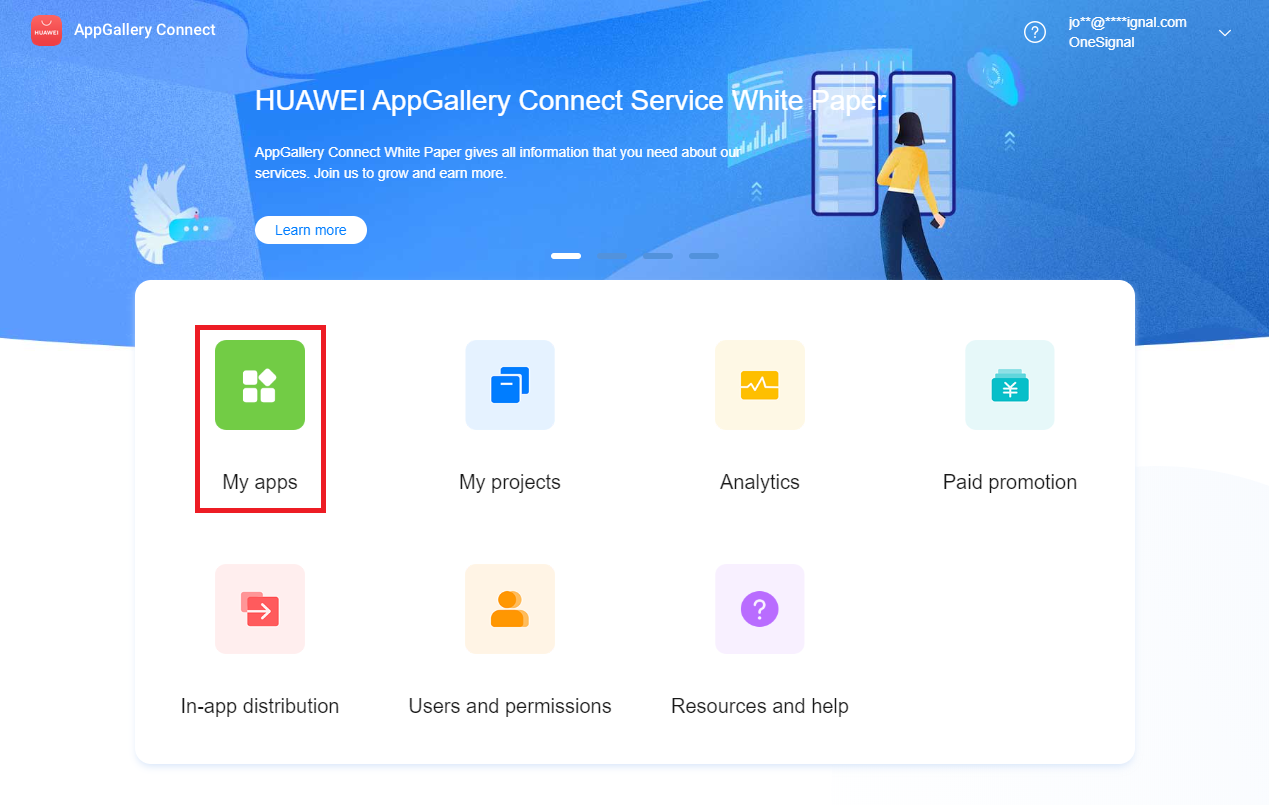
Navigate to your App in AppGallery Connect
- Package Name
- Client ID
- Client Secret
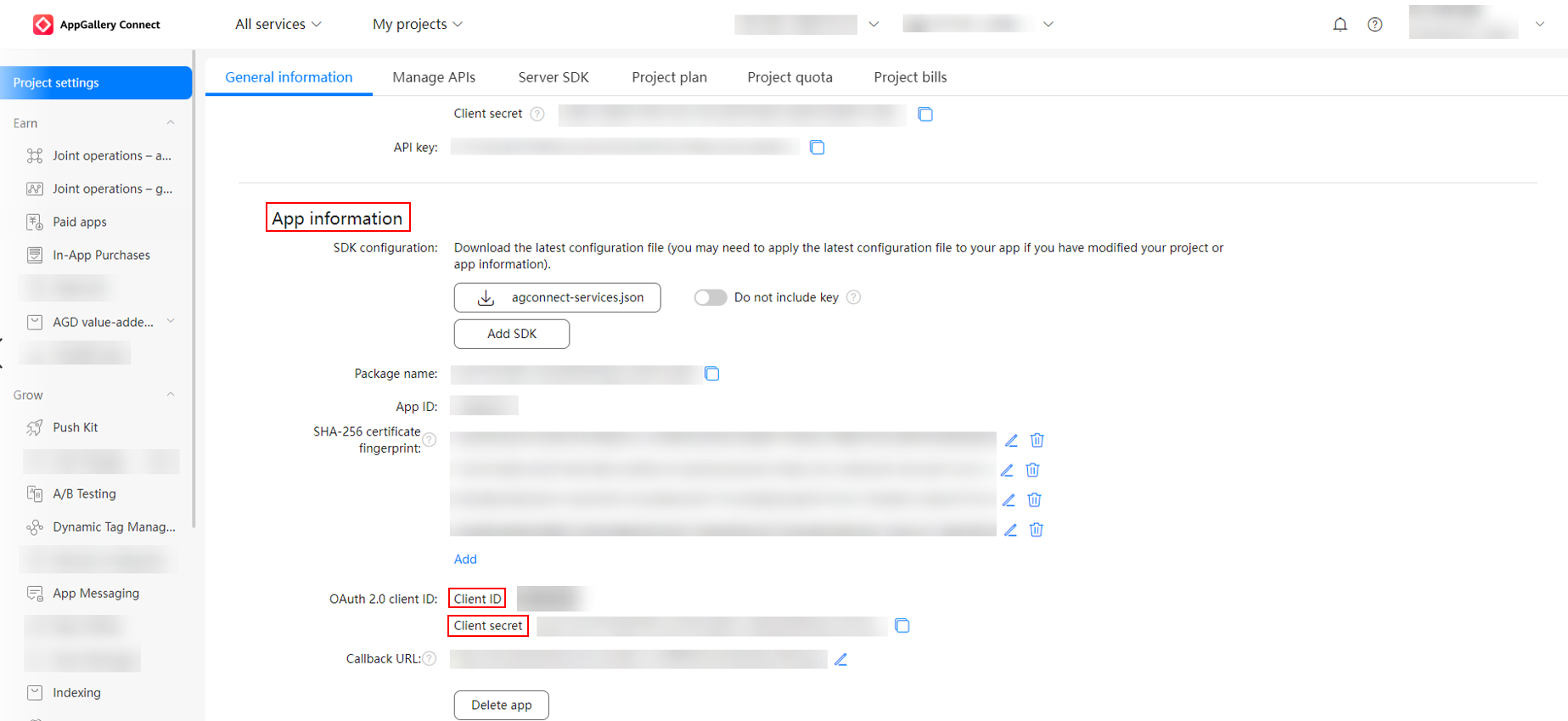
Copy your Package Name, Client ID, and Client Secret
3. Add credentials to OneSignal
In the OneSignal dashboard, go to your app Settings > Push & In-App > Huawei Android (HMS).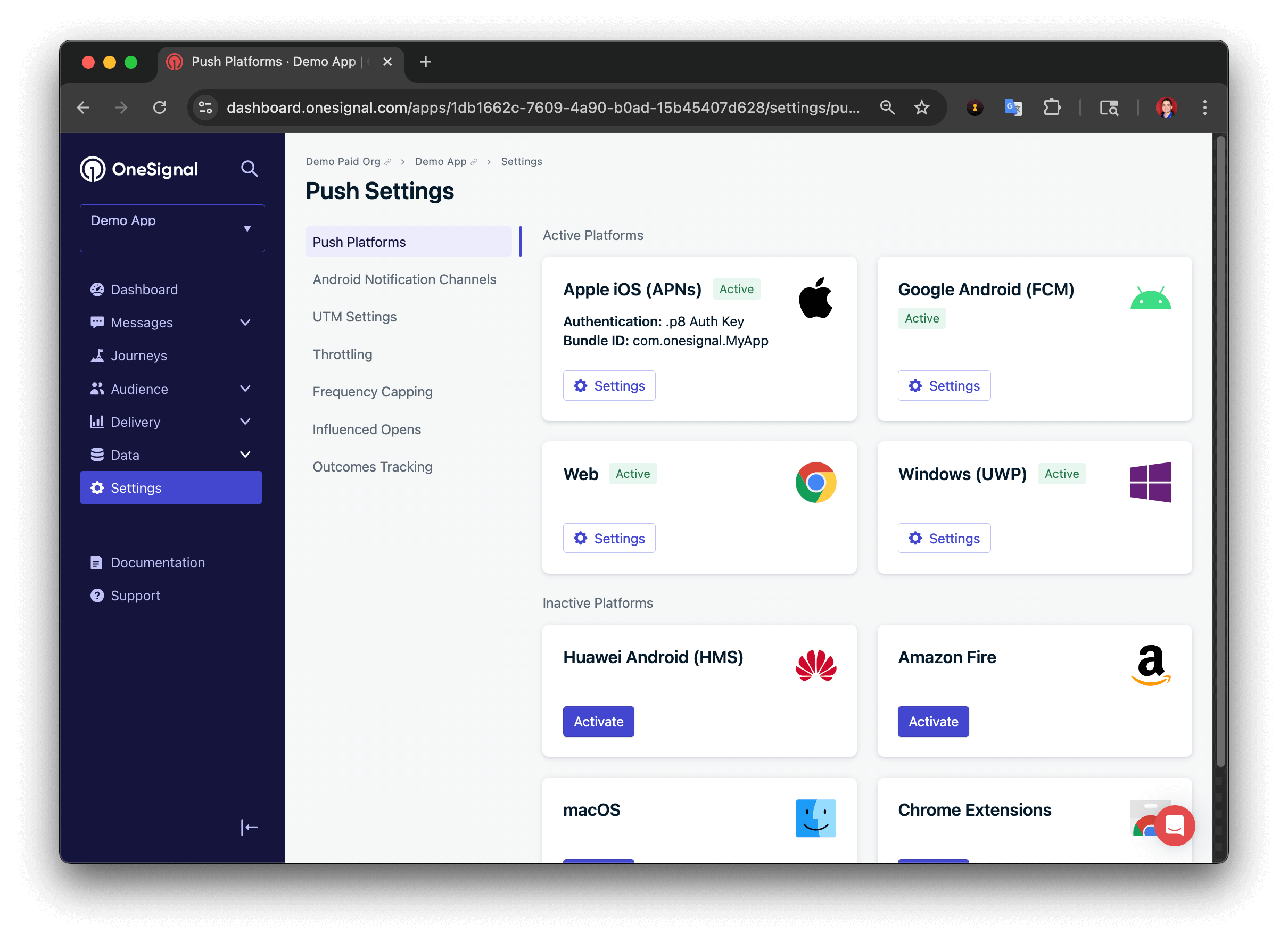
Select Huawei Android in OneSignal
- Package Name
- Client ID (into App ID field)
- Client Secret (into App Secret field)
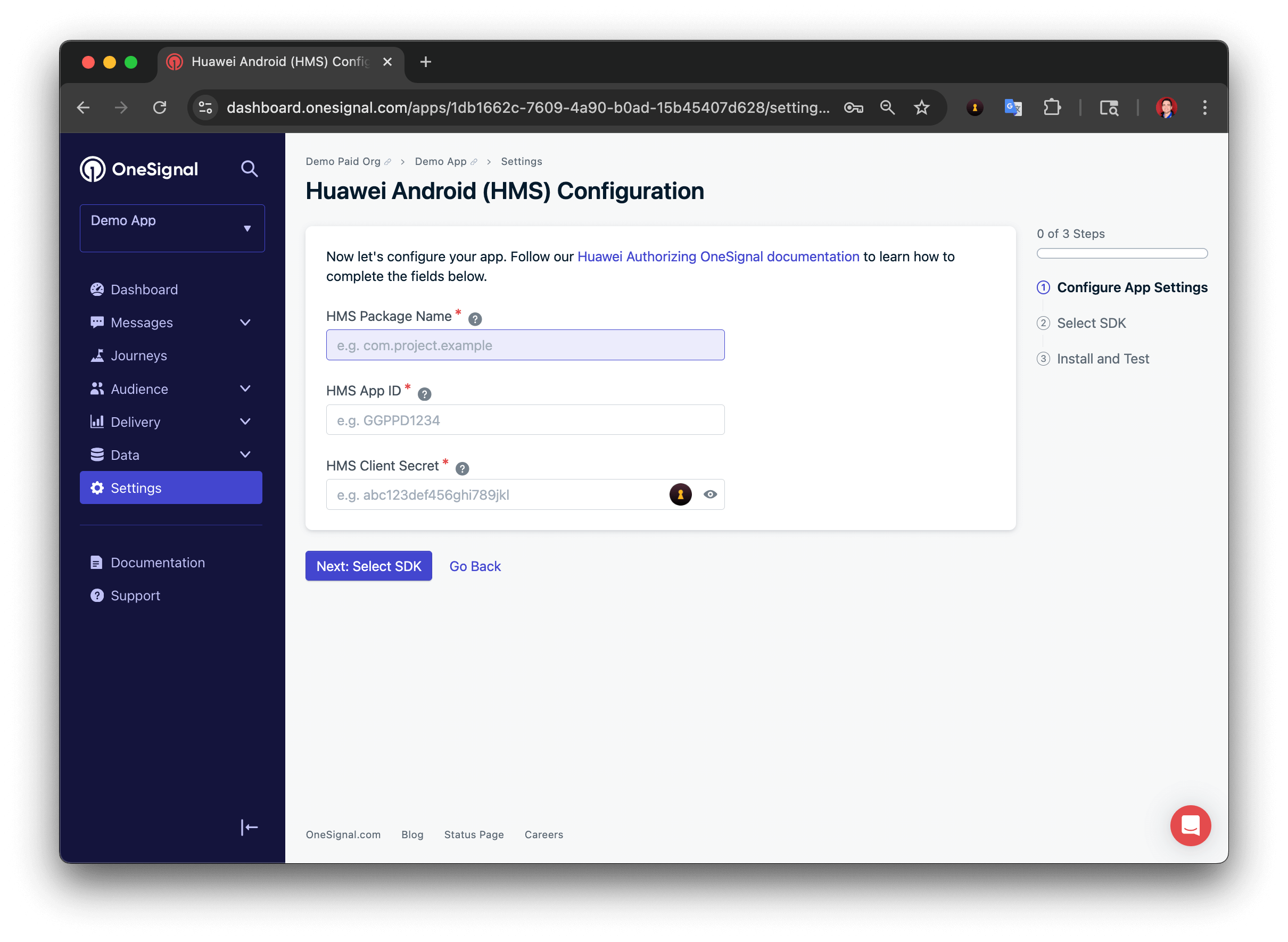
Enter Huawei Push credentials in OneSignal
4. (Optional) Apply for Huawei’s Self-Classification Rights
Huawei requires AppGallery apps sending notifications to users in China to categorize messages. They offer automatic classification, but self-classification gives more control and higher send limits for critical message types.How to apply
- Follow Huawei’s Self-Classification application guide.
- Once approved, use the
Huawei_categoryfield in the OneSignal API to classify your messages.
Supported Huawei_category values
Default category is
MARKETING, which is limited to 2–5 sends/day depending on third-level classifications.Important: Classification violations may lead to penalties or delivery restrictions.Huawei badges
OneSignal supports setting app icon badge counts on Huawei devices via the API and dashboard. Use thehuawei_badge_class, huawei_badge_set_num, and huawei_badge_add_num parameters when creating push notifications.
See Badges for full details and examples.
You’re now authorized to send Huawei push notifications using OneSignal!
Next steps: