Set up Firebase for Android: upload an FCM Service Account private key to OneSignal, and add google-services.json plus the Google Services Gradle plugin to your app.
To send push notifications to users who download your Android app from the Google Play Store, you need two things from the same Firebase project:
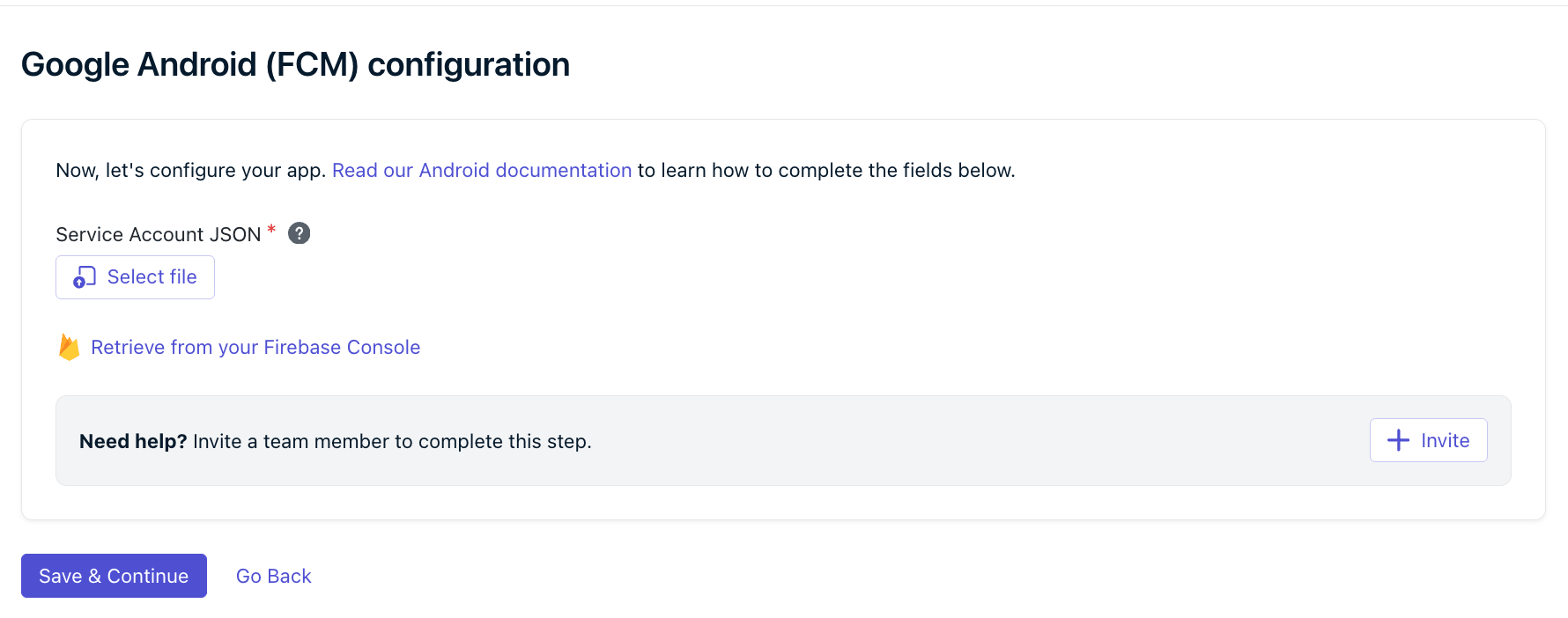
An FCM Service Account private key, uploaded to OneSignal. This authorizes OneSignal’s servers to send to your Firebase project. Required.
A google-services.json file from the same Firebase project, added to your app. Recommended for all new integrations. See Add your Firebase configuration file
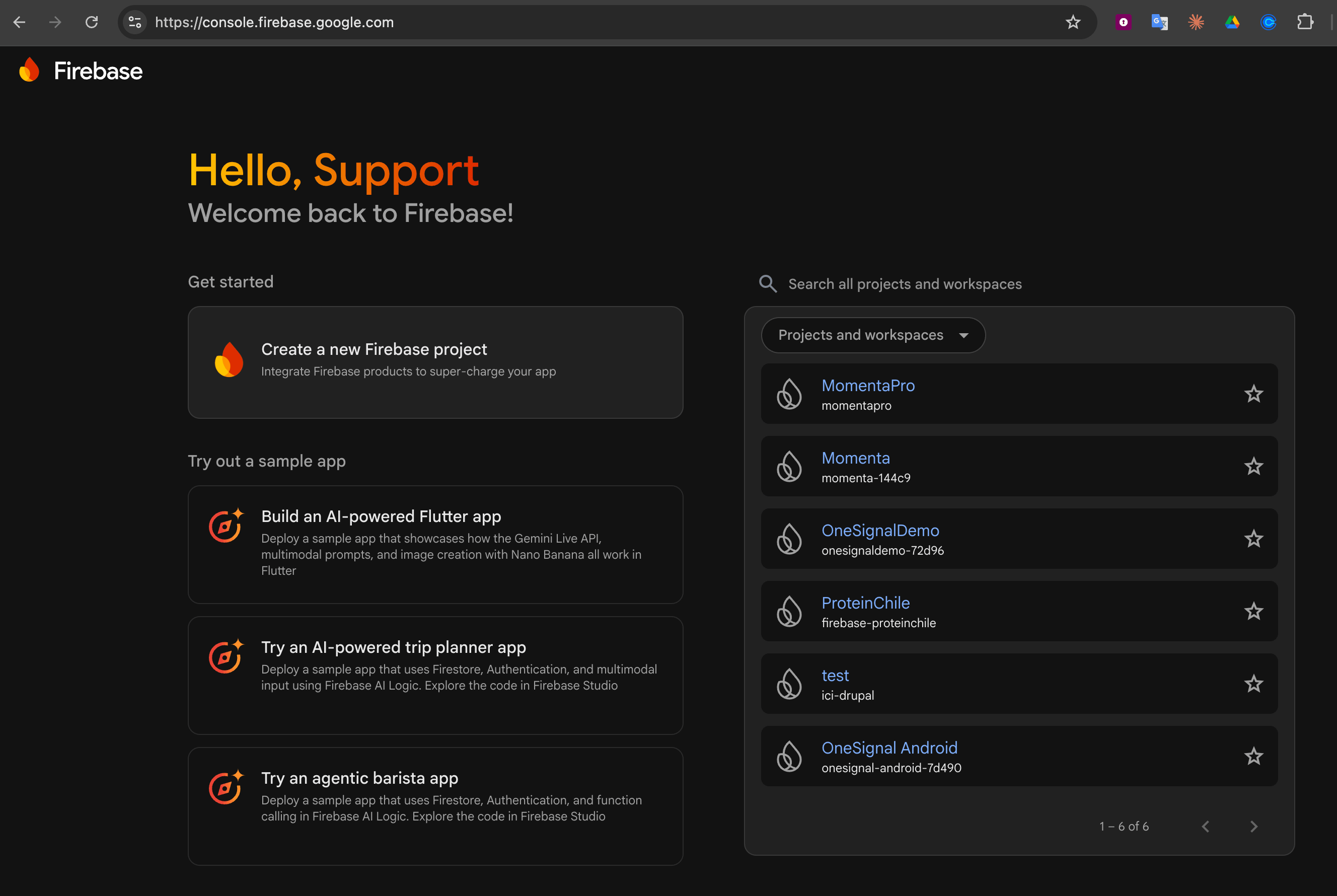
Go to your Firebase console and either create or select a project.
Page of Projects within Firebase
2
Enable Firebase Cloud Messaging API V1
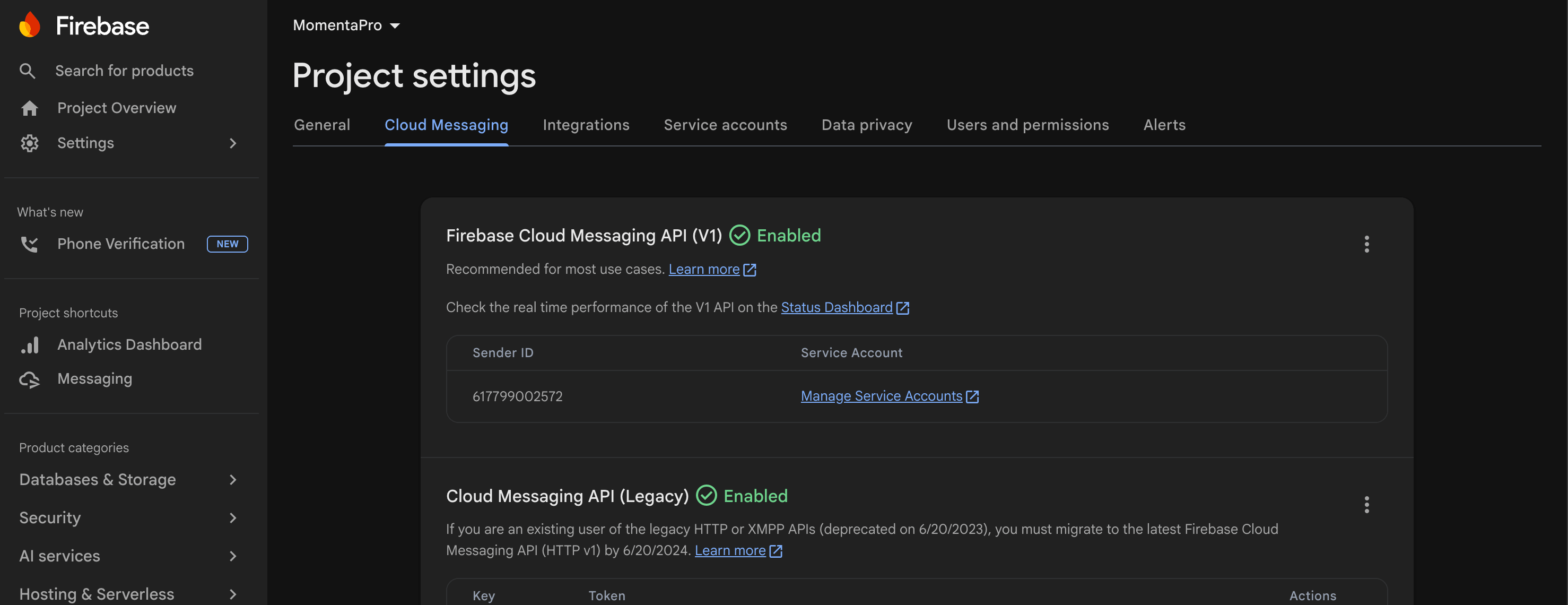
In your Firebase project’s Settings, select the Cloud Messaging tab.
Cloud Messaging tab in Firebase Project settings
Check the Firebase Cloud Messaging API (V1) status:
Enabled (green checkmark) means Google accepts Cloud Messaging send requests for this project.
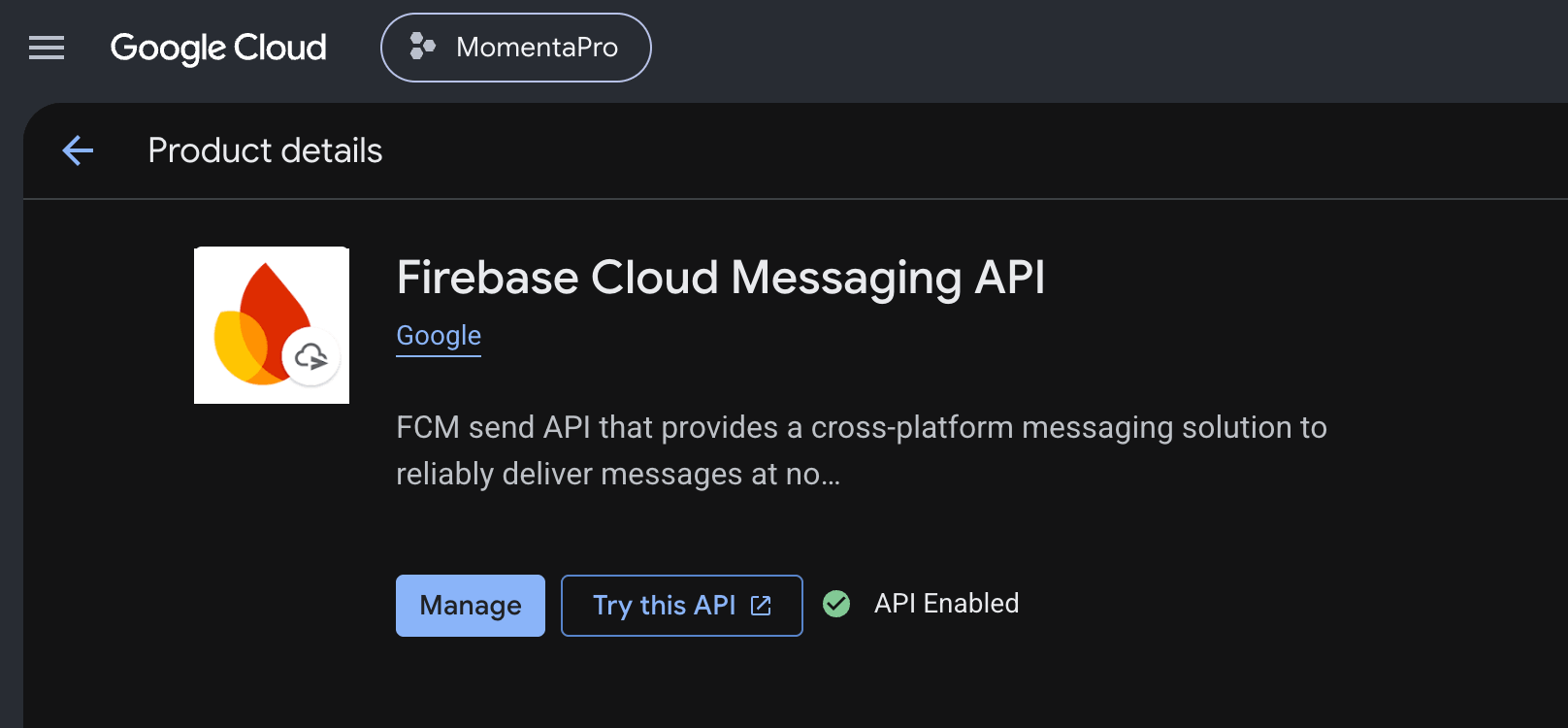
Disabled means Google rejects those requests, so Android push notifications do not deliver. Enable this by clicking the 3-dot menu > Manage API in Google Cloud Console, then click Enable and wait until the status shows API Enabled with a green checkmark.
Firebase Cloud Messaging API enabled in the Google Cloud Console
This step enables the Cloud Messaging API for the project. It does not grant the Service Account any roles.If you created this Firebase project, the roles are usually already in place. If someone else owns the project or the Google account, check them first: How do I check my Service Account permissions?.
3
Generate a new private key
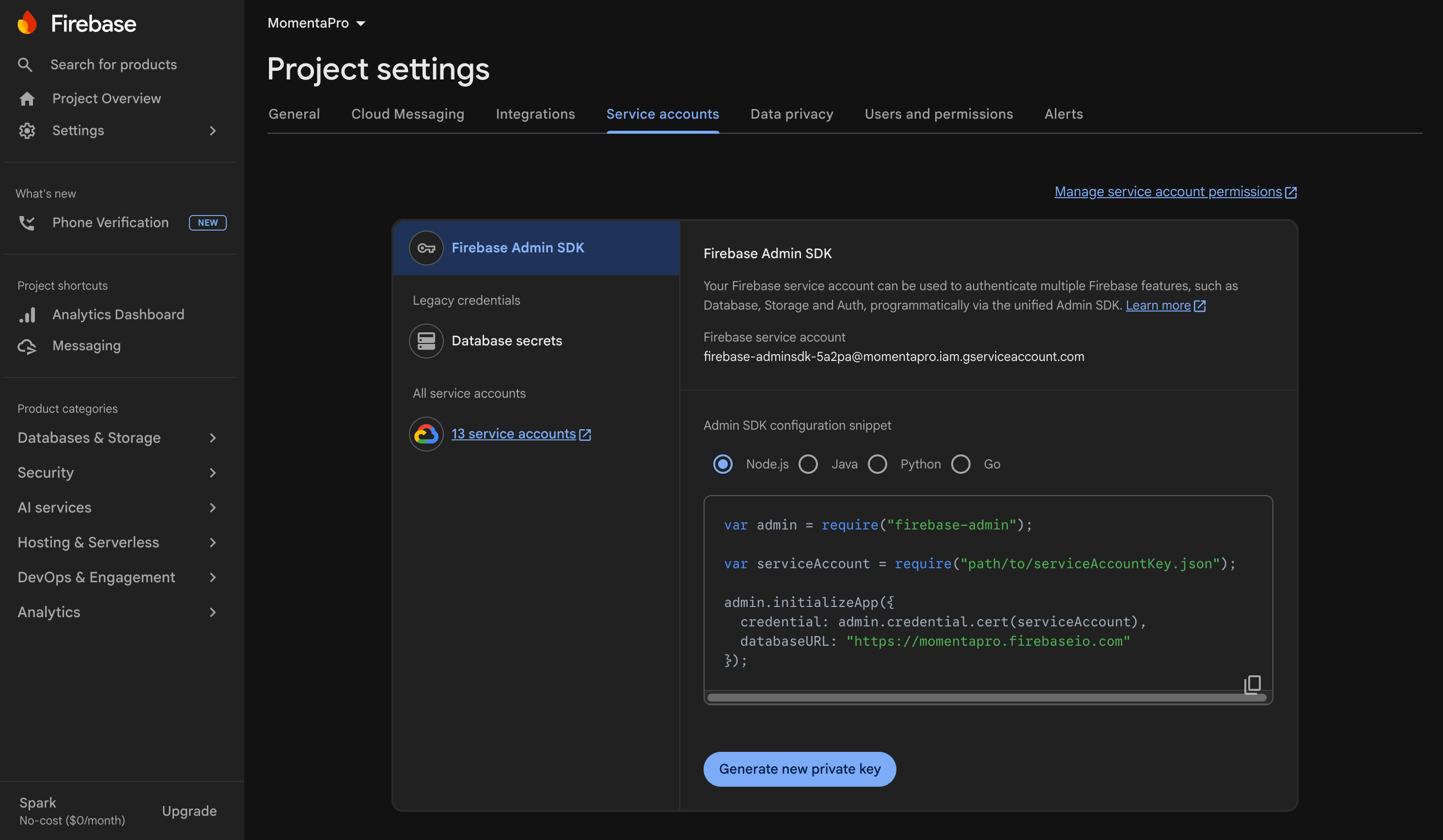
Back in Project settings, select the Service accounts tab and click Generate new private key.
Service Accounts section within Firebase
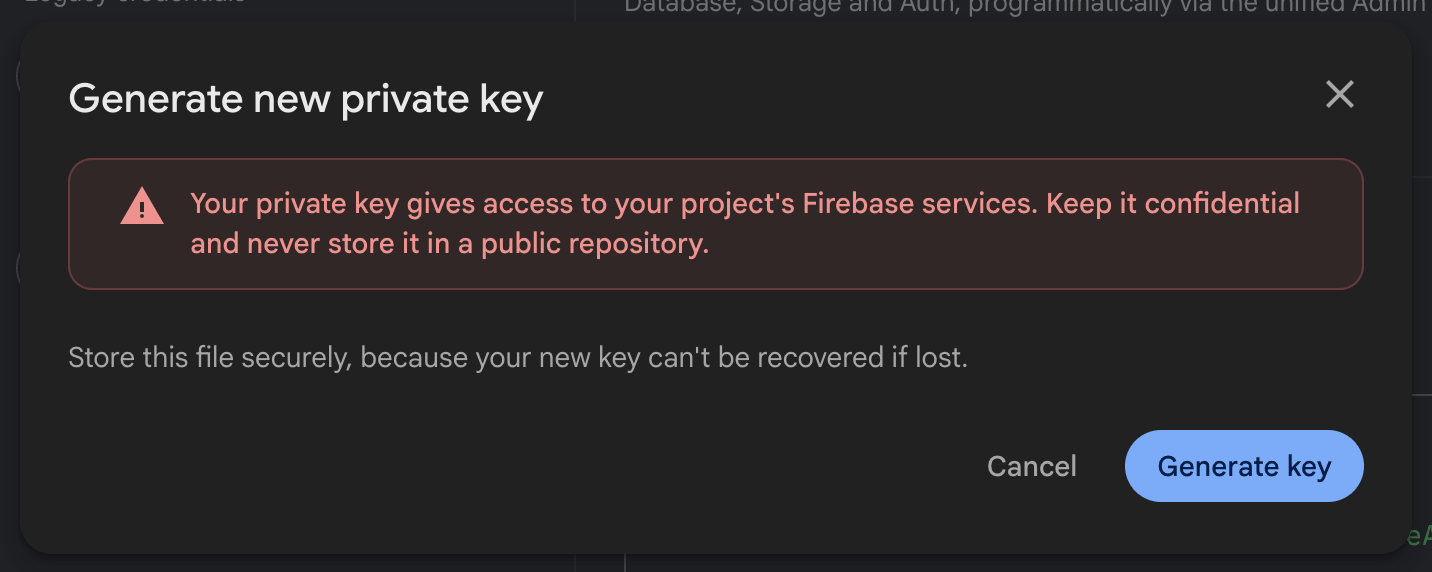
Confirm by clicking Generate key in the popup.
Generate the private key for the service account.
The downloaded private key contains sensitive credentials. Do not share it or check it into version control.
Save the .json file in a secure location. You will need it in the next section.
Your OneSignal app is now connected to Firebase Cloud Messaging (V1). Next, follow Mobile SDK setup for the SDK you are using to install and initialize OneSignal in your app.
Your app needs google-services.json from the same Firebase project as the Service Account above. This is recommended for all new Android integrations. Your app may already have this file, but if not, these steps will guide you through the process.
Do not upload this file to OneSignal. It belongs in your app’s source.The Service Account private key you upload above lets OneSignal’s servers send to your Firebase project. google-services.json tells your app which Firebase project to register with. Both come from the same project.
On OneSignal Android SDK 5.11.0 and later, push registers through your app’s own Firebase project instead of OneSignal’s shared one. It is also required for Firebase Installation ID registration.
1
Download google-services.json
In your Firebase console, open the same project you used above to generate the Service Account private key.Go to your project’s Settings > General > scroll down to Your apps and if you don’t see your Android app, click Add app to add it.Make sure the Android package name matches your app’s applicationId.Downloadgoogle-services.json.
2
Add it to your app
Where the file goes, and how it gets processed, depends on your toolchain. The file is never read at runtime — a build step turns it into Android resources, and without that step the file does nothing.Find your platform below, then follow its setup guide for the full steps in context.
Reference it with <GoogleServicesJson Include="Platforms\Android\google-services.json" />
On SDK versions earlier than the ones listed above, the file is safe to add but does nothing for OneSignal. Push keeps registering through OneSignal’s shared Firebase project until you upgrade.
3
Apply the Google Services Gradle plugin
This step is for Android native, React Native, and Flutter only. Capacitor, Cordova, Expo, Unity, and .NET / MAUI apply the plugin through their own toolchains, as described in the table above. If you are on one of those, skip this step.The plugin resolves from Google’s Maven repository. Confirm google() is listed under pluginManagement in settings.gradle or settings.gradle.kts, or the build fails with Plugin [id: 'com.google.gms.google-services'] was not found:
Seeing google_app_id and project_id is the proof that the file took effect. A build that succeeds is not.
The plugin is what makes the file take effect. It converts google-services.json into resources Firebase reads at runtime. Adding the file without applying the plugin does nothing, and produces no error.
If the build fails with File google-services.json is missing, the plugin is applied but the file is not where your toolchain expects it. Check the table above.
If the build fails with No matching client found for package name, the package registered in Firebase does not match your applicationId. Fix it in the Firebase console and download the file again.
Upgrading an existing app? Adding google-services.json changes which Firebase app your push registrations go through. Delivery uses the same Firebase project and the same FCM Service Account, but be aware:
Every device receives a new push token value as it updates and relaunches. Subscriptions are preserved.
Your Firebase console FCM metrics begin including OneSignal registrations.
Your own Firebase token management now affects OneSignal. If your app calls FirebaseMessaging.getInstance().deleteToken() (on logout, for example), it deletes the OneSignal push registration too, until the SDK re-registers. On the Firebase Installation ID path, the equivalent call is unregister().
For a new integration this costs nothing. For an app already sending push successfully, weigh the token churn, or skip this step.
The Firebase project your app registers against must be the same project as the FCM Service Account uploaded to OneSignal. If they differ, Android Subscriptions show status -6, and existing Subscriptions are marked invalid.Compare these two values:
OneSignal dashboard
Your google-services.json
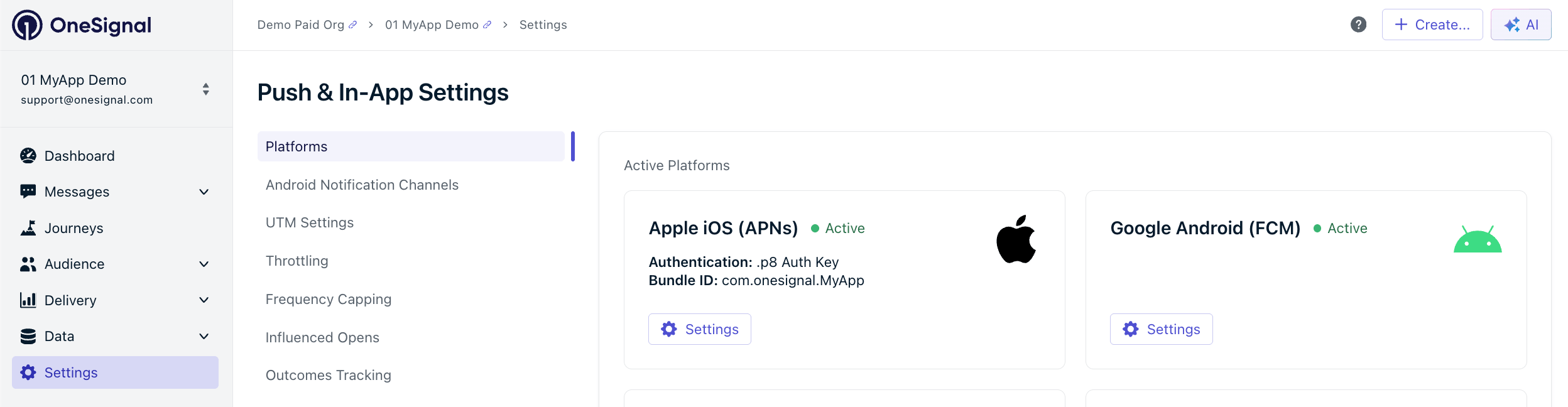
Firebase Project ID Settings > Push & In-App > Google Android (FCM)
Both values must match. A Firebase project has exactly one Project ID and one Project Number, permanently paired, so if either matches you are on the right project.
client_info.android_client_info.package_name must also match your app’s applicationId. If it does not, the Google Services Gradle plugin fails your build with No matching client found for package name. Register the package in your Firebase project, or download the correct google-services.json.
Service Account roles are granted on the IAM page in the Google Cloud Console, not in the Firebase Console and not on the Service Accounts page. The Service Account whose private key you upload to OneSignal must have both:
cloudmessaging.messages.create — granted by Firebase Cloud Messaging API Admin (roles/firebasecloudmessaging.admin).
firebase.projects.get — granted by Firebase Viewer (roles/firebase.viewer).
Broader roles like Firebase Admin (roles/firebase.admin), Editor, or Owner include both permissions and also satisfy the requirement. For OneSignal-only Service Accounts, prefer the narrow pair above to limit the impact if the private key is ever exposed.If the OneSignal dashboard shows Invalid request after you upload your Service Account private key, missing roles are the most common cause.
1
Open the IAM page
In the Google Cloud Console, set the project picker to the Firebase project, not the organization. In the left nav, open IAM & Admin and click IAM.The page is a table with Principal, Name, and Role columns. Service Accounts, Roles, and Settings under IAM & Admin are different pages. Service Accounts > Permissions lists who can use the account, not which roles the account has on the project.
2
Find your Service Account
Find the row whose principal email matches the client_email field in the private key you uploaded. It looks like firebase-adminsdk-xxxxx@YOUR_PROJECT_ID.iam.gserviceaccount.com. Paste that email into the filter box if the table is long.
3
Add any missing roles
On that row, click the pencil (Edit principal). In the Edit permissions panel, click Add another role.Add any of these that are not already assigned:
Firebase Cloud Messaging API Admin
Firebase Viewer
Firebase Admin, Editor, or Owner already include both permissions. You do not need to add the narrow roles on top of those.
4
Save
Click Save. The new roles can take about a minute to apply.
Why am I seeing “This configuration is for a different Firebase Project”?
This error occurs when the uploaded private key belongs to a different Firebase project (a different Sender ID).Solution: Use the original Firebase project’s private key. If unavailable, contact support@onesignal.com with your App ID. Switching projects resets push tokens. Your users must reopen the app to get push again.The same mismatch can happen in the other direction: the uploaded key is correct, but the app ships a google-services.json from a different Firebase project. Android Subscriptions then show status -6. See Verify your Firebase project matches.
If your Firebase server key looks like AIz..., you’re likely using an outdated Google Cloud Messaging (GCM) setup. Create a new Firebase project and upload a Service Account private key.
No. Google’s legacy FCM APIs are fully deprecated and no longer deliver notifications. If your app still uses them, upload a Service Account private key as described above to move to FCM V1.
What is Firebase Cloud Messaging, and why does OneSignal need a Service Account private key?
Firebase Cloud Messaging (FCM) is Google’s service for delivering push notifications to Android devices. A Service Account is a Google identity that OneSignal uses to authenticate to your Firebase project, and its private key is a JSON file that proves the identity. Uploading the private key authorizes OneSignal to send pushes through Firebase on your behalf. For more details, see Google’s Service Account documentation.