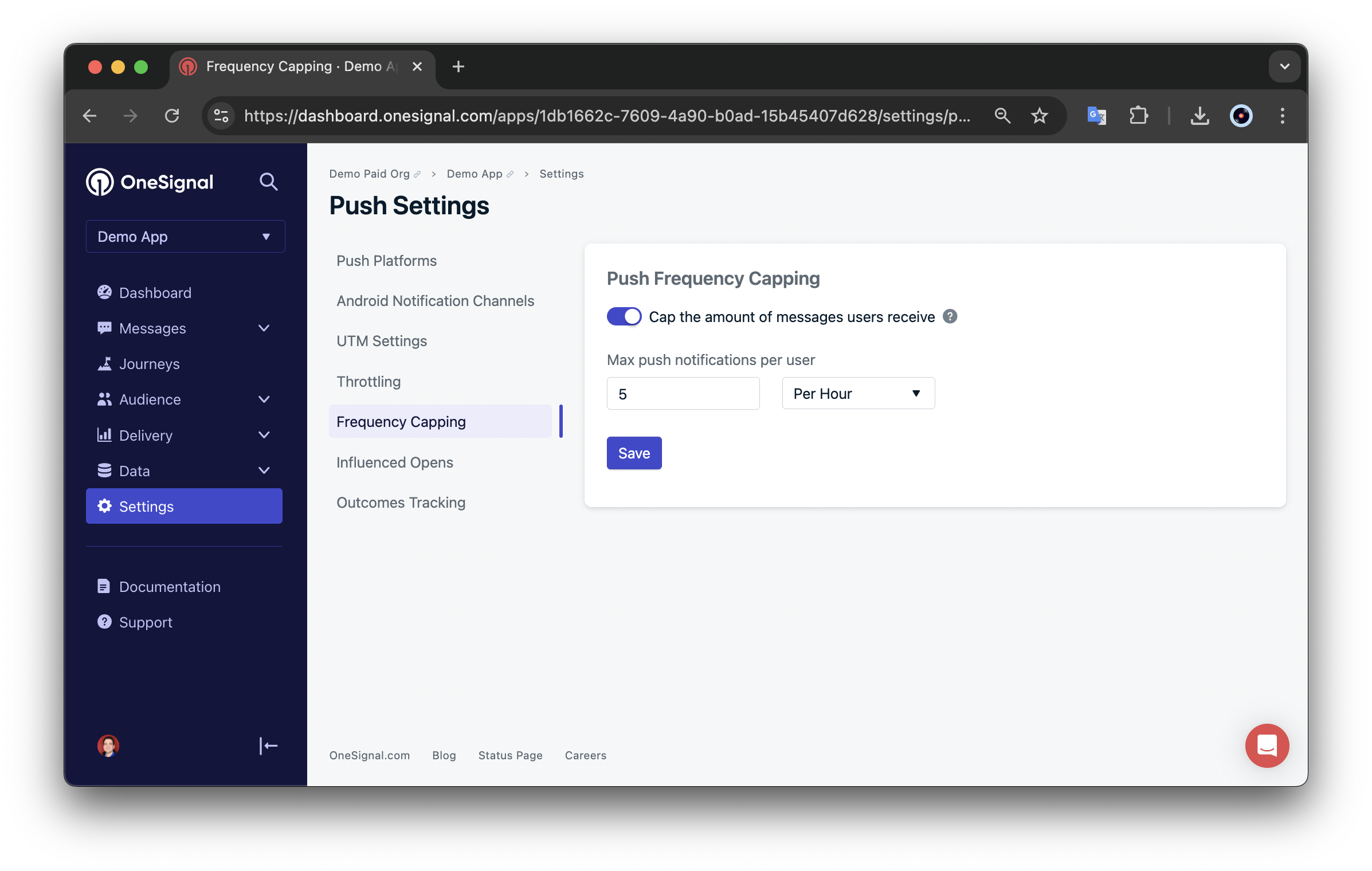
Push frequency capping limits how many push notifications a single user can receive in a rolling minute, hour, day, or week window — useful when multiple teams, Journeys, or automated triggers risk over-messaging the same user.
Frequency capping limits how many push notifications a single user can receive in a rolling time window (per minute, hour, day, or week). Use it to prevent over-messaging when multiple teams, Journeys, or automated triggers send to the same user.
Frequency capping is available on select paid plans.
Each delivered push “ages out” of the user’s rolling window when the configured time period has elapsed since that push was sent. Once the user has received the maximum number of notifications inside the window, OneSignal drops any additional sends until older notifications age out.Example: Frequency cap of 3 notifications per 24 hours.
Time
Action
Notifications in window
Delivered?
Day 1, 9:00 AM
Send Notification 1
1
Yes
Day 1, 1:00 PM
Send Notification 2
2
Yes
Day 1, 5:00 PM
Send Notification 3
3
Yes
Day 2, 8:00 AM
Send Notification 4
3 (cap reached)
No
Day 2, 9:00 AM
Notification 1 ages out (24h elapsed)
2
—
Day 2, 9:01 AM
Send Notification 5
3
Yes
Day 2, 10:00 AM
Send Notification 6
3 (cap reached)
No
Day 2, 11:00 AM
Send Notification 7
3 (cap reached)
No
Day 2, 1:00 PM
Notification 2 ages out (24h elapsed)
2
—
Day 2, 2:00 PM
Send Notification 8
3
Yes
Notifications 4, 6, and 7 are dropped because the user’s rolling 24-hour window already holds three notifications at the moment each is sent.
“Per day” refers to a rolling 24-hour window, not a calendar day. If a user receives a message at 6:45 PM, that notification stays in their window until 6:45 PM the next day. Sends in that interval count toward the cap and may be dropped.
Frequency capping applies to push notifications only. It does not apply to email, SMS, or in-app messages.
It applies to all push sources — Create notification API, Journeys, and manual dashboard sends.
Messages blocked by the cap are dropped, not queued. They are never retried.
For example, with a cap of 2 per day, if a user has already received two API pushes, a Journey push later that day is dropped unless the sender explicitly overrides the cap (see Override frequency capping).
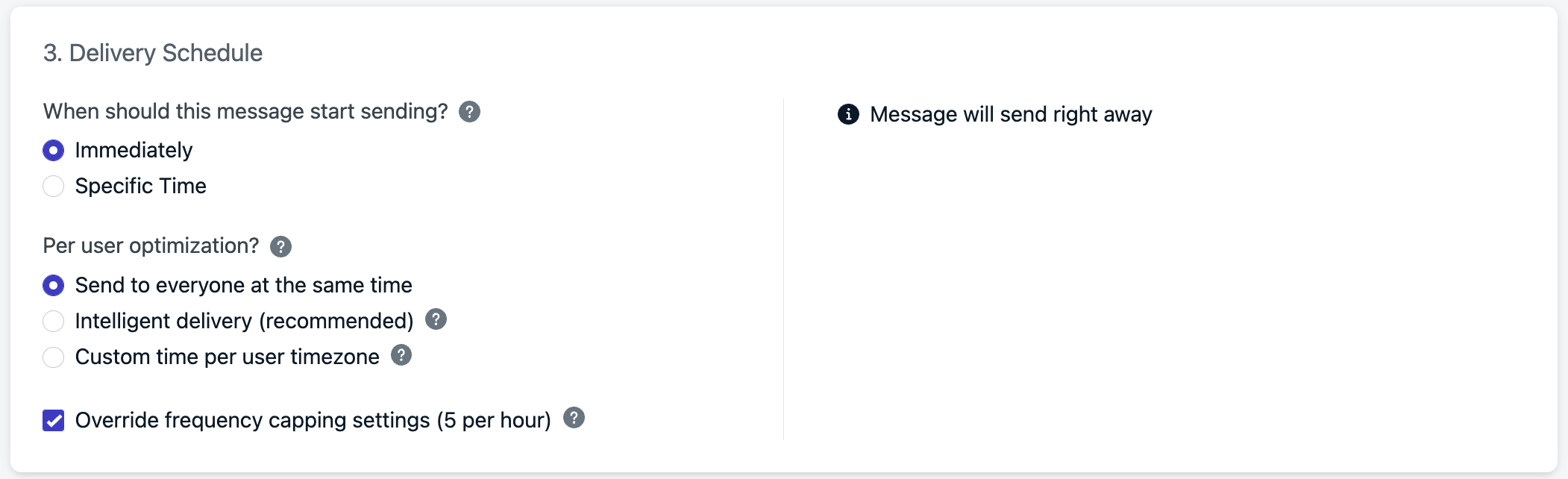
Override frequency capping on a per-message basis when a send must reach the user even if the cap is reached.
Dashboard
API
In the message’s Delivery Schedule, select Override frequency capping settings.
Using the Create push notification API, set enable_frequency_cap to false to bypass the cap for that message. Omit it or set to true to apply normal capping.
Does frequency capping apply to email, SMS, or in-app messages?
No. The cap configured under Settings > Push & In-app > Frequency Capping only limits push notifications. Email, SMS, and in-app messages have their own delivery controls and aren’t affected.
Yes. Setting enable_frequency_cap to false (or selecting the dashboard override) lets that message reach the user, but it still counts in the rolling window and can push later messages past the cap.
Why is the parameter named enable_frequency_cap if I set it to false to deliver?
The parameter controls whether the cap applies to the message. Setting it to false means “do not apply the cap to this message” — the cap is disabled for that one send. The user-level cap configured in the dashboard remains active for every other send.