Set Apple’s relevance score to control the order of your own app’s notifications in the iOS Notification Summary, and your Live Activities in the Dynamic Island and Lock Screen.
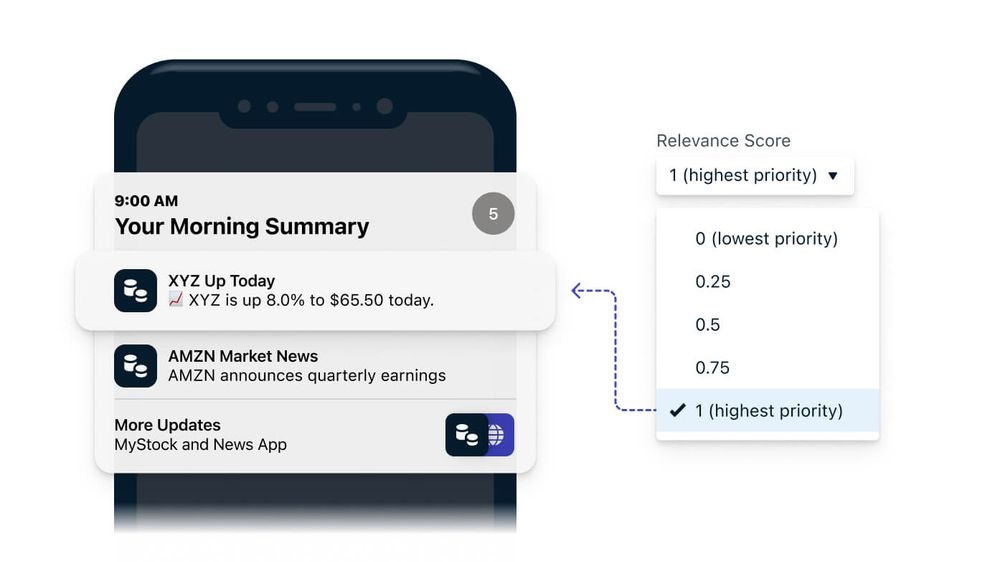
Image showing selection of relevance score into Morning Summary
Apple’s relevance score ranks your app’s notifications against each other. iOS uses it to decide which of your notifications is featured in the Notification Summary (for push), and which of your Live Activities appears in the Dynamic Island and in what order they appear on the Lock Screen.The score is only compared against other notifications from your app. It does not affect whether a notification is delivered, how quickly it is delivered, or how your notifications rank against other apps’ notifications. To control how and when a notification interrupts the user, see iOS: Focus modes and interruption levels instead.
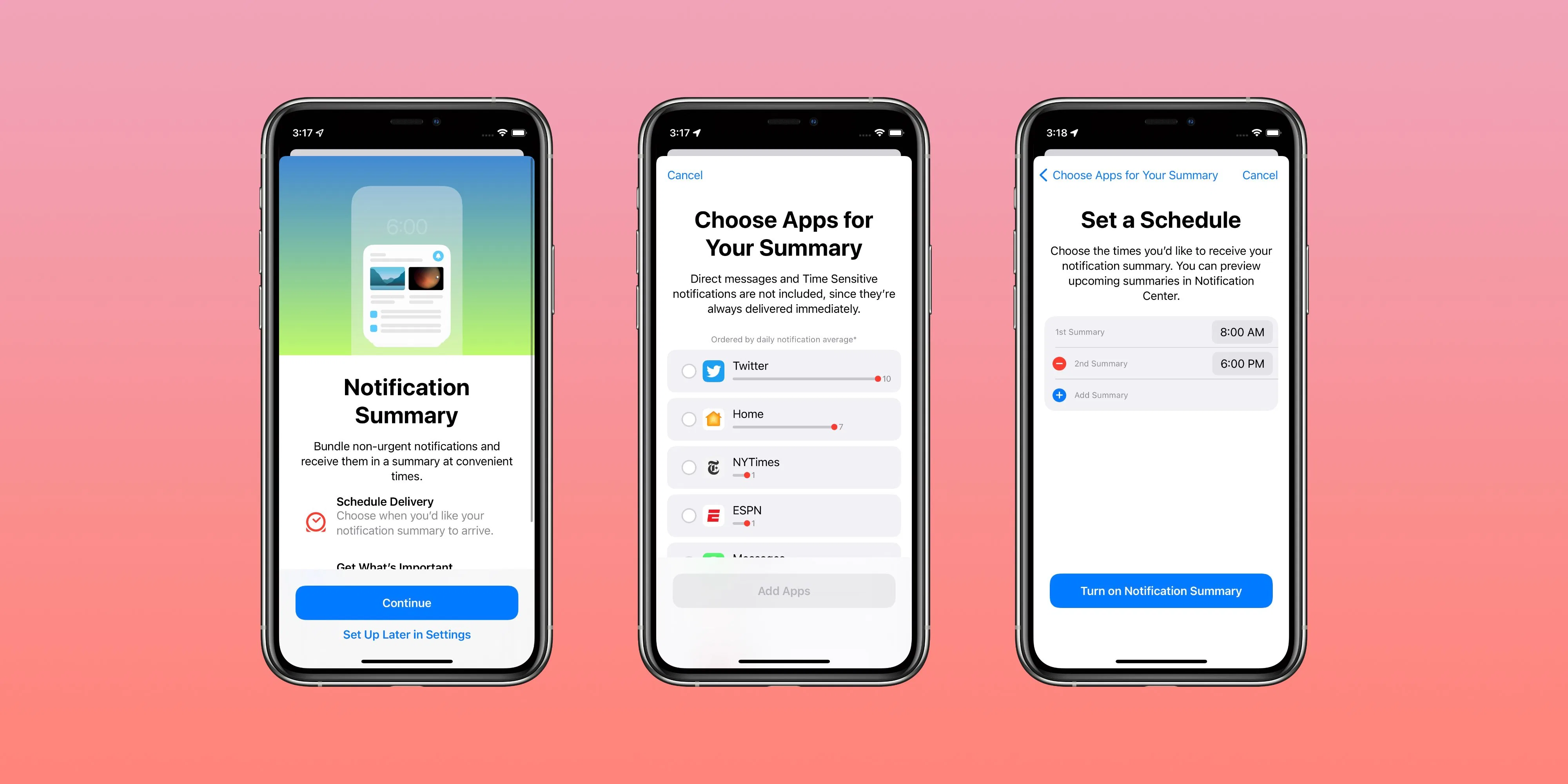
Image. Showing user settings on an iPhone for their Daily Summary
The relevance score is a value from 0.0 to 1.0. Apple’s documentation for relevanceScore states:
The system uses the relevanceScore, a value between 0 and 1, to sort the notifications from your app. The highest score gets featured in the notification summary.
The score applies to users who have turned on Scheduled Summary for your app on iOS 15 or newer. Your highest-scored notification in a given summary is the one iOS features.When creating a Push message, under iOS options, specify the Relevance score from 0.0 to 1.0.
Because scores are only compared within your own app, there is no penalty for using high scores, and a high score does not help your notification outrank another app’s. What a score does is rank your messages against each other: if every notification you send uses the same score, none of them ranks above another, and Apple does not document how iOS breaks that tie. Vary your scores when you want a specific message to be the one featured.
For example, an app that wants direct messages featured over marketing content might send:
New direct messages at 1.0
Daily reminders at 0.6
Promotional alerts at 0.2
Dashboard
API
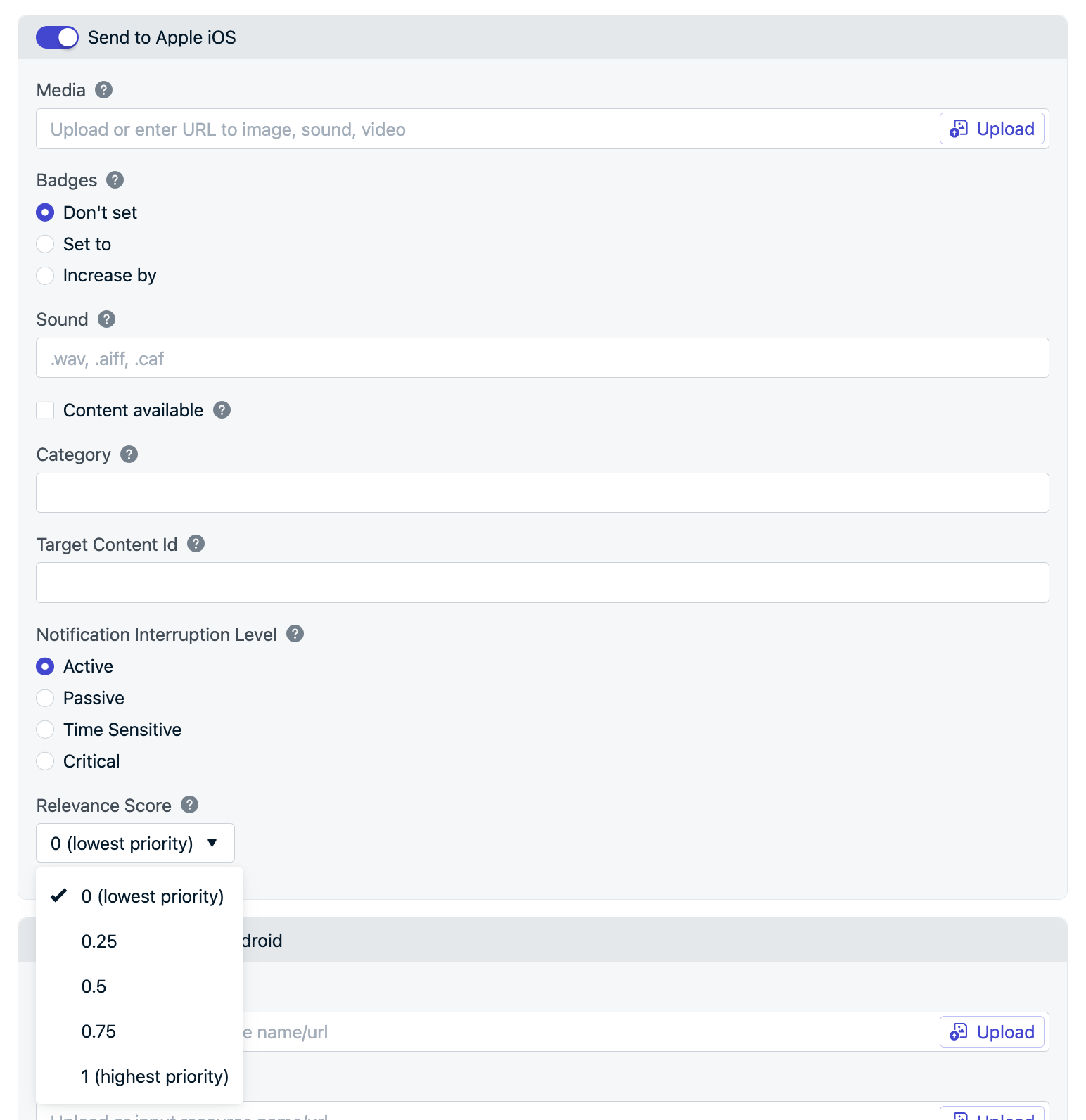
When creating a message from the dashboard, you can select the Relevance score under the Apple iOS platform settings:
Example setting the Relevance Score via the OneSignal dashboard.
If your app starts multiple Live Activities, the one with the highest relevance score is prioritized for display in the Dynamic Island. If two or more Live Activities share the same score, the system shows the earliest-started activity. On the Lock Screen, the relevance score also determines the display order of your app’s Live Activities.When using the Start Live Activity API or Update Live Activity API, set ios_relevance_score to a double value between 0.0 and 1.0.
Is there a penalty for always sending a relevance score of 1.0?
No. Apple does not document any penalty, downranking, or loss of effectiveness for sending high scores, and the score never competes against other apps. The only consequence is that identically-scored notifications no longer rank against each other, so you lose control over which of your own messages iOS features in the summary.
Does the relevance score affect delivery or how prominently a notification alerts the user?
No. The relevance score only affects ordering within the Notification Summary. Use interruption levels to control whether a notification breaks through Focus modes or alerts the user immediately.
Do I need the Notification Service Extension to use the relevance score?
No. The relevance score is a standard APNs aps payload key (relevance-score), and OneSignal sets it directly when you provide ios_relevance_score. The Notification Service Extension is still required for other features such as rich media and confirmed delivery.