

Setup & debugging
These methods are a reference for integrating the OneSignal SDK into your app. For full platform-specific setup instructions, see Mobile SDK setup.initialize()
Initializes the OneSignal SDK. This should be called during application startup. The ONESIGNAL_APP_ID can be found in Keys & IDs.
If you want to delay initialization of the OneSignal SDK, we recommend using our Privacy methods.
setLogLevel()
Set the logging to print additional logs to Android LogCat or Xcode logs.
Call this before initializing OneSignal. See Getting a Debug Log for more details.
Log levels (least to most verbose): None | Fatal | Error | Warn | Info | Debug | Verbose. Cordova/Ionic uses integers 0–6.
setAlertLevel()
Sets the logging level to show as alert dialogs in your app. Make sure to remove this before submitting to the app store.
User identity & properties
When users open your app, OneSignal automatically creates a OneSignal ID (User-level ID ID) and a Subscription ID (device-level ID). You can associate multiple Subscriptions (e.g., devices, emails, phone numbers) with a single user by callinglogin() with your unique user identifier.
login(external_id)
Links the current device (mobile Subscription) to a known user identified external_id. Call this only for identified users (after sign-in or session restore). For anonymous users, rely on the automatically assigned onesignal_id (see User State addObserver()).
If the external_id already exists: the SDK switches to the existing user, links the current mobile Subscription to it, and discards any anonymous data (tags, session data, email/SMS Subscriptions). A 409 Conflict log is expected and can be ignored.
If the external_id does not exist: a new user is created with the current onesignal_id, retaining all anonymous data.
The SDK retries automatically on network failures. Call
login(external_id) every time the app starts once the user’s ID is known, and again on account switches.logout()
Unlinks the current user from the mobile Subscription.
- Removes the
external_idfrom the current mobile Subscription. Does not remove theexternal_idfrom other Subscriptions. - Resets the
onesignal_idto a new anonymous user. - Any new data (e.g tags, Subscriptions, session data, etc.) will now be set on the new anonymous user until they are identified with the
loginmethod.
Use this when a user signs out of your app and you do not want to send targeted transactional messages to the device anymore.
getOnesignalId()
Returns the current user-level onesignal_id from local device storage. It may return null before the SDK finishes initializing; use the User State addObserver() instead to reliably get the onesignal_id and react to changes.
getExternalId()
Returns the current user-level external_id from local device storage. It may return null if not set via the login method or called before user state is initialized.
addEventListener() User State
Listen for changes in the user context (e.g., login, logout, ID assignment).
addAlias(), addAliases(), removeAlias(), removeAliases()
Aliases are alternative identifiers (like usernames or CRM IDs). Set external_id with login() before adding aliases. Aliases added without an external_id will not sync across multiple Subscriptions.
setLanguage()
Overrides the auto-detected language of the user. Use ISO 639-1 language code.
Custom events
Track user actions with associated properties. See Custom Events for more details.Custom events require the following minimum SDK versions: iOS
5.4.0, Android 5.6.1, React Native 5.3.0, Flutter 5.4.0, Unity 5.2.0.name- Required. The name of the event as a string.properties- Optional. Key-value pairs to add to the event. The properties dictionary or map must be serializable into a valid JSON Object. Supports nested values.
os_sdk key in the properties payload (e.g., os_sdk.device_type).
Example os_sdk payload
Example os_sdk payload
trackEvent()
See Custom Events for more details.
Tags
Tags are customkey : value pairs of string data you set on users based on events or user properties. See Tags for more details.
addTag(), addTags()
Set a single or multiple tags on the current user.
- Values will be replaced if the key already exists.
- Exceeding your plan’s tag limit will cause the operations to fail silently.
removeTag(), removeTags()
Delete a single or multiple tags from the current user.
getTags()
Returns the local copy of the user’s tags. Tags are updated from the server during login() or new app sessions.
Privacy
setConsentRequired()
Enforces user consent before data collection begins. Must be called before initializing the SDK.
setConsentGiven()
Grants or revokes user consent for data collection. Without consent, no data is sent to OneSignal and no subscription is created.
- If
setConsentRequired()istrue, our SDK will not be fully enabled untilsetConsentGivenis called withtrue. - If
setConsentGivenis set totrueand a Subscription is created, then later it is set tofalse, that Subscription will no longer receive updates. The current data for that Subscription remains unchanged untilsetConsentGivenis set totrueagain. - If you want to delete the User and/or Subscription data, use our Delete user or Delete subscription APIs.
Location
Tracking location points requires 3 steps:- Add location tracking permissions and dependencies to your app.
- iOS: Choosing the Location Services Authorization to Request developer guide
- Android: Request location permissions developer guide
LocationManager.startGetLocation: not possible, no location dependency foundCheck your App’s dependencies. A common solutions is in you
app/build.gradle add: implementation 'com.google.android.gms:play-services-location:21.0.1'
- Enable your app to share location with OneSignal using the
Location.setShared()method. - Request permission from the user for location tracking with the
Location.requestPermissionmethod or use in-app messages.
setShared() Location
Enables or checks whether the SDK is sharing the Subscription’s latitude and longitude with OneSignal. Set proper location permissions first.
requestPermission() Location
Displays the system-level location permission prompt. Alternatively, use in-app messages. Requires proper location permissions and setShared(true).
Subscriptions
A Subscription represents a single messaging channel instance (for example, a mobile device) and has a unique Subscription ID (OneSignal’s device-level ID). A user can have multiple Subscriptions across devices and platforms. See Subscriptions for more details.User.pushSubscription.id
Returns the current device-level subscription_id from local device storage. It may return null before the SDK finishes initializing; use the Push Subscription addObserver() instead to reliably get the subscription_id and react to changes.
User.pushSubscription.token
Returns the current device-level push subscription token from local device storage. It may return null before the SDK finishes initializing or the token isn’t available yet; use the Push Subscription addObserver() instead to reliably get the token and react to changes.
addObserver() Push Subscription Changes
Use this method to respond to mobile Subscription changes like:
- The device receives a new push token from Google (FCM) or Apple (APNs)
- OneSignal assigns a subscription ID
- The
optedInvalue changes (e.g. calledoptIn()oroptOut()) - The user toggles push permission in system settings, then opens the app
onPushSubscriptionChange event. Your listener receives a state object with the previous and current values so you can detect exactly what changed.
To stop listening for updates, call the associated removeObserver() or removeEventListener() method.
optOut(), optIn(), optedIn
Control the subscription status (subscribed or unsubscribed) of the current mobile Subscription within your app. Common use cases:
-
Call
optOut()afterlogout()to prevent push from being sent to users that log out. CalloptIn()to resume push notifications. - Implement a notification preference center within your app.
-
optOut(): Sets the current push subscription status to unsubscribed (even if the user has a valid push token). This setsnotification_typesto-2on the server. To resubscribe the user, calloptIn(). -
optIn(): Does one of three actions:- If the Subscription has a valid push token, it sets the current push subscription status to
subscribed. - If the Subscription does not have a valid push token, it displays the push permission prompt.
- If the push permission prompt has been displayed more than the operating system’s limit (once iOS, twice Android), it displays the fallback prompt.
- If the Subscription has a valid push token, it sets the current push subscription status to
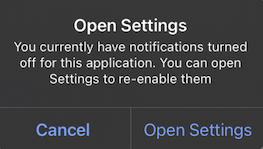
Fallback to settings prompt
optedIn: Returnstrueif the current push subscription status is subscribed, otherwisefalse. If the push token is valid butoptOut()was called, this will returnfalse.
addEmail(), removeEmail()
Adds or removes an email Subscription for the current user. Compatible with Identity Verification.
addEmail(email)creates or reassigns the email Subscription to the current user. The same email cannot exist multiple times in one app.removeEmail(email)detaches the email from the current user and assigns it a new OneSignal ID. Other Subscriptions remain unaffected.
Call
login() before addEmail() to avoid attaching it to an anonymous user. See Email reputation best practices.
addSms(), removeSms()
Adds or removes an SMS Subscription for the current user. Phone numbers must be in E.164 format (e.g., +15551234567). Compatible with Identity Verification.
addSms(phoneNumber)creates or reassigns the SMS Subscription to the current user. The same number cannot exist multiple times in one app.removeSms(phoneNumber)detaches the number from the current user and assigns it a new OneSignal ID. Other Subscriptions remain unaffected.
addEmail(). Call login() before addSms() to avoid attaching it to an anonymous user. See SMS Registration Requirements.
Push permissions
requestPermission(fallbackToSettings) Push
Shows the native system prompt asking the user for push notification permission. Optionally enable a fallback prompt that links to the settings app.
fallbackToSettings: Iftrue, the fallback prompt will be displayed if the user denied push permissions more than the operating system’s limit (once iOS, twice Android).
Fallback-to-settings prompt when permission is blocked
addPermissionObserver() Push
Fires when push permission changes — the user accepts/declines the prompt, or toggles notifications in system settings. The listener receives a state object with from and to values. Call removePermissionObserver() to stop listening.
getPermission(), getCanRequestPermission()
getPermission() returns the current app-level push permission status. It does not reflect OneSignal-level changes from optOut() or the Subscriptions API. For real-time tracking, use the Push Permission Observer or Push Subscription Observer.
getCanRequestPermission() returns whether the system will show a permission prompt. If false, the user already denied permission. See Prompt for push permissions.
permissionNative iOS
Returns an enum for the native permission of the iOS device. It will be one of:
0= NotDetermined1= Denied2= Authorized3= Provisional (only available in iOS 12+)4= Ephemeral (only available in iOS 14+)
Push notification events
addClickListener() Push
Runs when a user clicks a push notification that opens the app. The app is already launched by the time this fires — do not relaunch or duplicate navigation. Use removeClickListener() or removeEventListener() to stop listening.
addForegroundLifecycleListener() Push
Runs when a notification is received while the app is in the foreground. By default, OneSignal displays foreground notifications automatically — this listener lets you intercept and control that behavior.
Within this method, you can:
- Call
event.preventDefault()to stop the notification from displaying. This is helpful to prevent the notification from disrupting the user while the app is in the foreground. - Optionally, you have about 25 seconds to do any checks or make any changes to the notification before calling
event.notification.display()to show it on your own terms. If you never calldisplay()afterpreventDefault(), the notification is silently discarded.- If
preventDefault()does not suppress the notification (or the notification appears after a ~25 second delay), check if your app sets a customUNUserNotificationCenterDelegate. A custom delegate’swillPresentcompletion handler can force the notification to display regardless ofpreventDefault(). Remove the custom delegate or ensure it does not pass display options (.banner, .sound, .list) to the completion handler.
- If
This listener runs after Notification Service Extensions, which modify the payload before display.
removeForegroundLifecycleListener() or removeEventListener() to stop listening.
clearAllNotifications()
Removes your app’s notifications from the device’s notification shade and resets the badge count to 0. The method runs asynchronously and does not fire click listeners. What gets removed differs by platform:
- Android: Removes only notifications created by the OneSignal SDK and marks them as dismissed, so they are not restored when the app restarts. Notifications posted by your own code or by other SDKs are not affected.
- iOS: Removes all of your app’s delivered notifications from Notification Center, including local notifications and notifications not sent through OneSignal. Scheduled local notifications that have not been delivered yet are not affected.
removeNotification(), removeGroupedNotifications() Android
Removes a single notification by its Android notification ID, or all notifications in a group by its group key. Removed notifications are marked as dismissed, so they are not restored when the app restarts. Removing a grouped notification also updates the group’s summary. Both methods run asynchronously.
The ID is the androidNotificationId from the notification object, available in the foreground lifecycle listener, the click listener, or a service extension. There is no API to look it up later, so store the ID when the notification arrives if you plan to remove the notification programmatically. The group key is the android_group value set when sending.
These methods are Android only. On iOS, remove specific delivered notifications with Apple’s
removeDeliveredNotifications(withIdentifiers:). Send the notification with a collapse_id to get a predictable identifier to target. To replace a notification instead of removing it, use collapse_id when sending; no client code is required.In-App Messages
In-app messages do not require any code; however, the SDK enables you to customize when messages are presented and handle lifecycle events.addTrigger(), addTriggers()
Decide when to display an In-App Message based on a single or multiple triggers. See Triggers for more information.
Triggers are not persisted to the backend. They only exist on the local device and apply to the current user.
removeTrigger(), removeTriggers(), clearTriggers()
Remove a single, multiple, or all triggers with the provided key from the current user.
paused
Prevent In-app messages from being displayed to the user. When set to true, no in-app messages will be presented. When set to false, any messages the user qualifies for will be presented to them at the appropriate time.
addLifecycleListener()
Respond to or track In-App Messages being displayed and dismissed.
addClickListener() In-App
Respond to in-app message click events. The event contains the following click action metadata:
actionId: A custom identifier you set on the element.urlTarget: An enum specifying how the launch URL for the message will be presented.url: The launch URL for the action, if any.closingMessage: A boolean value indicating if the action resulted in the message being closed.
Live Activity
Applications should allow users to opt-in to Live Activities. For example, your app gives the user the option to start the Live Activity within your US using a button or presenting an IAM. You may start and update a Live Activity via any method without an explicit prompt, unlike Notification Permission or Location Permission. Live Activities appear with the iOS Provisional Authorization UI. Live Activities must be started when your application is in the foreground. We recommend reading Apple’s developer guidelines to learn more about Live Activities.setup()
Allows OneSignal to manage the lifecycle of a LiveActivity on behalf of the application. This includes listening for both pushToStart token updates and pushToUpdate token updates.
setupDefault()
Allows cross platform SDK’s to manage the lifecycle of a LiveActivity by eliminating the need for a customer app to define and manage their own ActivityAttributes. See Cross-platform setup for further details.
enter()
Entering a Live Activity associates an activityId with a Live Activity Temporary Push Token on our server. Specify this identifier when using the Update Live Activities REST API to update one or multiple Live Activities simultaneously.
exit()
Exiting a Live activity deletes the association between an Activity Identifier with the Live Activity push token on our server.
setPushToStartToken()
Optional “low-level” approach to push to start live activities. Offers fine-grained control over the LiveActivity start and update tokens without altering the ActivityAttribute structure. Additional details available here
removePushToStartToken()
Called per-activity-type whenever that activity type should no longer be registered against the current subscription
Outcomes
Track actions taken by users and attribute them to messages. See Outcomes for more details.addOutcome(), addUniqueOutcome(), addOutcomeWithValue()
addOutcome(name)— Add an outcome captured against the current session.addUniqueOutcome(name)— Add a unique outcome (counted once per session).addOutcomeWithValue(name, value)— Add an outcome with a numeric value.
FAQ
What is the difference between onesignal_id and the Subscription ID?
The onesignal_id is a user-level identifier that represents a person across all their devices and channels. The Subscription ID (User.pushSubscription.id) is a device-level identifier for a single push channel. One user can have multiple Subscriptions.
Do I need to call login() every time the app starts?
Yes. Call login(external_id) on every app launch once you know the user’s identifier (after sign-in or session restore). The SDK handles deduplication — if the user is already logged in with that ID, the call is effectively a no-op.
What happens to anonymous data when I call login()?
If the external_id already exists, anonymous data (tags, session data, email/SMS Subscriptions) collected before login is discarded. If the external_id is new, the anonymous data is retained and associated with the newly created user.
Why does getOnesignalId() return null?
The OneSignal ID is not available until the SDK finishes initializing. If you call getOnesignalId() too early (for example, immediately after initialize()), it may return null. Use User State addObserver() to reliably detect when the ID becomes available.