

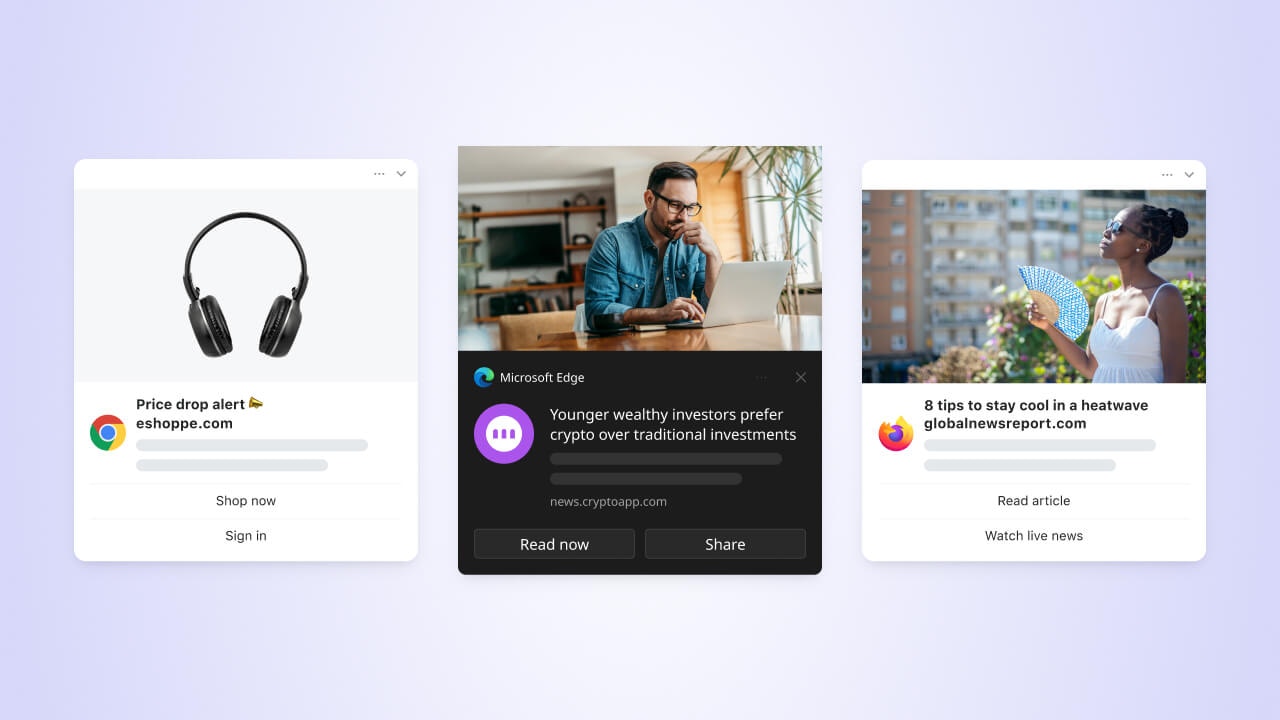
Web push notifications reach users even when they are not on your site
- A secure HTTPS website with a valid SSL certificate
- The ability to add the OneSignal service worker to your website
- A single origin that follows the same-origin policy
- User permission to receive notifications
- Supported browsers (Chrome, Firefox, Safari, Edge)
Choose your setup guide
Complete one of these site setup paths.Not a developer? See Manage team members to invite a teammate with developer access to your OneSignal project.
Web SDK setup
Typical Site: configure the dashboard, upload the service worker, and add the JavaScript SDK.
WordPress plugin
Official OneSignal plugin. No JavaScript SDK or service worker upload required.
Shopify setup
Connect Shopify through the Vendo integration. Vendo deploys the SDK on your storefront.
Migration from another provider
Move from another web push provider and retain your subscriptions.
manifest.json and have users add your site to their Home Screen.
iOS web push setup
Extra Apple requirements after you finish a site setup path.
Integration types
In the OneSignal dashboard, go to Settings > Push & In-App > Web and select the integration type that matches your site.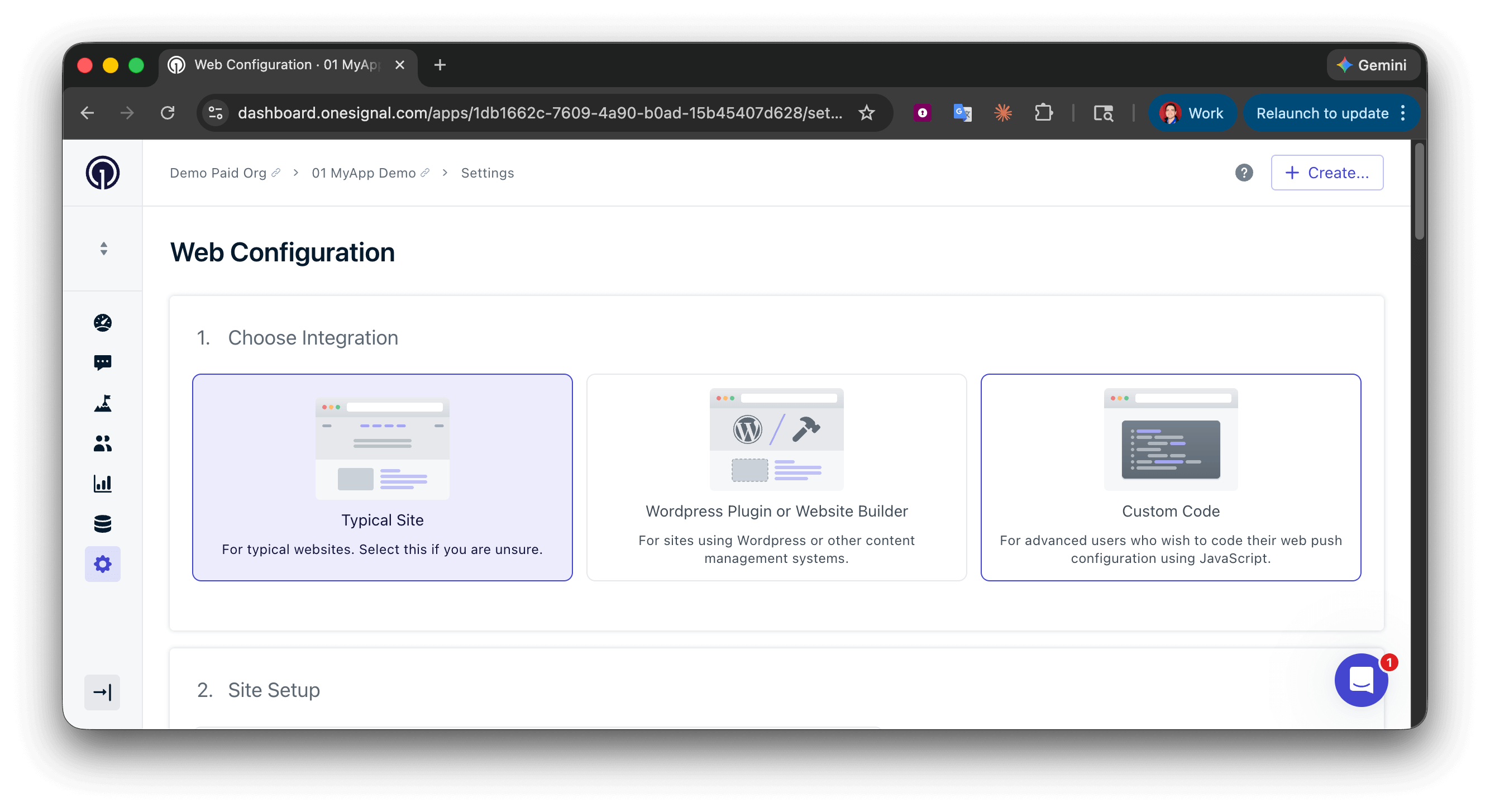
Choose your integration type based on your website setup
Typical Site
Recommended. Configure prompts, welcome notification, and service worker path in the dashboard.
WordPress
Required if you use the official OneSignal WordPress plugin.
Custom Code
Full control over prompts and
init options in code.Web permission prompts
Users must grant permission before they can receive web push. Browsers show a native system dialog for that grant. OneSignal recommends a customizable pre-prompt first so you can explain the value and avoid the browser blocking repeated native prompts. Typical Site and WordPress: add, remove, and update prompts in the OneSignal dashboard anytime. Custom Code: control prompts inOneSignal.init(). See the Web SDK reference.
Web permission prompts
Compare slidedown, category, native, subscription bell, and other prompt types.
Web SDK reference
Show or hide prompts in code with the Web SDK.
iOS does not show the permission prompt until the user adds your site to their Home Screen. See Web push for iOS.
Users and subscriptions
When a user subscribes to push, OneSignal creates a subscription tied to that browser and device. Web push subscriptions are created when users:- Grant permission for push notifications on your website in a specific browser and device
- Return to your site after clearing browser data (if Auto Resubscribe is enabled)
- Subscribe from a new browser or device
Each browser and device combination creates a separate subscription. Incognito and private browsing cannot create subscriptions. Web push subscriptions stay anonymous until you assign an External ID.
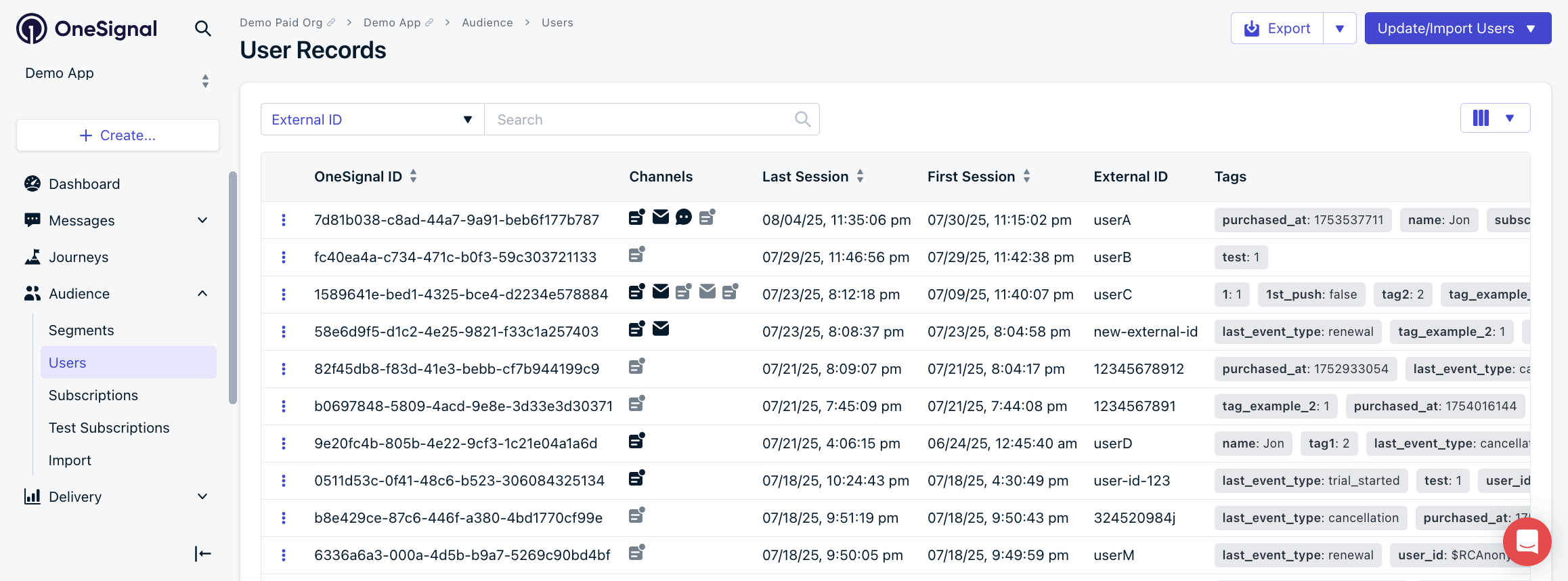
OneSignal dashboard: Audience > Users
Users
Manage users, assign External IDs, and track their activity.
Subscriptions
How subscriptions work across browsers and devices.
Segments
Group users into segments to target based on behavior, device, and more.
Design web push notifications
Web push notifications support titles, messages, icons, images, and action buttons. The diagram shows which elements you can customize (1–5) and which the browser controls (6–9).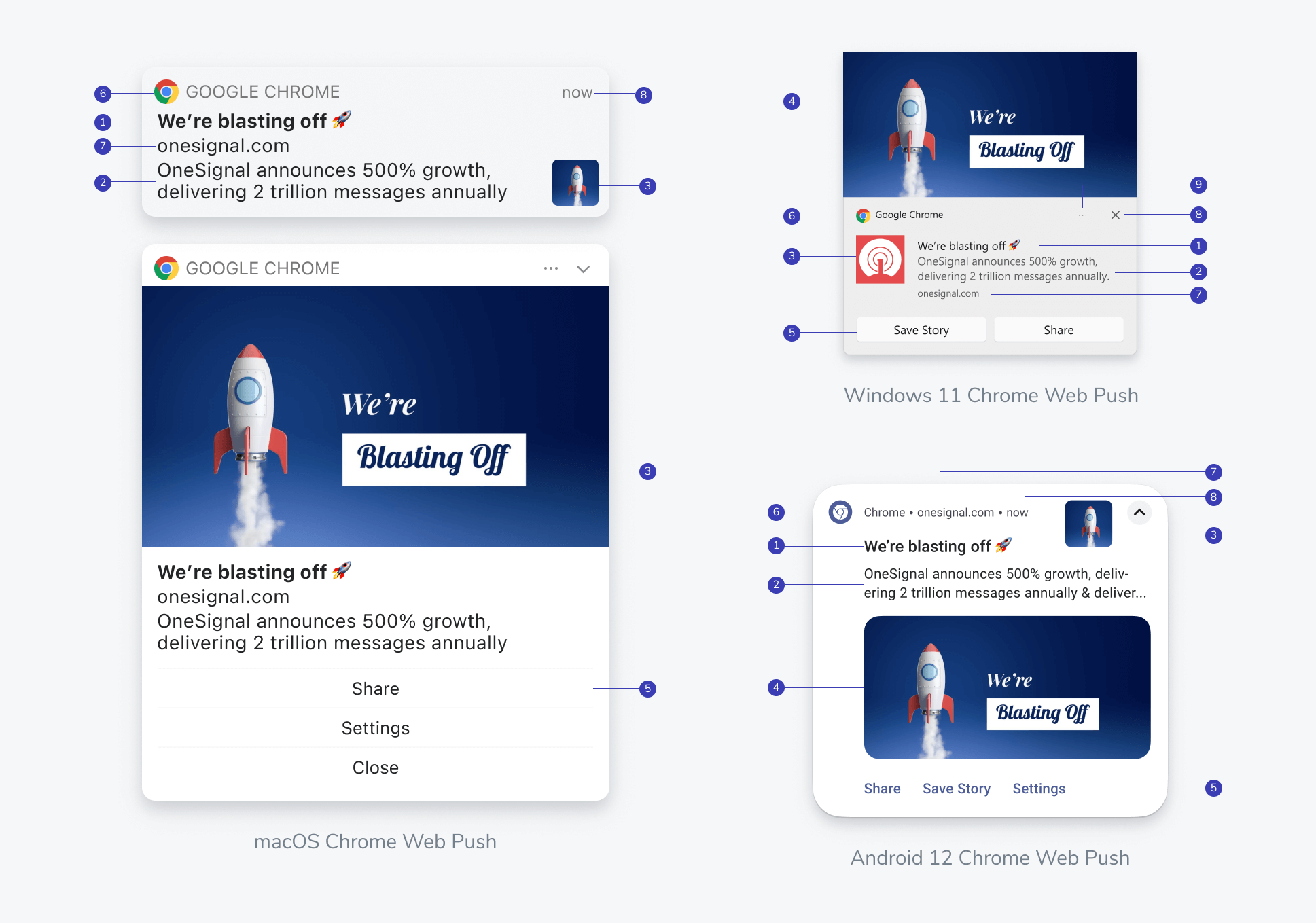
Web push notification anatomy. Customize elements 1–5. The browser controls 6–9.
- Title: Attention-grabbing headline (recommended: under 50 characters)
- Message: Main notification content (recommended: under 120 characters)
- Icon: Square brand icon (recommended:
256×256PNG, JPG, or non-animated GIF) - Large image: Eye-catching visual content
- Action buttons: Call-to-action buttons
- Browser: The browser displaying the push
- Domain: Your site origin, set by the browser
- Timestamp and dismiss: Browser-added controls
- More options: Browser-specific additional controls
Push overview
Full overview of push notification creation, options, and delivery behavior.
Templates
Save time with reusable templates for consistent messaging.
Personalization and localization
Customize push messages to match each user’s preferences and language.Message personalization
Insert dynamic variables like name or preferences to tailor messages.
Multi-language messaging
Deliver messages in each user’s preferred language.
Configure web push behavior
Control when messages appear, how long they are stored, and what happens on click.Delivery, display, and dismiss settings
Throttling
Control notification delivery speed.
Frequency capping
Set limits to prevent over-sending notifications to the same user.
Time to live (TTL)
Define how long push services retain messages when the device is offline.
Web push topic
Use topics to group, replace, or suppress duplicate notifications.
Click behavior
Choose the launch URL and how a click focuses or navigates an open tab.
Test your setup
Confirm the integration across browsers before you send to your full audience.Pre-launch checklist
- SDK is loaded with no console errors
- Permission prompt appears and functions correctly
- Test notification is sent and received
- Icons and images render correctly
- Service worker is registered and up to date
- HTTPS certificate is valid
Analytics and troubleshooting
Push message reports
View delivery, open rate, and click-through metrics for each message.
Analytics overview
Explore engagement and user behavior metrics across channels.
Notifications not shown or delayed
Troubleshooting checklist if messages aren’t appearing.
Notification images not showing
Fix image rendering issues across different browsers.
Next steps
A/B testing
Optimize messages with experiments to find what drives engagement.
Journeys
Build automated, multi-step messaging flows triggered by user behavior.
Tags
Add custom properties to users for personalization and segmentation.
FAQ
Can users subscribe to web push on iOS?
Yes, starting with iOS 16.4+. Finish Typical Site, Custom Code, WordPress, or Shopify first, then add amanifest.json and have users add your site to their Home Screen. See iOS web push setup.
Why did a user stop receiving web push notifications?
The most common reasons are:- The user cleared their browser data. They will be automatically and silently resubscribed when they return to your site if you enabled the Auto Resubscribe option in your Web Push settings.
- The user turned off push notifications in the operating system settings. They will need to manually re-subscribe to your site to receive push notifications again.
Do web push notifications work in incognito or private browsing mode?
No. Users cannot subscribe to web push while in incognito or private browsing mode. Subscriptions created in a normal session are not accessible in private mode.What browsers support web push notifications?
Chrome, Firefox, Safari (macOS and iOS 16.4+), and Edge all support web push. Each browser may have different prompt behavior and notification display. See Web push FAQ for browser-specific details.Can I use subdomains with web push?
Each subdomain (for example,app.example.com vs shop.example.com) is a separate origin. Browsers enforce the same-origin policy for web push, so each subdomain requires its own OneSignal app. The service worker must also be hosted on the same origin as the subscribing page. CDNs and other subdomains are not allowed. See Multiple sites & subdomains.