

Common setup issues
Verify your OneSignal dashboard setup
Make sure you’ve completed each step in the WordPress setup guide:- Select the WordPress Plugin option when creating your OneSignal app
- Your Site URL must exactly match the browser URL
- For example,
https://example.comis not the same ashttps://www.example.com. Use one version consistently. - Only one site origin is supported for push. See Same-origin policy.
- For example,
- Make sure you’ve added at least one permission prompt.
Do not add the OneSignal code manually
The OneSignal WordPress plugin automatically includes the initialization script and service worker. Version 3+ hosts a plainOneSignalSDKWorker.js in the plugin’s sdk_files directory and sets the path in the plugin’s init. You do not upload the worker to your site root, and you do not set serviceWorkerPath yourself.
- Do not add OneSignal JavaScript
initcode to your site. - Do not use Custom Code setup alongside the plugin.
init options or a custom worker location, uninstall the plugin and follow Custom Code setup. That is a full migration off WordPress, not a way to relocate the plugin’s service worker.
Send notification when post published
When you publish a post, page, or custom post type, OneSignal can automatically send a notification to your subscribers.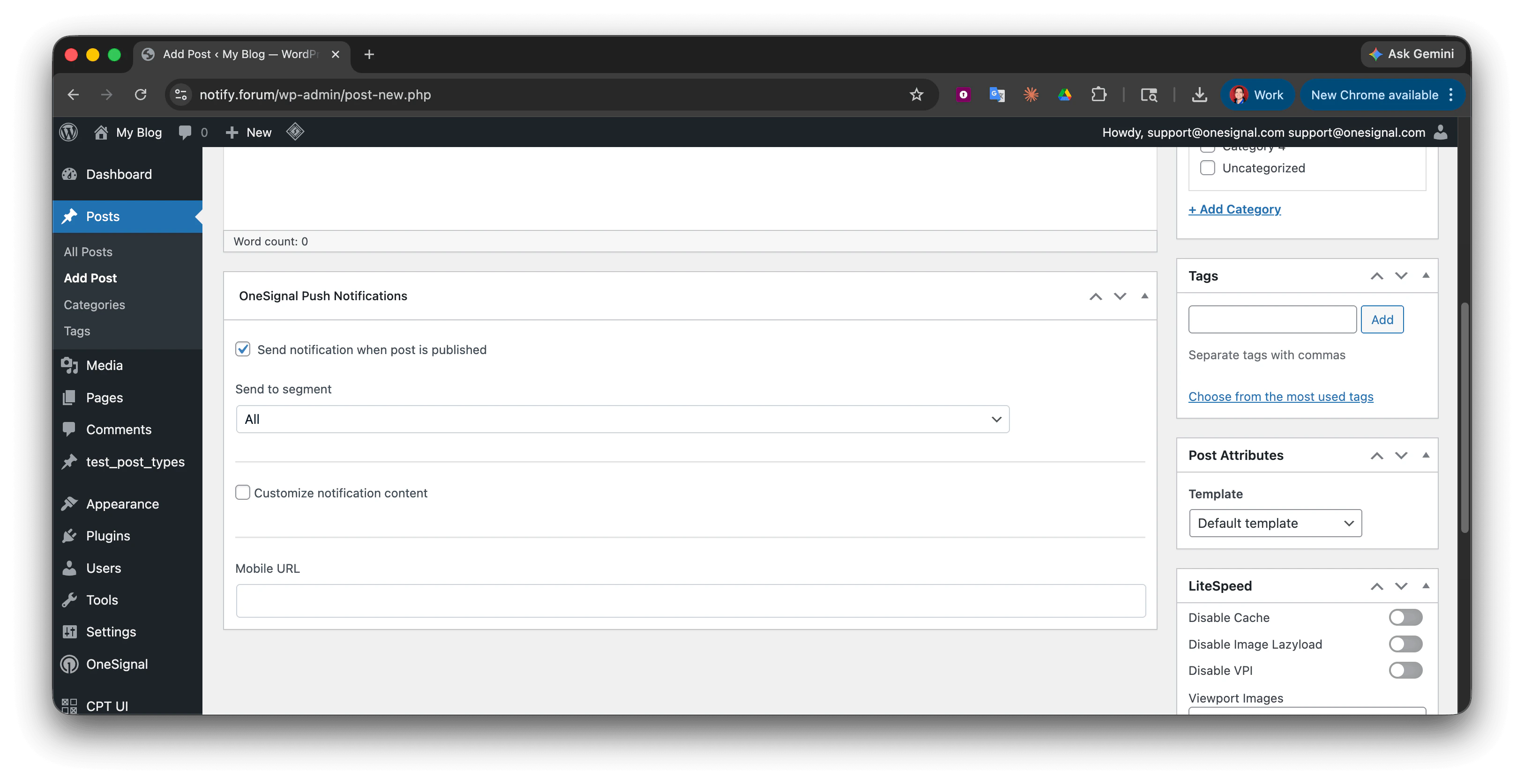
OneSignal Push Notifications metabox—drag to reposition if needed
- Check the metaboxes to the right and bottom of the editor. You can drag and drop as needed.
- Check the Screen Options at the top of the editor to make sure the OneSignal Push Notifications metabox is checked.

Screen Options showing OneSignal Push Notifications metabox checked
- Check if using a Custom Post Type. This is usually found in the URL as
post_type=your_custom_type. If so, add the custom post type to the Custom Post Types field in the OneSignal WordPress plugin settings.
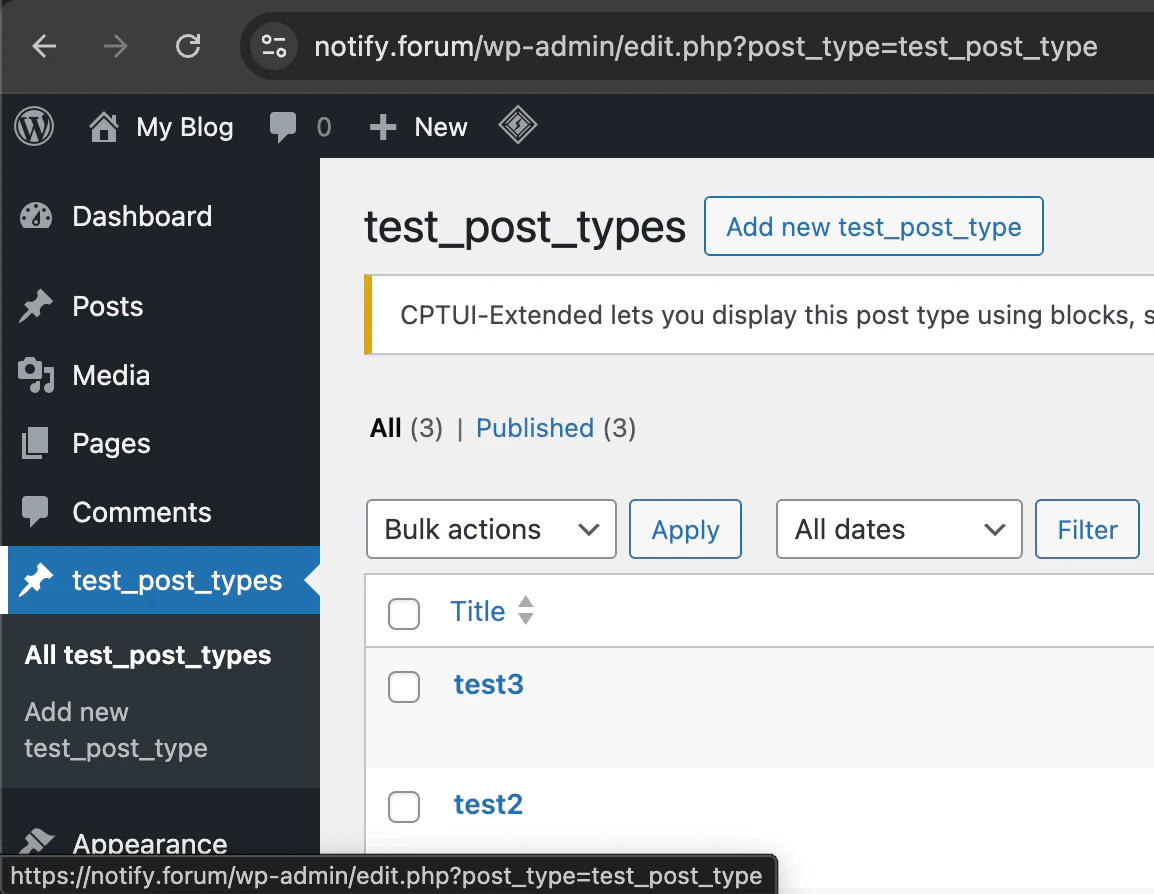
Example where to find the custom post type name
How to troubleshoot your site
Verify plugin is active and open developer tools
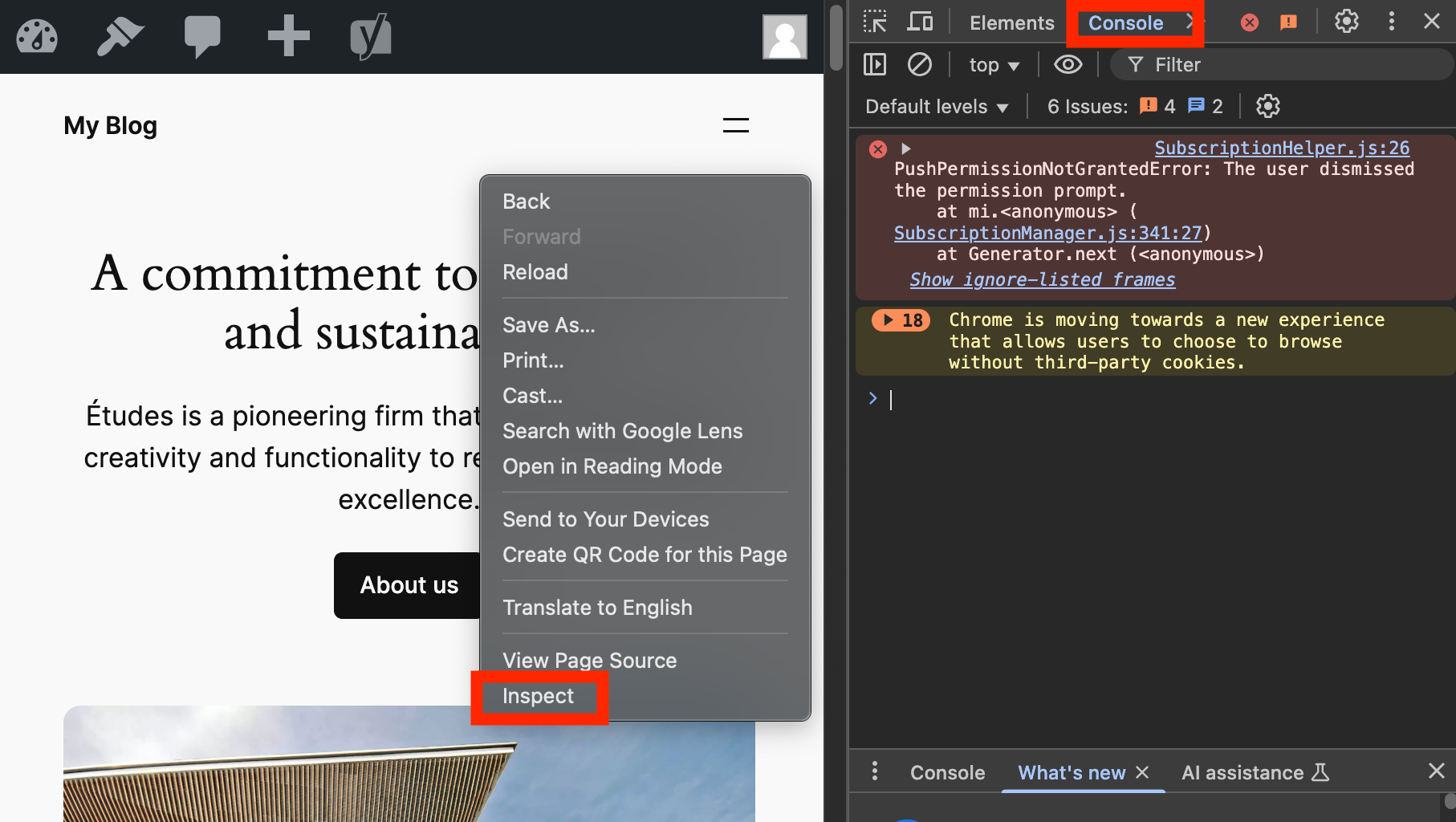
Right-click your site, click Inspect, and open the Console tab.
Check the console for OneSignal errors
Check subscription status in the browser
null or an empty value. If you see OneSignal is not defined, wait a few seconds and try again, or fix Console errors from Common OneSignal console errors first—the SDK may still be loading via the deferred loader.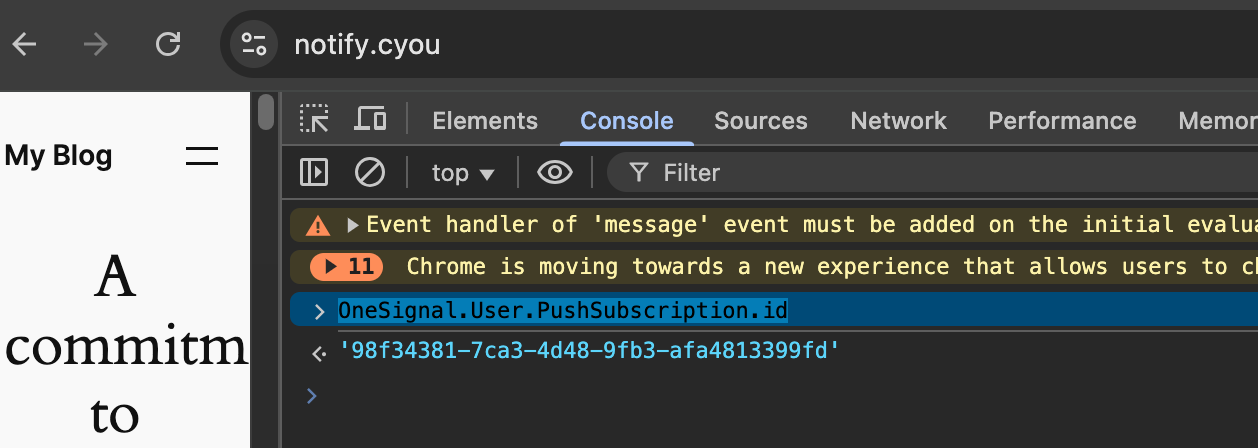
Find your OneSignal Subscription ID in the console.
Verify Subscription ID in OneSignal dashboard
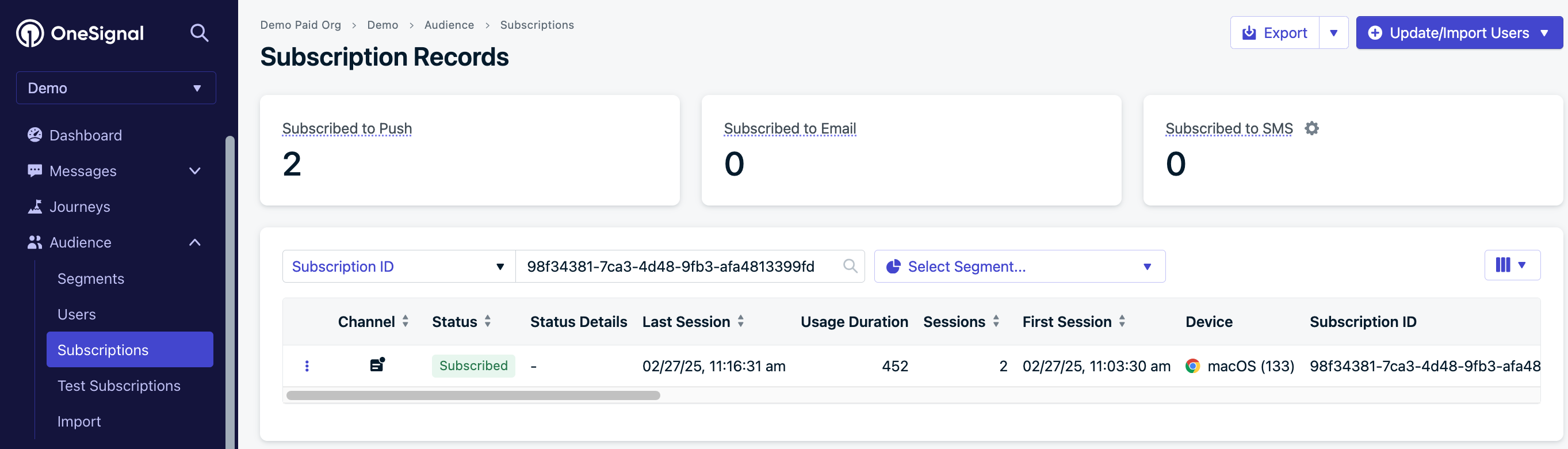
Search your OneSignal dashboard for the Subscription ID.
Send a test push notification
Common OneSignal console errors
SdkInitError: OneSignal: This web push config can only be used on … Your current origin is …

Site URL mismatch error.
PushPermissionNotGrantedError: The user dismissed the permission prompt.
The visitor declined the browser prompt. It won’t appear again until a cooldown period expires.
See Web permission prompts for browser rules or clear site data to retry immediately.
The OneSignal web SDK can only be initialized once.

Duplicate OneSignal initialization error.
Installing service worker failed.. 403 or 404 error

Service Worker file missing (403/404).
OneSignalSDKWorker.js from its sdk_files directory. WordPress.org installs use folder onesignal-free-web-push-notifications. If you installed from a zip, the folder may differ. Replace your-site.com and the folder name to match Plugins in wp-admin:
https://your-site.com/wp-content/plugins/onesignal-free-web-push-notifications/sdk_files/OneSignalSDKWorker.js
You should see this single line of JavaScript:
OneSignalSDKWorker.js.php from the same sdk_files directory. If your console still requests a .js.php URL, you are on the legacy worker. See Solid Security and Example .htaccess for PHP-execution notes that apply only to those installs.
Common plugin support
CDNs and caching plugins can block OneSignal’s required files. WordPress.org installs use the plugin directoryonesignal-free-web-push-notifications. If you installed from a zip, the folder may be different (for example OneSignal-WordPress-Plugin). Check Plugins in wp-admin or wp-content/plugins/ and substitute that name in the paths below.
Use these plugin-specific settings:
Autoptimize
In Excluded scripts, add:WP Rocket
Under CDN > Exclude Files From CDN, add:LiteSpeed Cache
Under CDN > Exclude Path, add:WP Super Cache
- Go to Settings > WP Super Cache > CDN
- In Exclude if substring, include:
onesignal-free-web-push-notifications - Click Contents > Delete Cache
WP Engine
WP Engine can rewrite plugin URLs through its CDN. HTML Post-Processing rules are environment-specific; the snippet below is an example only—confirm paths with WP Engine support or your User Portal before applying. In the WP Engine plugin > General Settings > HTML Post-Processing, you may need rules similar to the following. Replace every placeholder with values from your site and WP Engine CDN hostname:W3 Total Cache
- Go to Performance > CDN
- Under Rejected files, add:
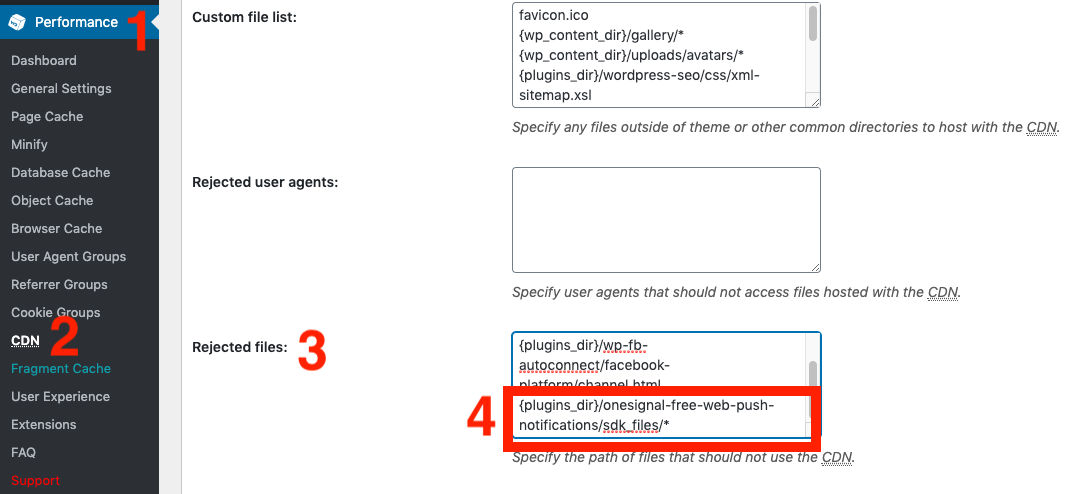
W3 Total Cache exclusion settings.
BunnyCDN
Exclude onesignal in the plugin’s CDN Excluded Paths.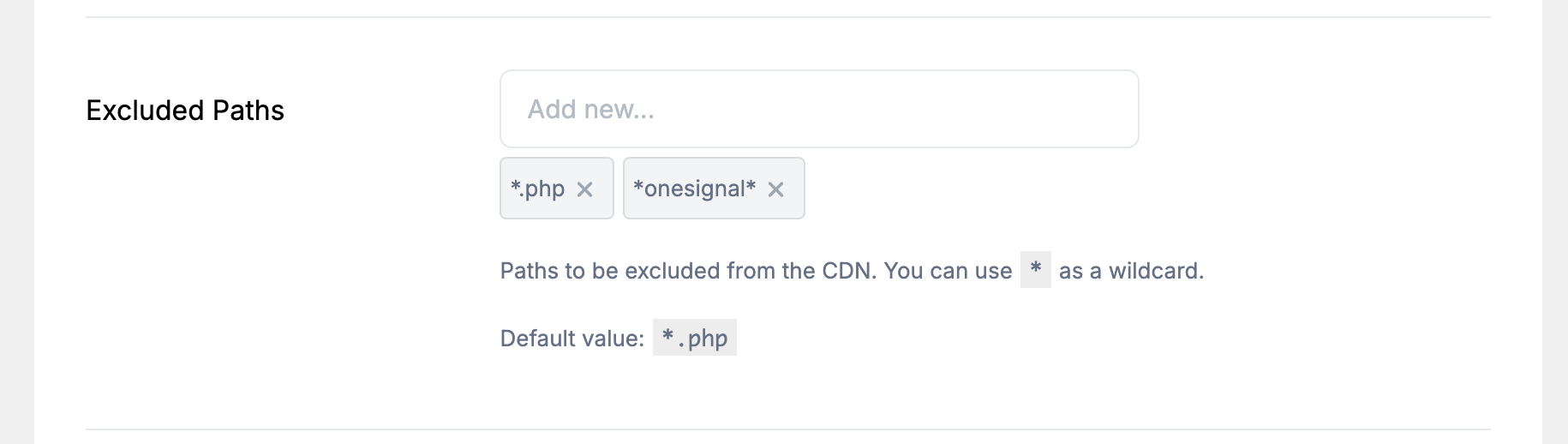
BunnyCDN exclusion example.
CDN Enabler
In Settings > CDN Enabler, add this to “Exclusions”:PressCDN
In Exclude Directories, add:Breeze
In Settings > CDN > Exclude Content, add: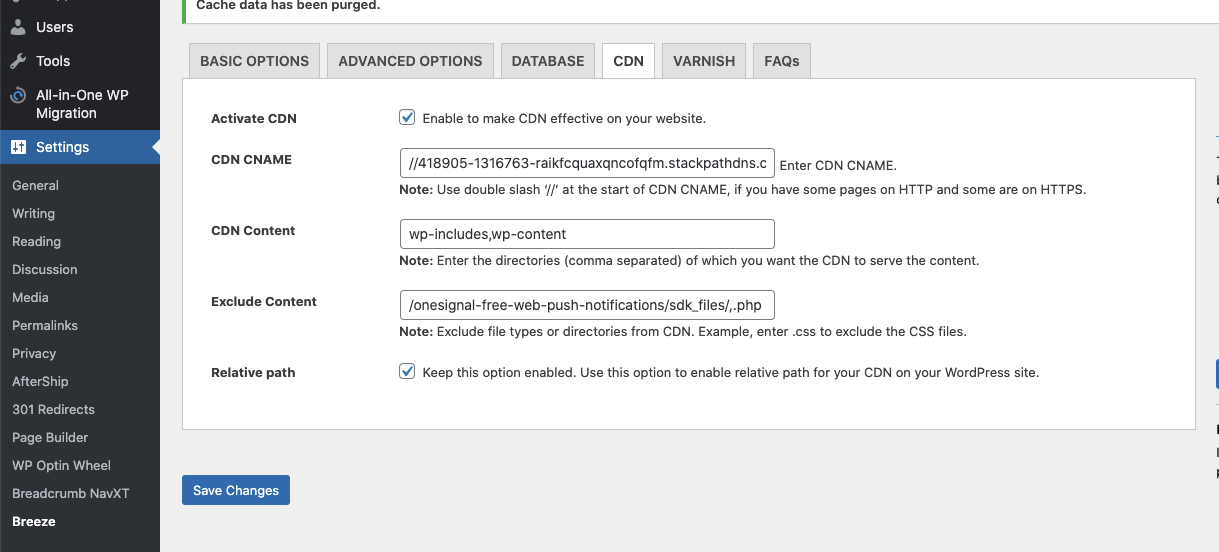
Breeze exclusion example.
Hummingbird Pro
Go to Hummingbird > Asset Optimization. Under JavaScript (and CSS if OneSignal assets appear there), locate files whose URLs containonesignal-free-web-push-notifications or OneSignalSDK. Exclude them from minification/combination/defer, or switch those assets to Don’t load optimization so the plugin does not rewrite or delay them.

Hummingbird Pro Asset Optimization.
Sucuri
Follow Sucuri’s Whitelist guide to allow OneSignal files.Solid Security (formerly iThemes Security)
Version 3+ serves a staticOneSignalSDKWorker.js file. You do not need PHP execution in the plugins directory for that worker.
If you still run plugin v2, or the worker URL ends in .js.php, disable Disable PHP in Plugins (or equivalent) under System Tweaks so OneSignalSDKWorker.js.php can run.
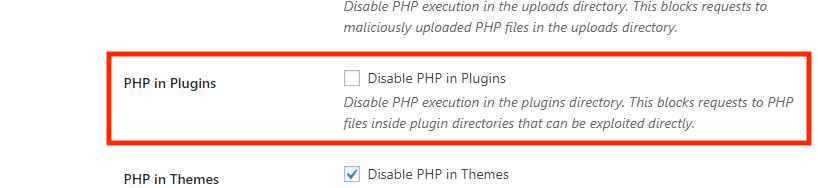
Disable blocking PHP execution in plugins only if you still serve the v2 .js.php worker.
Defender Security plugin
Version 3+ does not need PHP execution for the worker. If Prevent PHP execution is on, that is fine for the v3.js file.
If you still serve OneSignalSDKWorker.js.php (v2), leave Prevent PHP execution disabled. Go to Defender > Security Tweaks and verify the setting.
Example .htaccess for Service Worker access
Allow the v3 JavaScript worker. Use this if your host or a security plugin blocks files inwp-content/plugins/.
OneSignalSDKWorker.js.php from the same sdk_files directory. Add this block only if that .js.php URL is still in use:
Order allow,deny with Allow from all / Deny from all instead of Require. Ask your host or match the syntax your server already uses.Server slowdowns or site unreachable after sending notifications
If your server experiences slowdowns or becomes unreachable after sending notifications, it is often due to increased load from notification assets or limited server resources.Do not host your own notification icons
Avoid self-hosting images used in notifications. When you host your own notification icons or images, your server may become overloaded as every recipient’s browser attempts to fetch the image at the same time a notification is sent. To reduce server strain, use image hosting solutions or CDN services optimized for high-concurrency access.Consider upgrading hosting resources
If server issues persist, you may need to:- Upgrade your hosting plan: Higher bandwidth or more powerful hosting may be necessary to handle large-scale notification sends.
- Consult your hosting provider: Your provider can offer insights or optimizations specific to your hosting environment.