


Push message report high-level stats.
Delivery metrics
OneSignal sends push notifications to push services (Google FCM, Apple APNs, Huawei HMS) which deliver them to your users’ devices (Subscriptions). The Delivered, Unsubscribed, and Failed metrics come from these push services. The Confirmed receipt and Clicked metrics come from the OneSignal SDK on the device.
The following metrics are specific to push message reports:
For detailed metric definitions across all channels, see the Metrics Glossary.
Failure message troubleshooting
These errors prevented OneSignal from delivering the message to the push provider:Delivery status
Conversions
This report shows the conversions attributed to and influenced by this message. See Conversion metrics for the attribution model and setup instructions.
Message statistics
The message statistics graph tracks clicks, sessions, and custom outcomes (legacy, being replaced by Conversion metrics) over the 30 days following a send. Use it to see whether engagement occurred immediately after delivery or continued over time.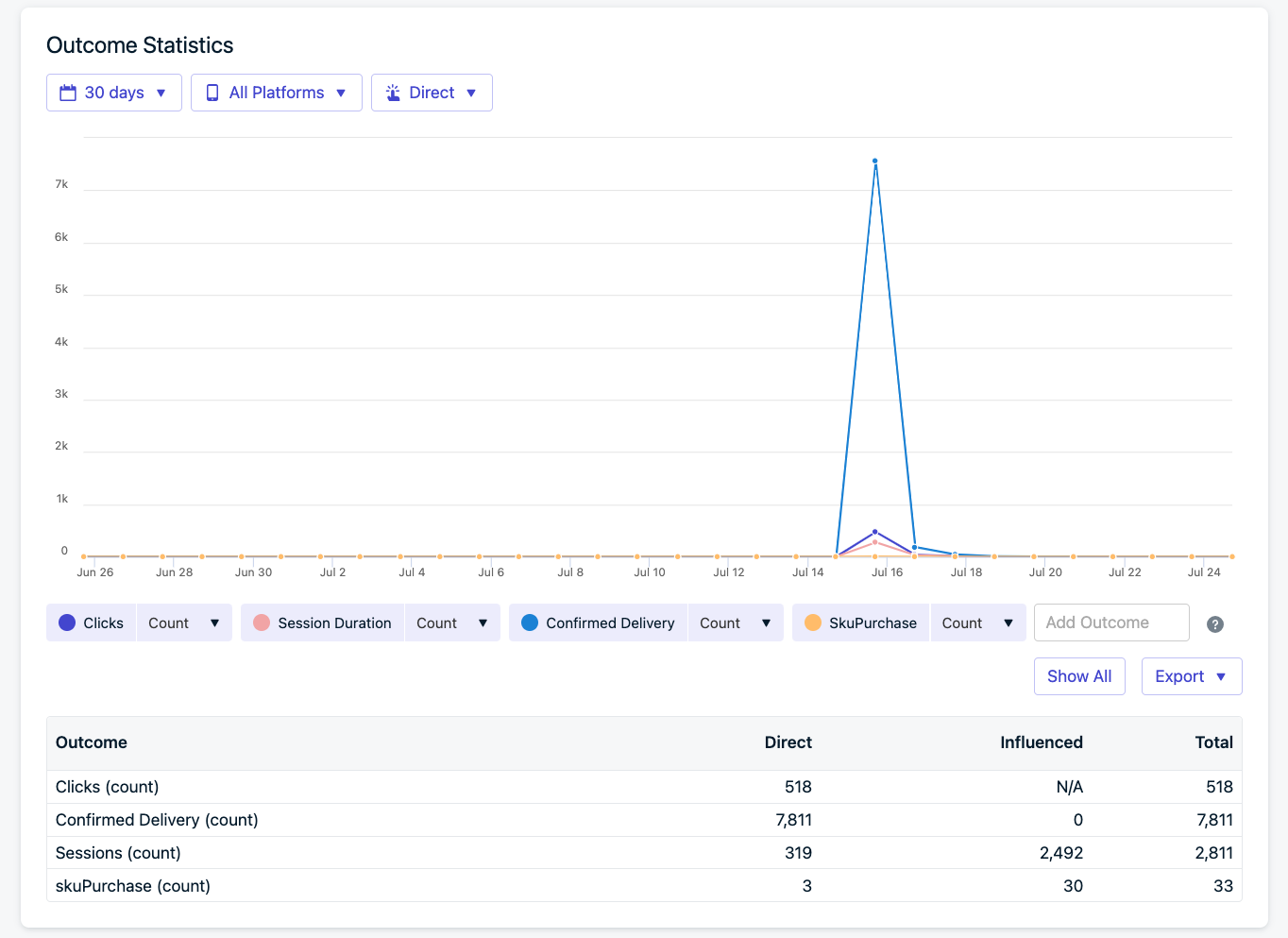
Message statistics graph showing clicks, sessions, and custom outcomes over time.
Audience activity
The Audience activity report shows how each Subscription interacted with a specific message. Results are grouped into categories so you can diagnose delivery issues, measure engagement, identify unsubscribes tied to a specific message, and segment audiences for retargeting or export.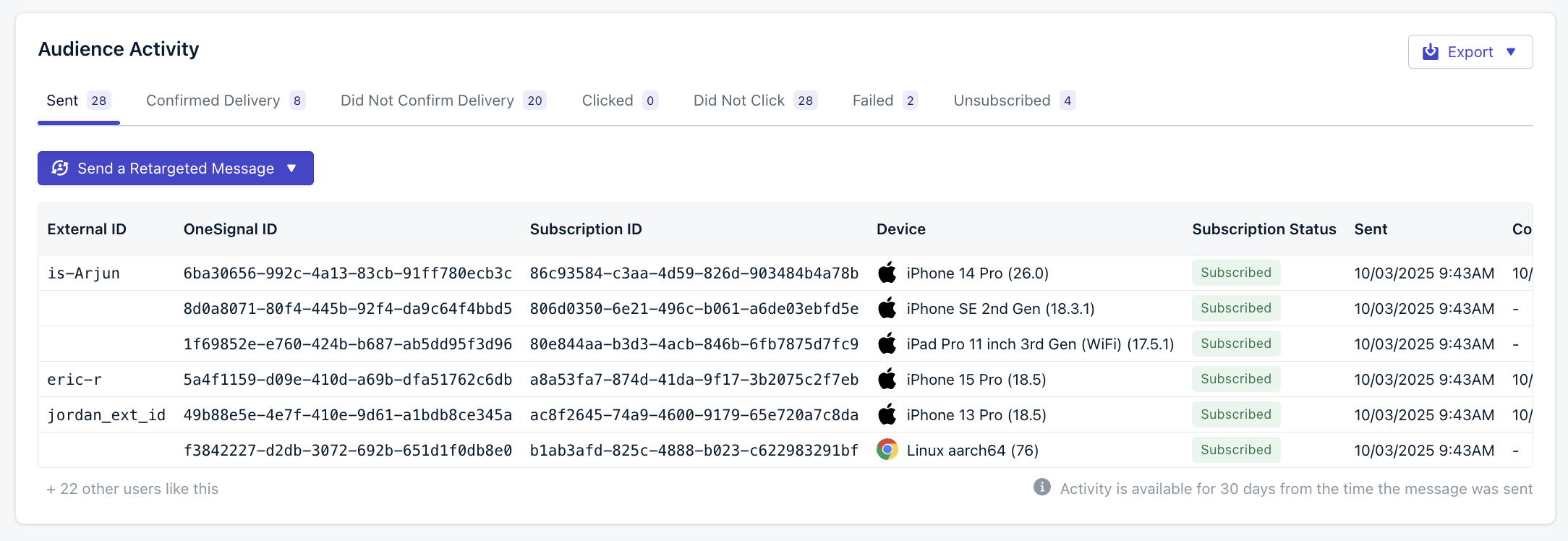
Audience activity tabs and table
- Categories
- Table columns
Each tab displays the number of recipients in that category and lets you drill into the individual Subscription records.
Retargeting audiences
From the Audience activity view, you can send a Retargeted Message directly to any category (for example, all users who did not click). This makes it easy to follow up with users who didn’t engage, re-engage those who churned, or reinforce success with users who confirmed receipt.Exporting results
You can download audience data with the Export menu:- Selected activity: exports only the currently viewed tab (for example, all users who failed delivery).
- All activities: exports the full report across every category.
Exporting data
Export message and user data to CSV for offline analysis.
Message settings
The message settings panel displays the configuration used for the send.- Audience: Details of the audience including:
- Total number of recipients: How many Subscriptions were sent the message
- How the message was sent: Targeting filters or segments used
- Schedule: When the message started sending and per-user delivery options selected, if any.
- Throttling: Any throttling, frequency caps, or channel overrides
- Message: The message content.
- Platforms targeted (Android, iOS, specific browsers)
- Advanced Settings: Like Priority, Time to live, and Collapse ID.
- Additional Data: Any custom data added to the message.
FAQ
When do push Subscription statuses update?
Push Subscription statuses update through two mechanisms: 1. When the user opens your app or site The OneSignal SDK checks whether the push token is valid and whether notification permissions are still granted, then updates the Subscription status immediately. For example, if a user disables push notifications in their device settings and then reopens your app, the SDK detects the change and marks the Subscription as Unsubscribed right away. You can capture these changes with the SDK’s Subscription Observer (mobile | web) to sync status to your own database. 2. When you send push notifications If a user uninstalls your app, clears browser data, or disables push and never returns, OneSignal cannot detect the change until you send a notification. The push service (FCM, APNs, HMS) reports the token as invalid, and OneSignal marks the Subscription as Unsubscribed. This detection typically takes 2 or more messages because the push service does not immediately reject an invalid token:
Use Event Streams to detect unsubscribes in real time when sending messages.
Because detection lags, an unsubscribe is attributed to the send that happened to trigger token rejection, not the send that caused the user to leave. You cannot infer the cause of an unsubscribe from the timing or content of the message it appears on.
Why does a push show a high unsubscribe count?
A high Unsubscribed count on a specific send almost never means that message drove users to opt out. Push Unsubscribed is a reachability metric: it counts Subscriptions the push service reported as unreachable (uninstalled, cleared browser data, or opted out and never returned) at the moment of this send. The actual opt-out or uninstall usually happened earlier. This send is just when the token was finally rejected. Common reasons a single send shows an elevated count:- Accumulated churn since your last send. Unsubscribes build up silently between sends and surface all at once on the next one. A large count often means a big send after a quiet period, not that the send was too frequent or poorly timed.
- Detection lag. The push service does not reject an invalid token immediately. It typically takes 2 or more sends (see When do push Subscription statuses update?). The unsubscribe lands on whichever send triggers the rejection.
- Apple’s 14+ day delay. iOS unsubscribes can surface weeks after the user actually left.
What is the unsubscribe rate?
Where Unsubscribed is shown as a rate, it expresses the share of the send that was found unreachable at send time. As with the count, it is not an opt-out response rate for the message. It rises and falls with accumulated churn between sends, not with the message’s timing or content.Why don’t my Delivered numbers match Confirmed Receipt?
Delivered reflects what the push service (FCM, APNs) reported: it accepted the message for delivery. Confirmed Receipt requires the OneSignal SDK on the device to report back, which only happens if the device is online and the app processes the notification. Devices that are offline, have the app force-closed, or lack the SDK will show as Delivered but not Confirmed.How long is audience activity data available?
Audience activity data is retained for 30 days from the time the message is sent. Export your results before this window closes if you need to keep them longer.Related pages
Confirmed receipt
How device-level delivery confirmation works and what affects confirmation rates.
Metrics Glossary
Definitions for all delivery, engagement, and conversion metrics across channels.
Template Analytics
Track push notification performance across sends using templates.
Push throttling
Control delivery rate to manage server load during high-volume sends.